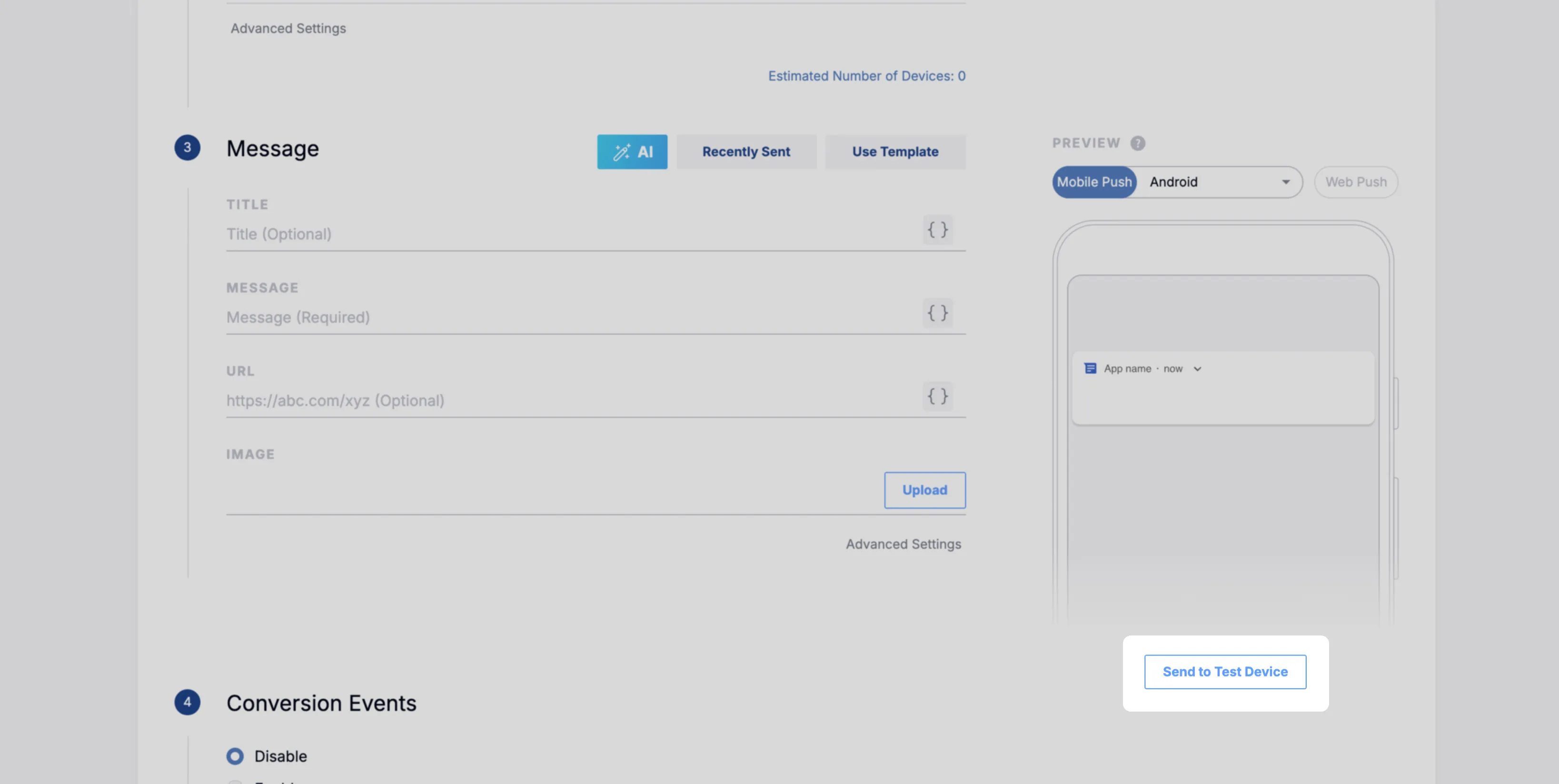
Test send
Finding your device ID
Section titled “Finding your device ID”App push
Section titled “App push”You can check the device ID (deviceId) when you build and launch the app on a developer machine.
Web push
Section titled “Web push”PC (Windows)
Section titled “PC (Windows)”On the home page you subscribed from, right-click and select [Inspect].
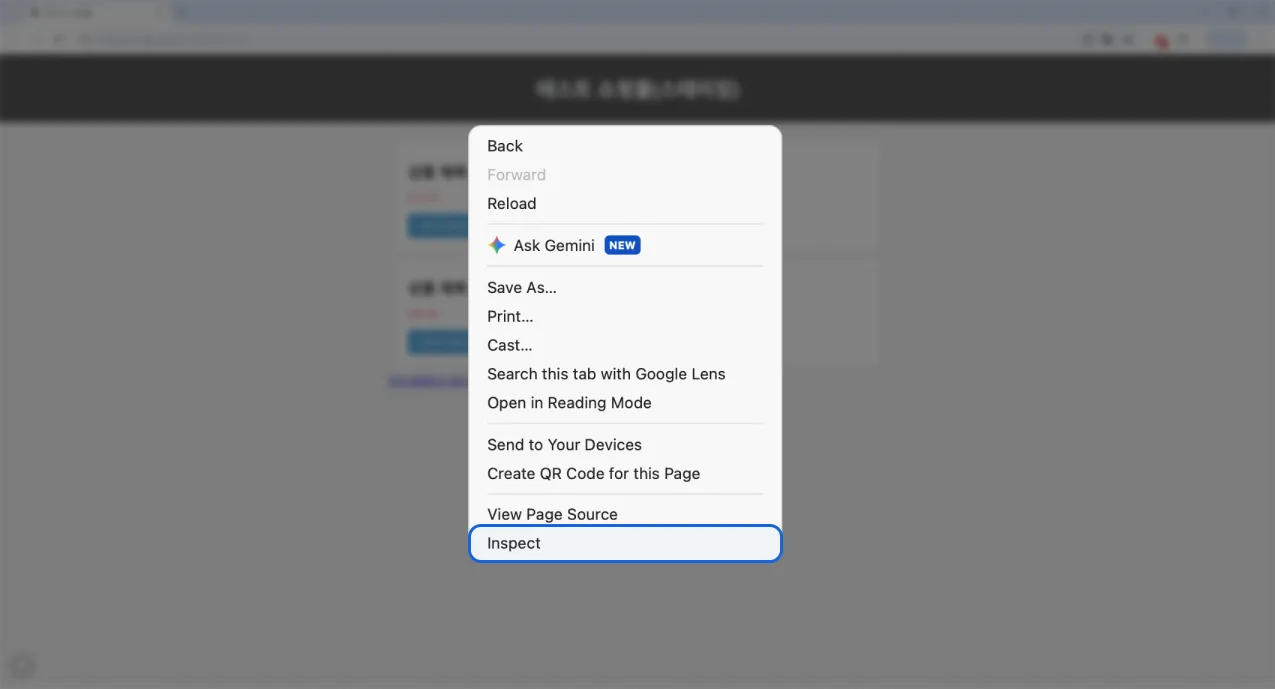
In the [Console] in the right-hand panel, run the following command. The random number that is printed is your device ID.
FlareLane.getDeviceId(id => console.log(id))
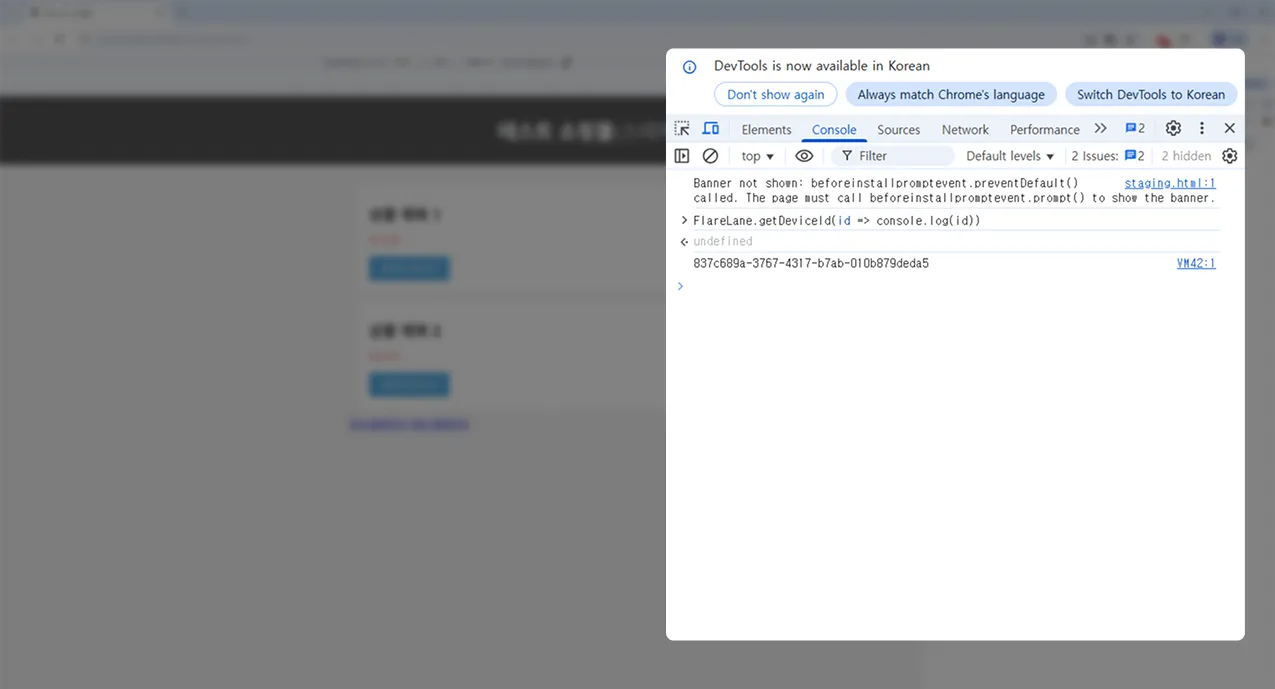
Mobile (Android)
Section titled “Mobile (Android)”Click the widget on the site, then click the "Subscribe to push notifications" button 10 times to reveal the subscribed device's ID.
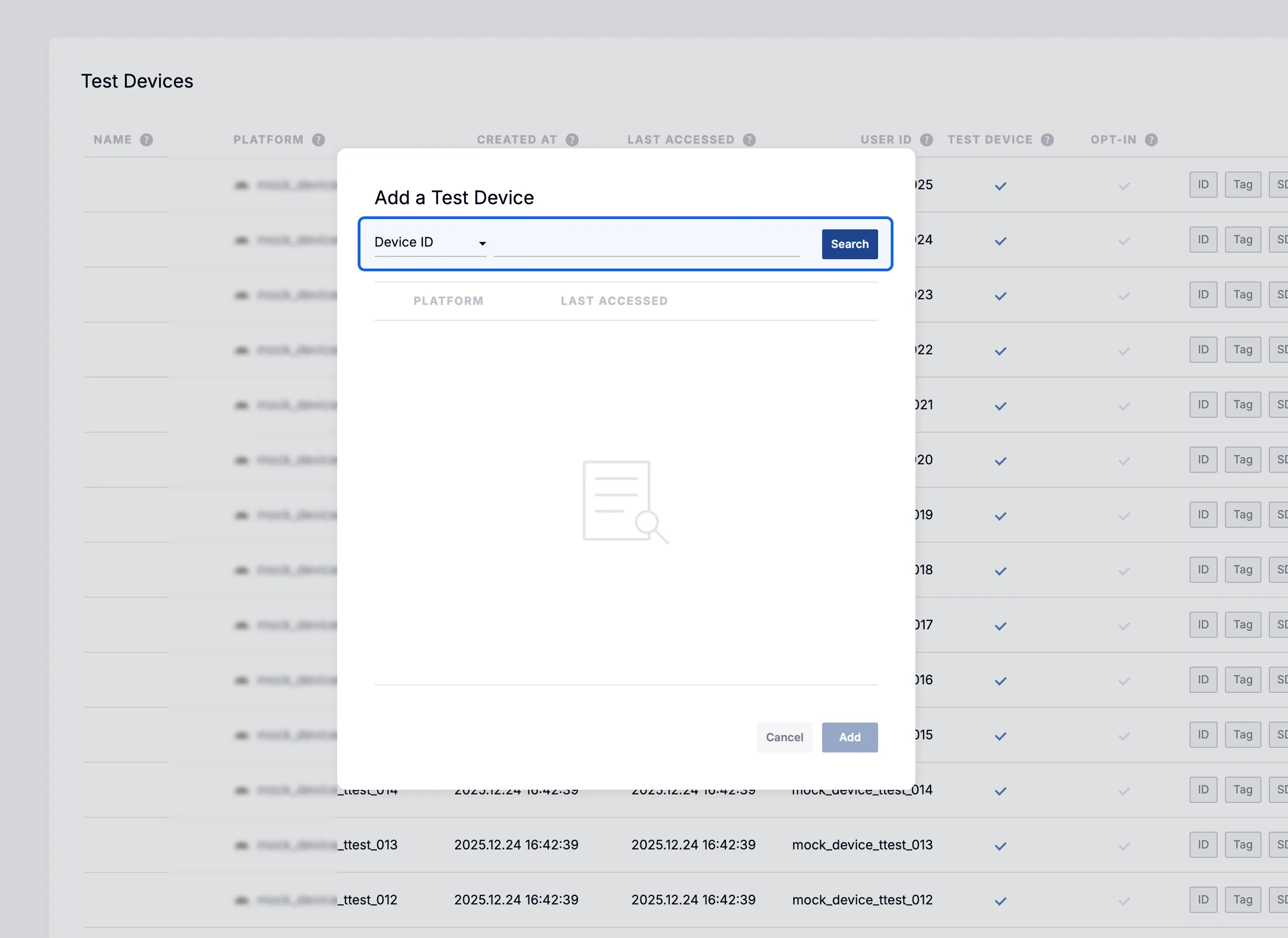
Adding a test device
Section titled “Adding a test device”Add a test device on the Test Devices page. You can add a test device in two ways.
- If a user ID is linked, you can find and add a device by its user ID
- You can add it using the device ID you found above
Sending to a test device
Section titled “Sending to a test device”On the "New Message" page, enter your message, then send it using "Send to test device" below the "Preview."