Two-Factor Authentication (2FA) Settings
Security is critical when using a CRM solution. Since an ID and password alone leave your account vulnerable, we strongly recommend also using Two-Factor Authentication (2FA). FlareLane supports 2FA, allowing you to set up more robust, secure access when signing in to the console.
Check setup status by member
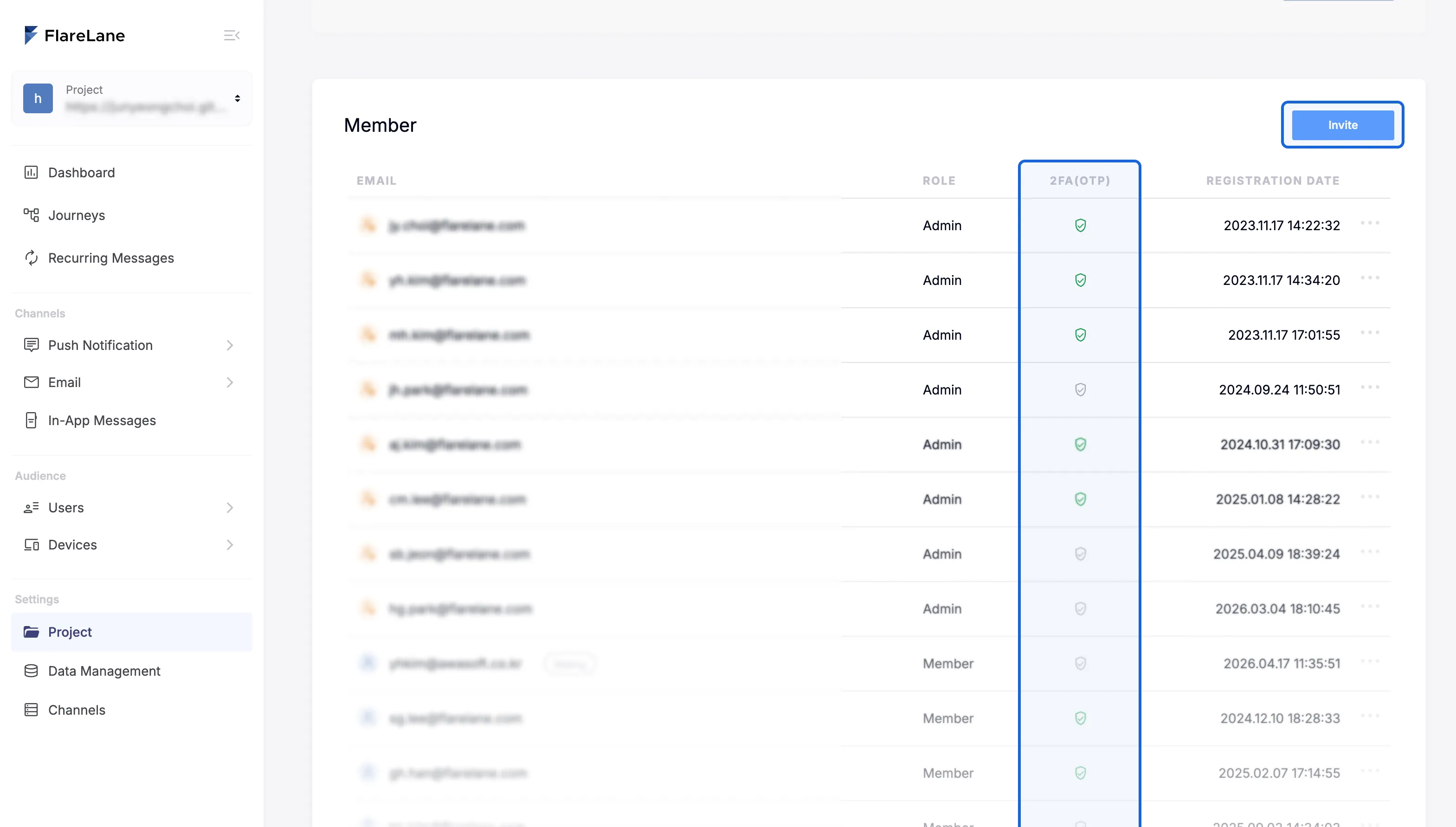
Section titled “Check setup status by member”On the project page in the console, you can check the 2FA setup status of each member. If a member hasn't set up 2FA, ask them to do so or consider removing the member.
Setting up 2FA
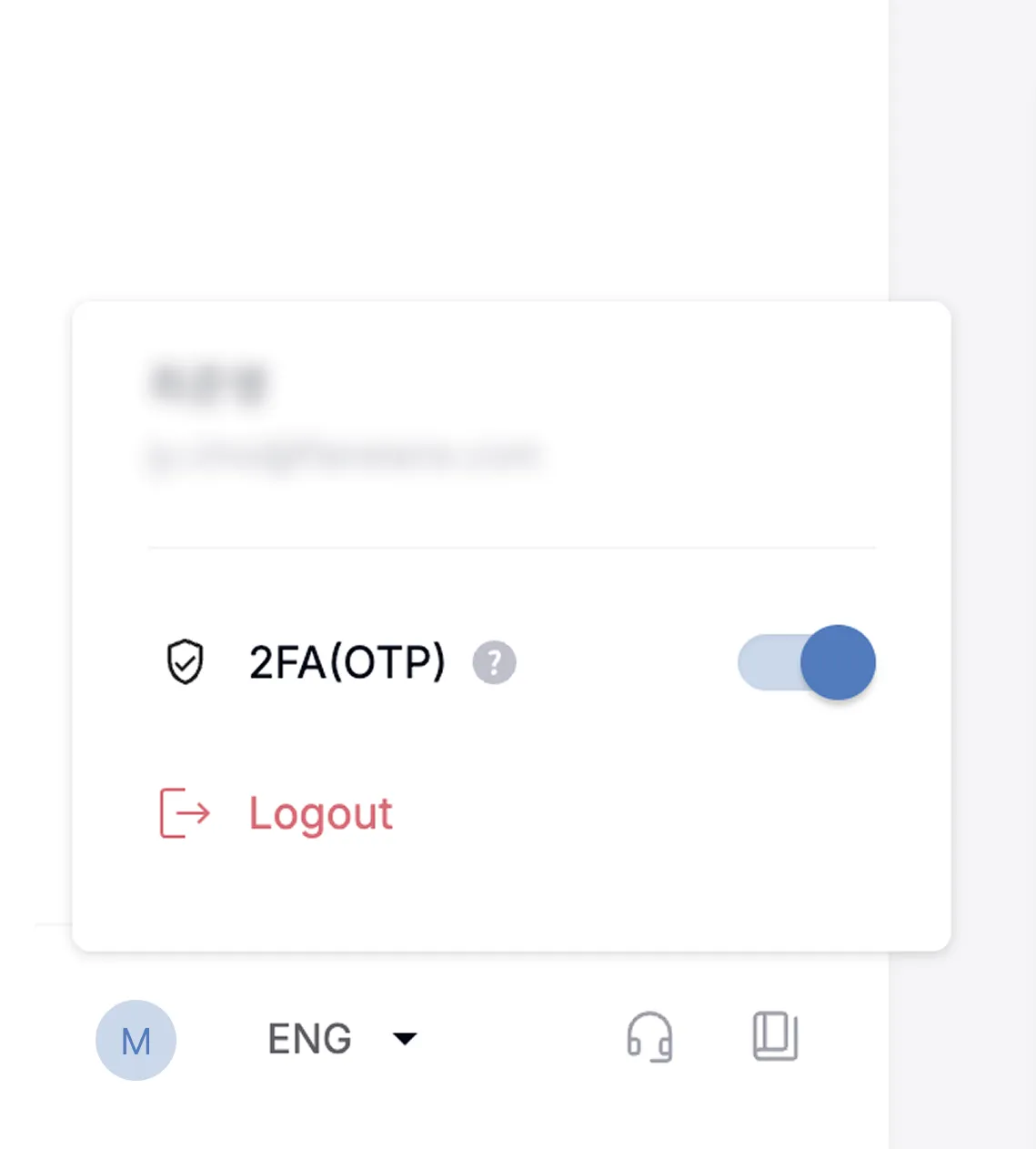
Section titled “Setting up 2FA”Each member must set up 2FA individually. After signing in, click the profile icon in the top-right corner to check your 2FA setup status. Clicking it enables 2FA and prompts you to sign in again.
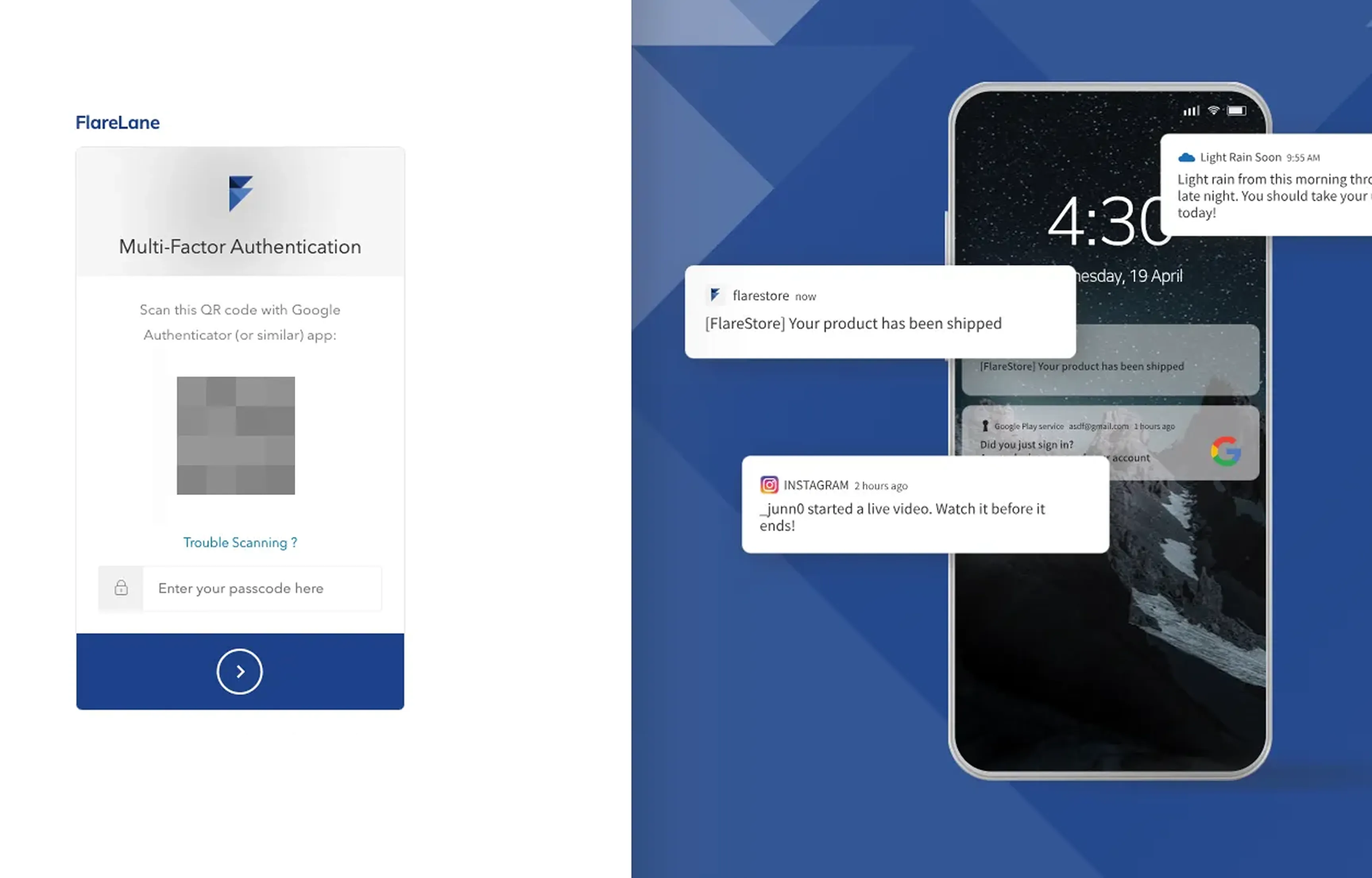
When you sign in again, you'll go through the OTP registration process. For initial setup, use the Google Authenticator (Android, iOS) app to scan the QR code and register the code. Once set up, you'll need to enter the OTP code along with your credentials each time you sign in.
Resetting 2FA
Section titled “Resetting 2FA”While 2FA is enabled, you can disable and re-register it yourself by clicking the profile button in the top-right corner of the console. If you need a forced reset of an existing 2FA setup, please contact FlareLane support.