React Native SDK
1. Prerequisites
Section titled “1. Prerequisites”- Sign up in the FlareLane Console and create a project.
2. Configure authentication credentials
Section titled “2. Configure authentication credentials”Follow the guides below to enter the authentication credentials FlareLane needs to send push notifications.
3. Install the SDK
Section titled “3. Install the SDK”In your terminal, navigate to your project's root directory and run the following command:
$ yarn add @flarelane/react-native-sdk@1.10.04. Android 13 support
Section titled “4. Android 13 support”For a smooth push notification opt-in experience, set compileSdkVersion to at least 33.
android {    compileSdkVersion 33    ...
    defaultConfig {        ...        targetSdkVersion 33    }}
5. iOS project setup
Section titled “5. iOS project setup”5-1. Configure capabilities
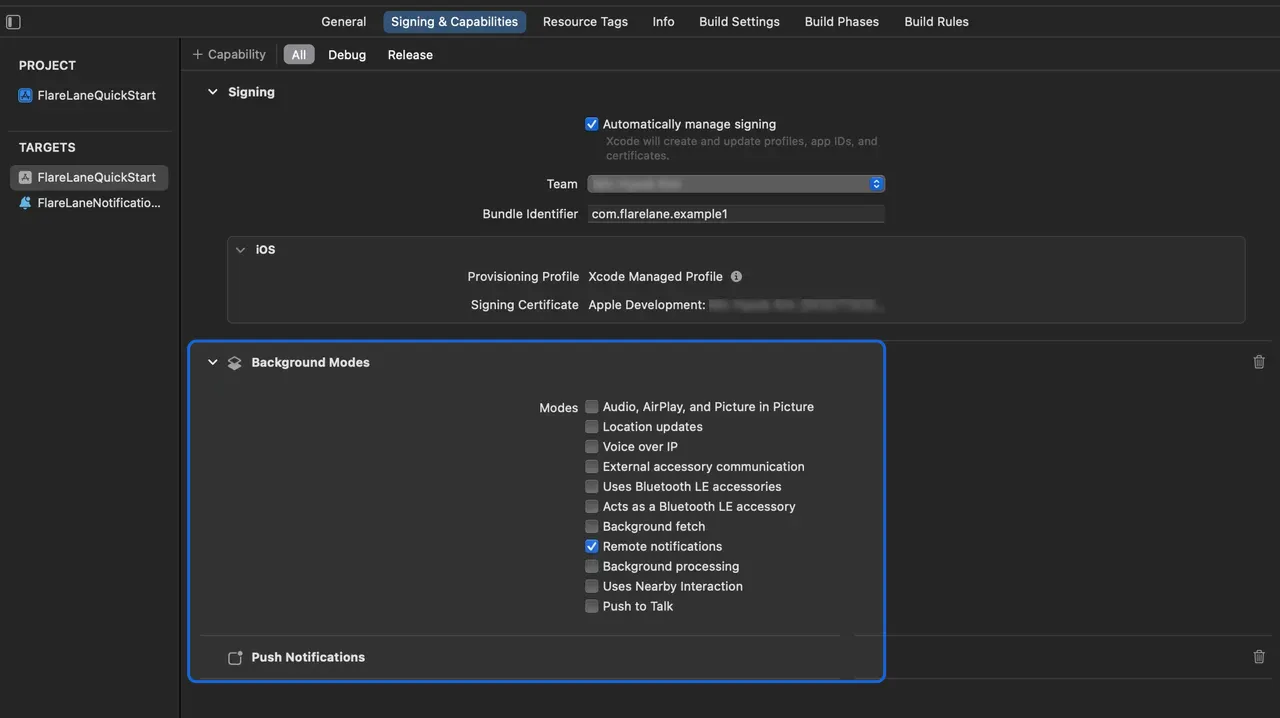
Section titled “5-1. Configure capabilities”Go to your target's Signing & Capabilities, then click + Capability in the top left and select Push Notifications to add it.
Also select Background Modes and enable Remote notifications.
5-2. Set up the Service Extension
Section titled “5-2. Set up the Service Extension”On iOS, you need to create a Notification Service Extension to attach media such as images.
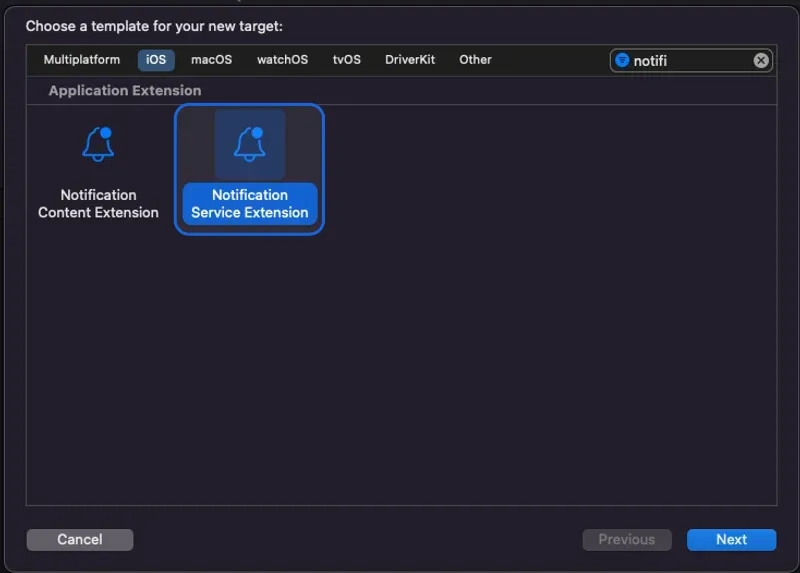
In Xcode, go to File > New > Target and select Notification Service Extension.
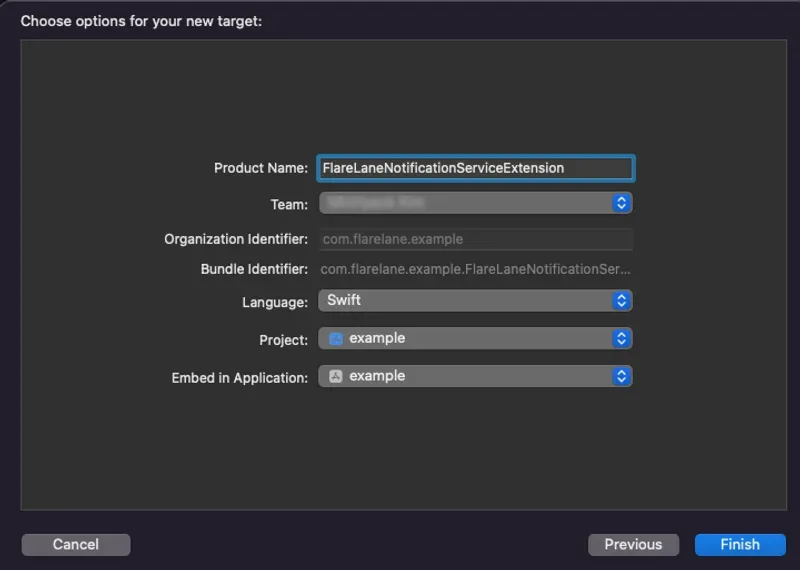
Enter an appropriate name for the Product Name. In this guide, we'll use FlareLaneNotificationServiceExtension.
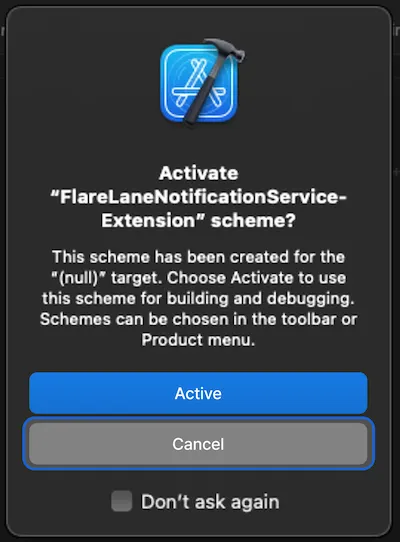
Click Cancel so that a separate scheme is not activated.
Next, set the Minimum Deployments version of the Notification Service Extension Target you just created to match the version of your main app target.
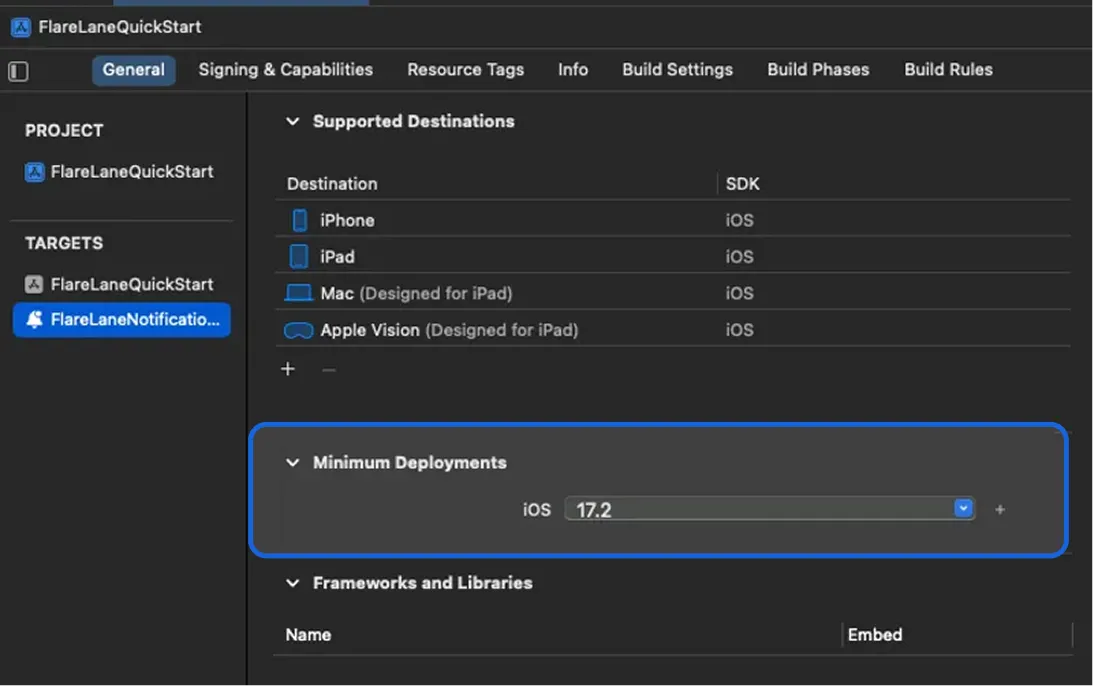
5-3. Configure an App Group
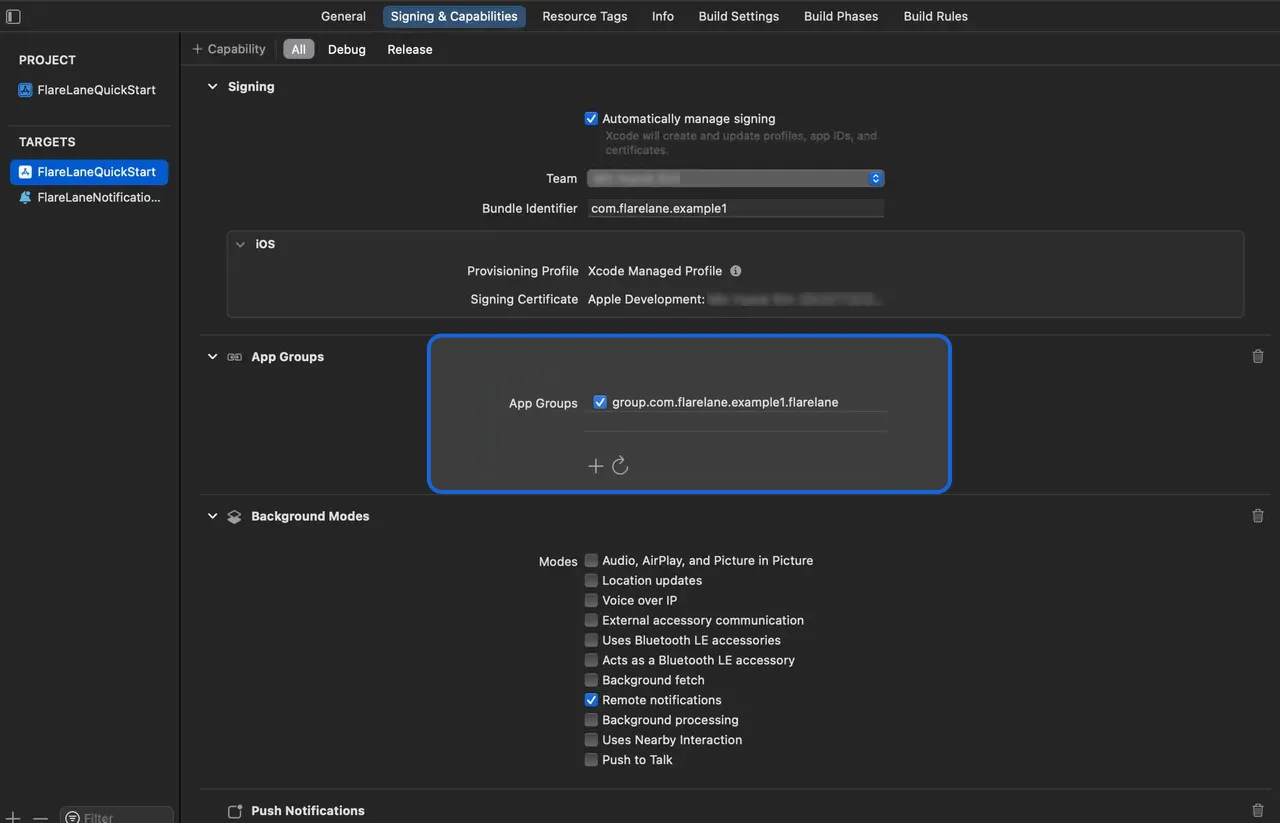
Section titled “5-3. Configure an App Group”To synchronize data between your app and the extension, you need to configure an App Group.
Go to your target's Signing & Capabilities, then click + Capability in the top left and select App Groups to add it.
Add a group named group.bundleID.flarelane, where bundleID must match your app's Bundle Identifier.
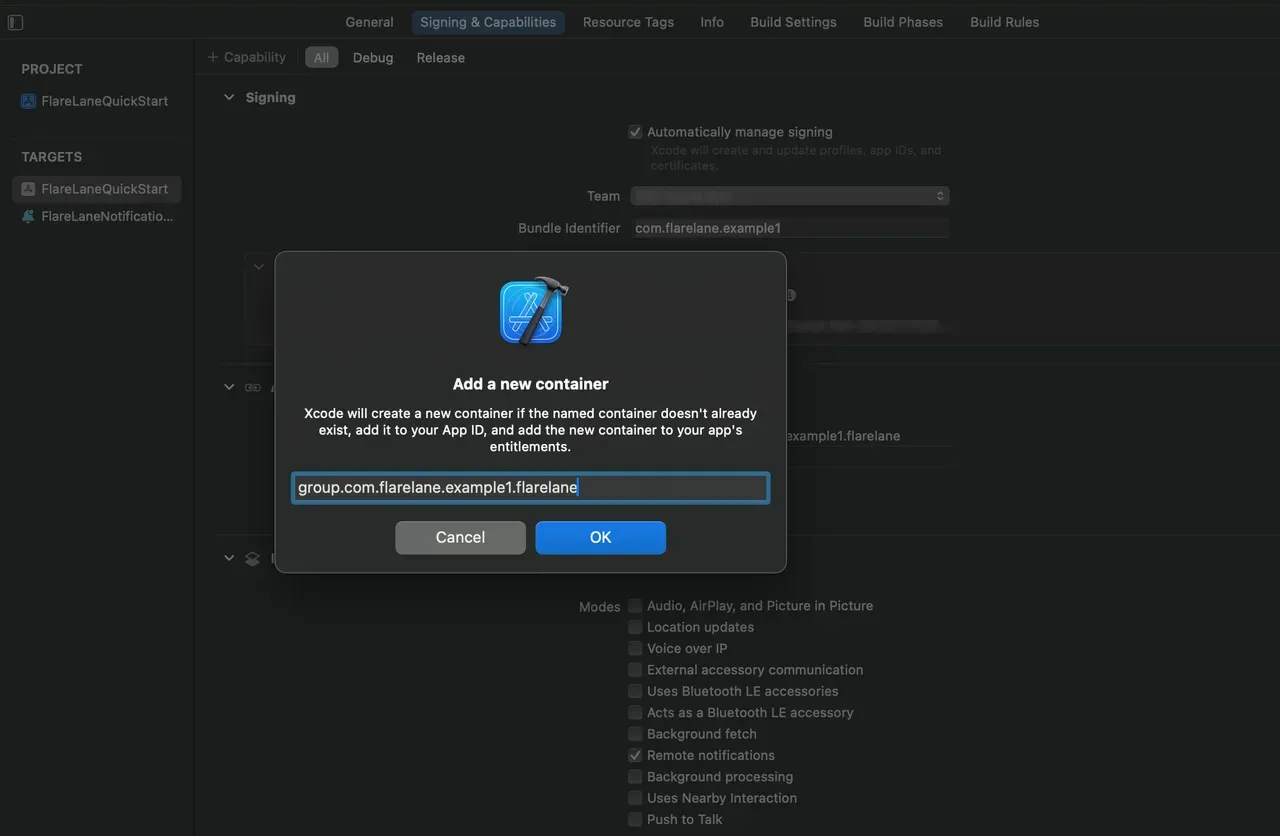
Once it has been added successfully, enable the App Group.
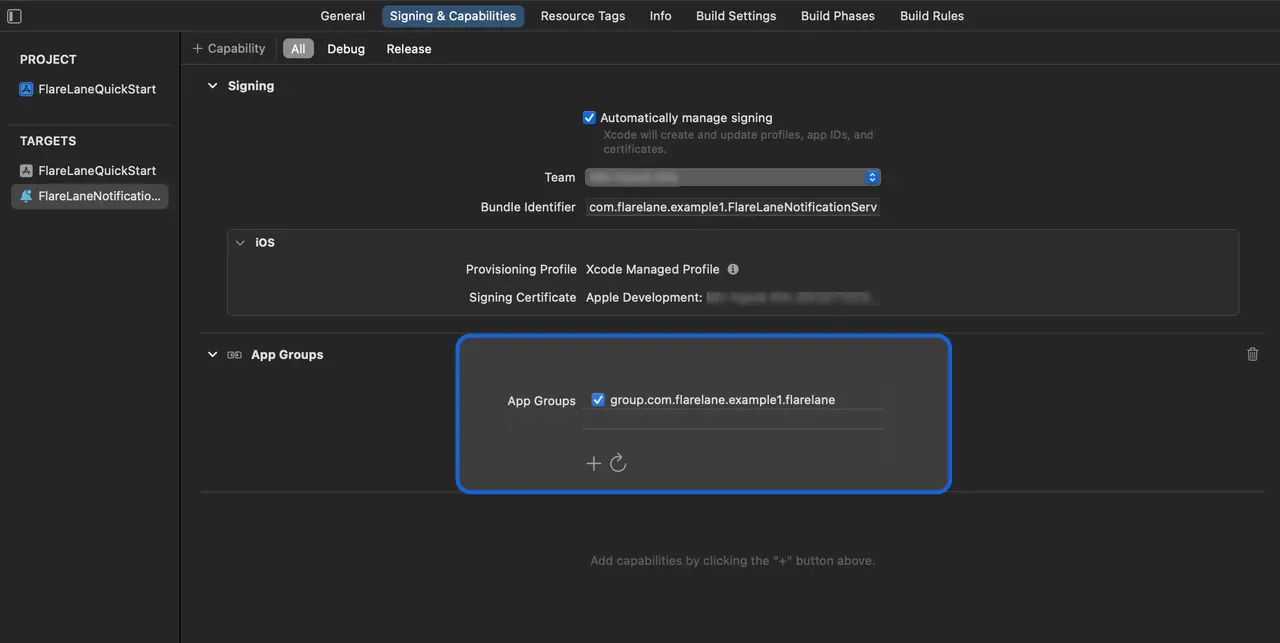
Likewise, add and enable an App Group with the same name in the extension you created earlier.
Next, close Xcode, open the Podfile in the ios directory, and add the following:
// Add the lines below at the bottom of the file.// Set the target name to the Product Name of the extension you entered earlier.target 'FlareLaneNotificationServiceExtension' do pod 'FlareLane', '1.9.3'endRun pod install to finish installing the SDK.
5-4. Add AppDelegate methods
Section titled “5-4. Add AppDelegate methods”- Add a handler method for
application(:didRegisterForRemoteNotificationsWithDeviceToken:)
import FlareLane
class AppDelegate: UIResponder, UIApplicationDelegate {  func application(_ application: UIApplication, didRegisterForRemoteNotificationsWithDeviceToken deviceToken: Data) {    // 2    FlareLaneAppDelegate.shared.application(application, didRegisterForRemoteNotificationsWithDeviceToken: deviceToken)  }}
@import FlareLane;
@implementation AppDelegate- (void)application:(UIApplication *)application didRegisterForRemoteNotificationsWithDeviceToken:(NSData *)deviceToken { // 2 [[FlareLaneAppDelegate shared] application:application didRegisterForRemoteNotificationsWithDeviceToken:deviceToken];}5-5. Add UNUserNotificationCenterDelegate methods
Section titled “5-5. Add UNUserNotificationCenterDelegate methods”- Assign UNUserNotificationCenterDelegate to AppDelegate
- Add a handler method for
userNotificationCenter(:willPresent:withCompletionHandler:) - Add a handler method
import FlareLane
@mainclass AppDelegate: UIResponder, UIApplicationDelegate {  func application(_ application: UIApplication, didFinishLaunchingWithOptions launchOptions: [UIApplication.LaunchOptionsKey: Any]?) -> Bool {    // 1    UNUserNotificationCenter.current().delegate = self  }}
extension AppDelegate: UNUserNotificationCenterDelegate { // 2 func userNotificationCenter(_ center: UNUserNotificationCenter, willPresent notification: UNNotification, withCompletionHandler completionHandler: @escaping (UNNotificationPresentationOptions) -> Void) { FlareLaneNotificationCenter.shared.userNotificationCenter(center, willPresent: notification, withCompletionHandler: completionHandler) } // 3 func userNotificationCenter(_ center: UNUserNotificationCenter, didReceive response: UNNotificationResponse, withCompletionHandler completionHandler: @escaping () -> Void) { FlareLaneNotificationCenter.shared.userNotificationCenter(center, didReceive: response, withCompletionHandler: completionHandler) }}#import <UserNotifications/UserNotifications.h>
@interface AppDelegate : UIResponder <..., UNUserNotificationCenterDelegate>@end
// AppDelegate.m@implementation AppDelegate- (BOOL)application:(UIApplication *)application didFinishLaunchingWithOptions:(NSDictionary *)launchOptions{ // 1 [[UNUserNotificationCenter currentNotificationCenter] setDelegate: self];}
// 2- (void)userNotificationCenter:(UNUserNotificationCenter *)center willPresentNotification:(UNNotification *)notification withCompletionHandler:(void (^)(UNNotificationPresentationOptions))completionHandler{ [[FlareLaneNotificationCenter shared] userNotificationCenter:center willPresentNotification:notification withCompletionHandler:completionHandler];}// 3- (void)userNotificationCenter:(UNUserNotificationCenter *)center didReceiveNotificationResponse:(UNNotificationResponse *)response withCompletionHandler:(void (^)())completionHandler{ [[FlareLaneNotificationCenter shared] userNotificationCenter:center didReceiveNotificationResponse:response withCompletionHandler:completionHandler];}@end5-6. Add UNNotificationServiceExtension methods
Section titled “5-6. Add UNNotificationServiceExtension methods”- Add a handler method for
didReceive(:withContentHandler:) - Add a handler method for
serviceExtensionTimeWillExpire()
import UserNotificationsimport FlareLane
class NotificationService: UNNotificationServiceExtension {  override func didReceive(_ request: UNNotificationRequest, withContentHandler contentHandler: @escaping (UNNotificationContent) -> Void) {    // 1    // Branch so that only FlareLane's methods run for push notifications sent by FlareLane.    if FlareLaneNotificationServiceExtensionHelper.shared.isFlareLaneNotification(request) {      FlareLaneNotificationServiceExtensionHelper.shared.didReceive(request, withContentHandler: contentHandler)    } else {      // ...    }  }
  override func serviceExtensionTimeWillExpire() {    // 2    FlareLaneNotificationServiceExtensionHelper.shared.serviceExtensionTimeWillExpire()  }}
@import FlareLane;
@implementation NotificationService
- (void)didReceiveNotificationRequest:(UNNotificationRequest *)request withContentHandler:(void (^)(UNNotificationContent * _Nonnull))contentHandler { // 1 // Branch so that only FlareLane's methods run for push notifications sent by FlareLane. if ([[FlareLaneNotificationServiceExtensionHelper shared] isFlareLaneNotification:request]) { [[FlareLaneNotificationServiceExtensionHelper shared] didReceive:request withContentHandler:contentHandler]; } else { // ... }}
- (void)serviceExtensionTimeWillExpire { // 2 [[FlareLaneNotificationServiceExtensionHelper shared] serviceExtensionTimeWillExpire];}6. Write the initialization code
Section titled “6. Write the initialization code”Add the following initialization code in your main App (e.g., App.tsx). You can find your project ID on the [Project] page in the console.
import FlareLane from '@flarelane/react-native-sdk';
// To control when the notification permission prompt appears, set the second parameter to false and call .subscribe() at the appropriate time.FlareLane.initialize('PROJECT_ID', true);
7. Link a User ID
Section titled “7. Link a User ID”When the app is installed, the device created in FlareLane is an "anonymous device." By linking a unique User ID that you manage separately, you can match FlareLane's device to your own User ID.
Linking a User ID offers many benefits. It lets you distinguish between registered and unregistered users, and lets you send push notifications by User ID at any time, so we recommend doing this during your initial integration.
Typically, you link the User ID through the setUserId function when a user signs up or logs in successfully.
FlareLane.setUserId("USER_ID");8. Additional integration guides
Section titled “8. Additional integration guides”Common
Section titled “Common”Automatic URL handling
Section titled “Automatic URL handling”- By default, FlareLane automatically handles URLs such as https links and deep links when a push notification is clicked. If you need to implement a custom click handler, see Disabling automatic URL handling.
Displaying in-app messages (popups)
Section titled “Displaying in-app messages (popups)”- Refer to In-App Messages (Popups) and add a single line of code (displayInApp) at the point where you want the popup to appear.
Android
Section titled “Android”Set the notification color
Section titled “Set the notification color”<resources> <!-- Change the notification color --> <string name="flarelane_notification_accent_color">#BC0000</string></resources>Set up notification channels
Section titled “Set up notification channels”- Refer to Android: Set up notification channels to configure Android notification channels suited to your service.
Set up the notification icon
Section titled “Set up the notification icon”- Refer to Android: Set up the notification icon to set up your icon assets.
Additional resources
Section titled “Additional resources”| Guide |
|---|
| Mobile SDK Reference |
| React Native SDK Release Notes |