Android - FCM Credentials Setup
To send FlareLane Android Mobile Push notifications, configure FCM. You must first create a project in the Firebase console.
FCM V1 integration
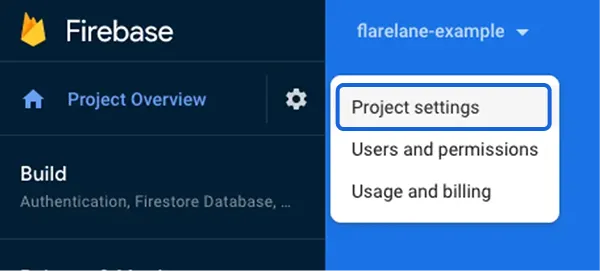
Section titled “FCM V1 integration”Click the gear button in the top left and select Project Settings.
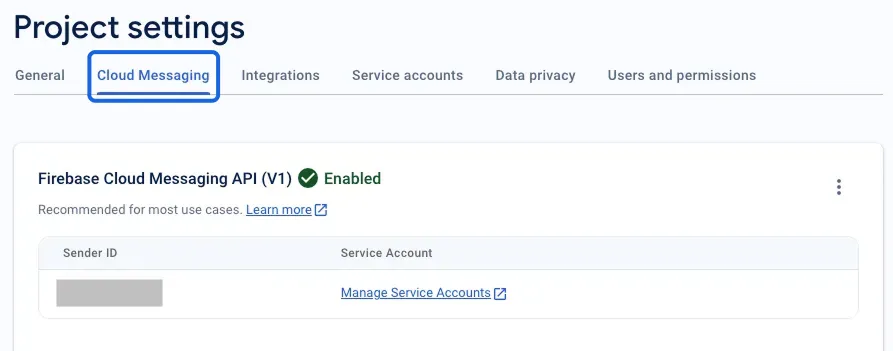
In the Cloud Messaging tab, enable Firebase Cloud Messaging API (V1) and note your Sender ID.
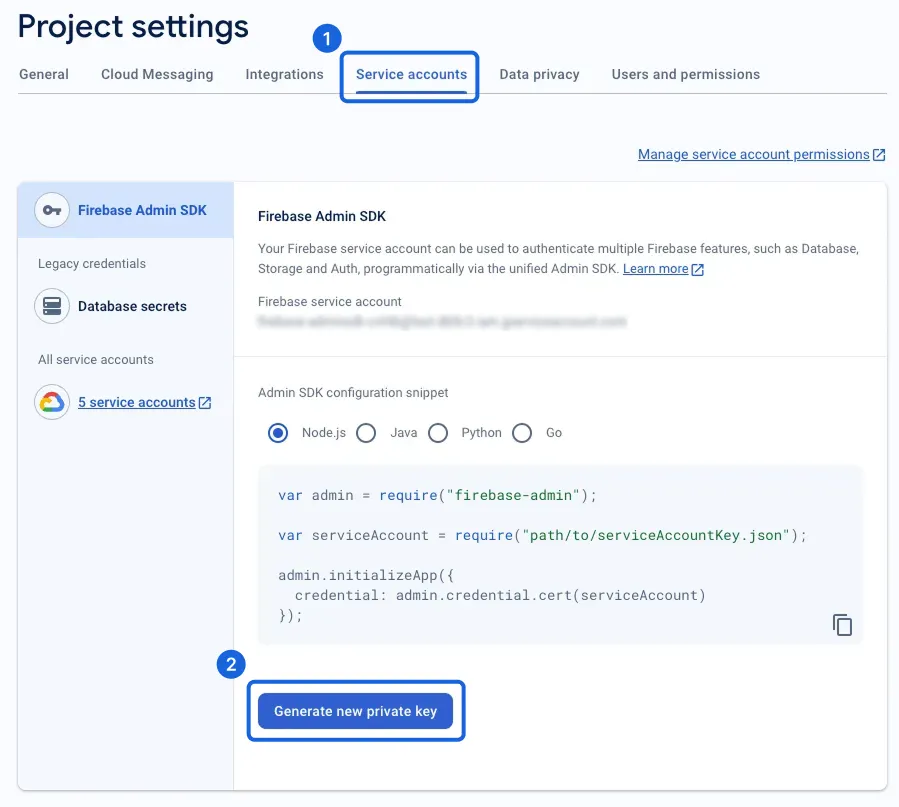
In the Service accounts tab, generate a key file.
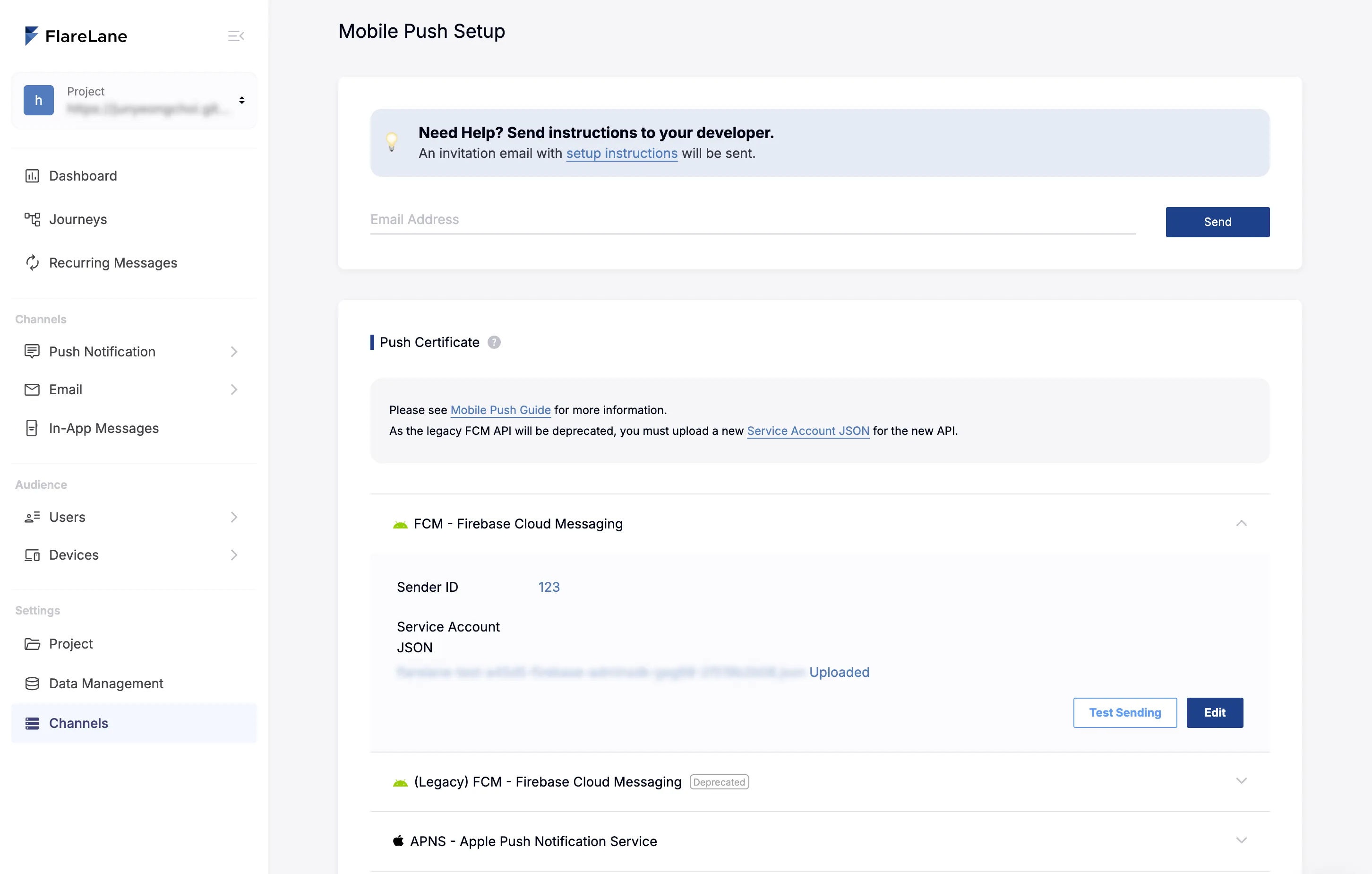
Enter the credentials you just gathered, one by one, into the FCM fields under 'Mobile Push' in your FlareLane channel settings.
If a test device is registered, you can use the test send button to verify that notifications are sent correctly via FCM v1. If the send count increments with no failures, everything is working.