iOS - APNS Credentials Setup
This guide explains how to obtain the following values required to configure APNS:
- Key (a file with the .p8 extension)
- Key ID
- Team ID
1. Preliminary Check
Section titled “1. Preliminary Check”On the Apple Developer Identifiers page, check whether your app's identifier appears in the list. If you've been developing in Xcode under the same Apple account, it may have been registered automatically.
If it's not in the list, be sure to register it first before proceeding.
2. Create a Push Notification Key (Key, Key ID)
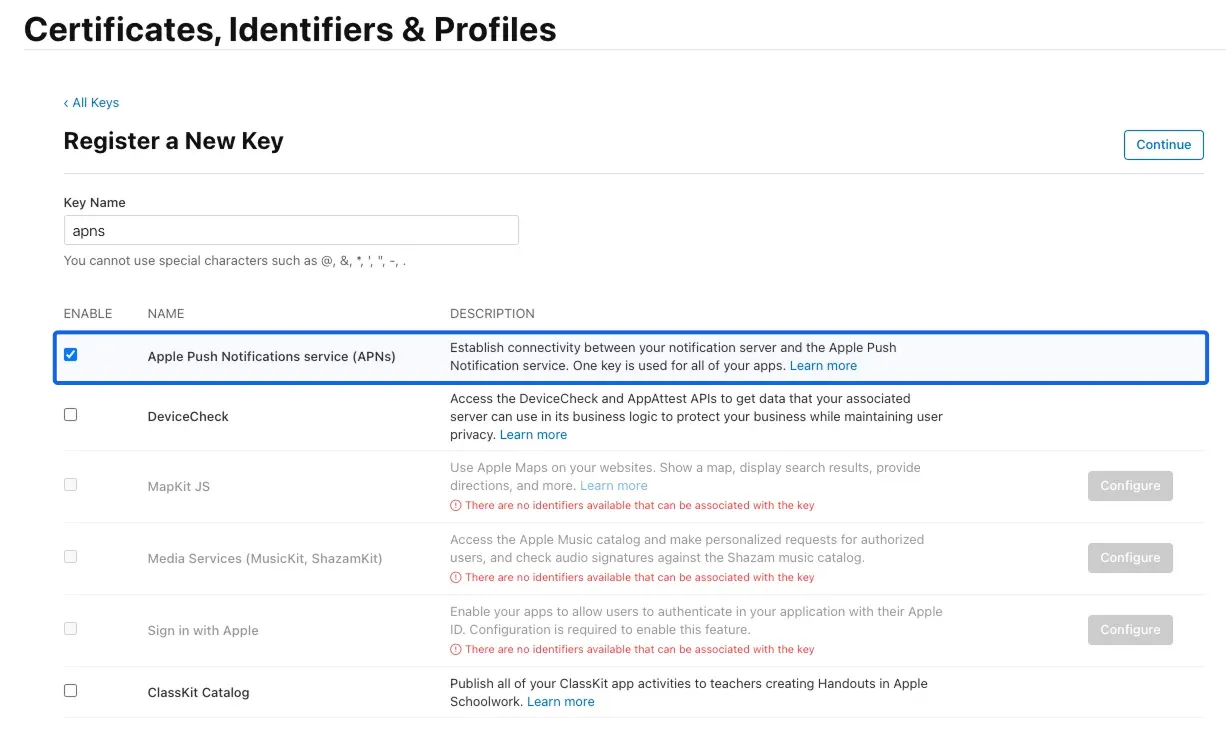
Section titled “2. Create a Push Notification Key (Key, Key ID)”- On the Apple Developer Keys page, create a key with "Apple Push Notifications service" enabled.
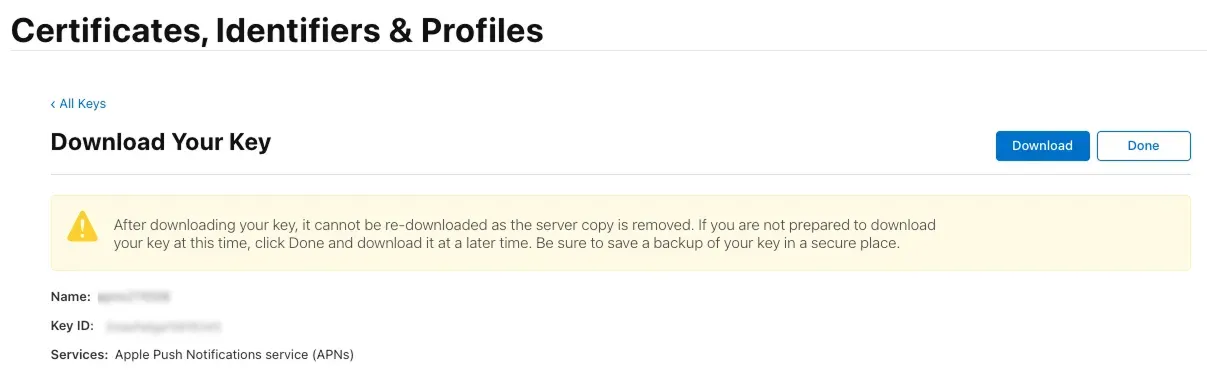
- Once the key is created, download the .p8 file and copy the Key ID.
3. Find Your Team ID
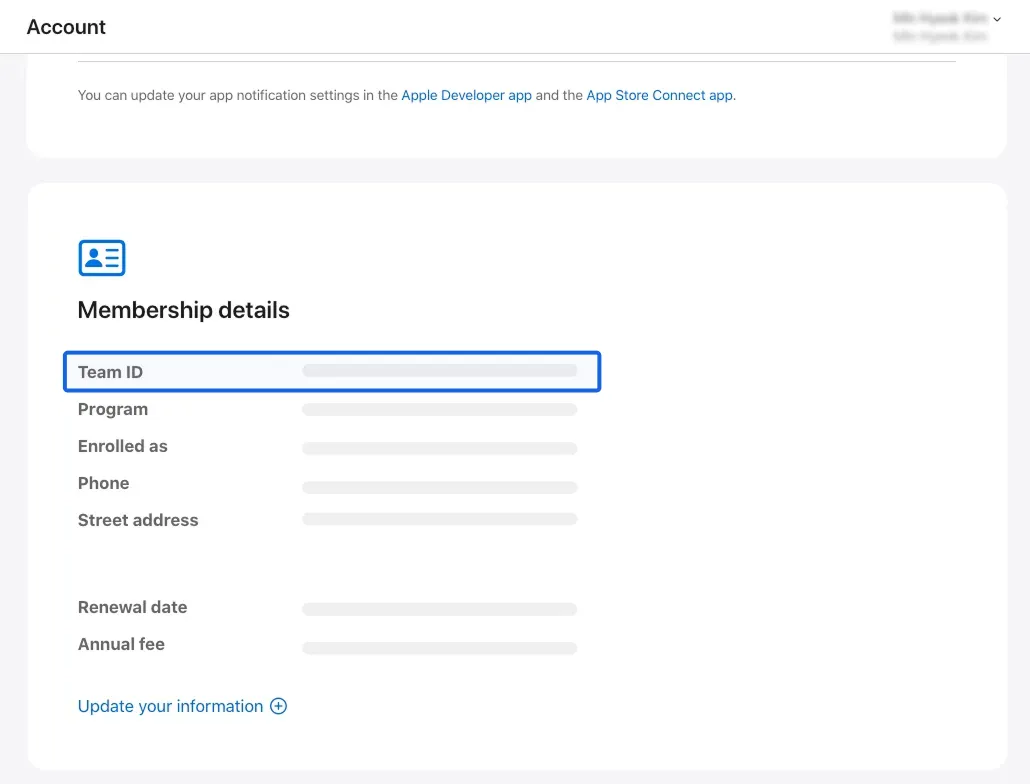
Section titled “3. Find Your Team ID”You can find your Team ID on the Apple Developer Membership page.
4. Connect to FlareLane
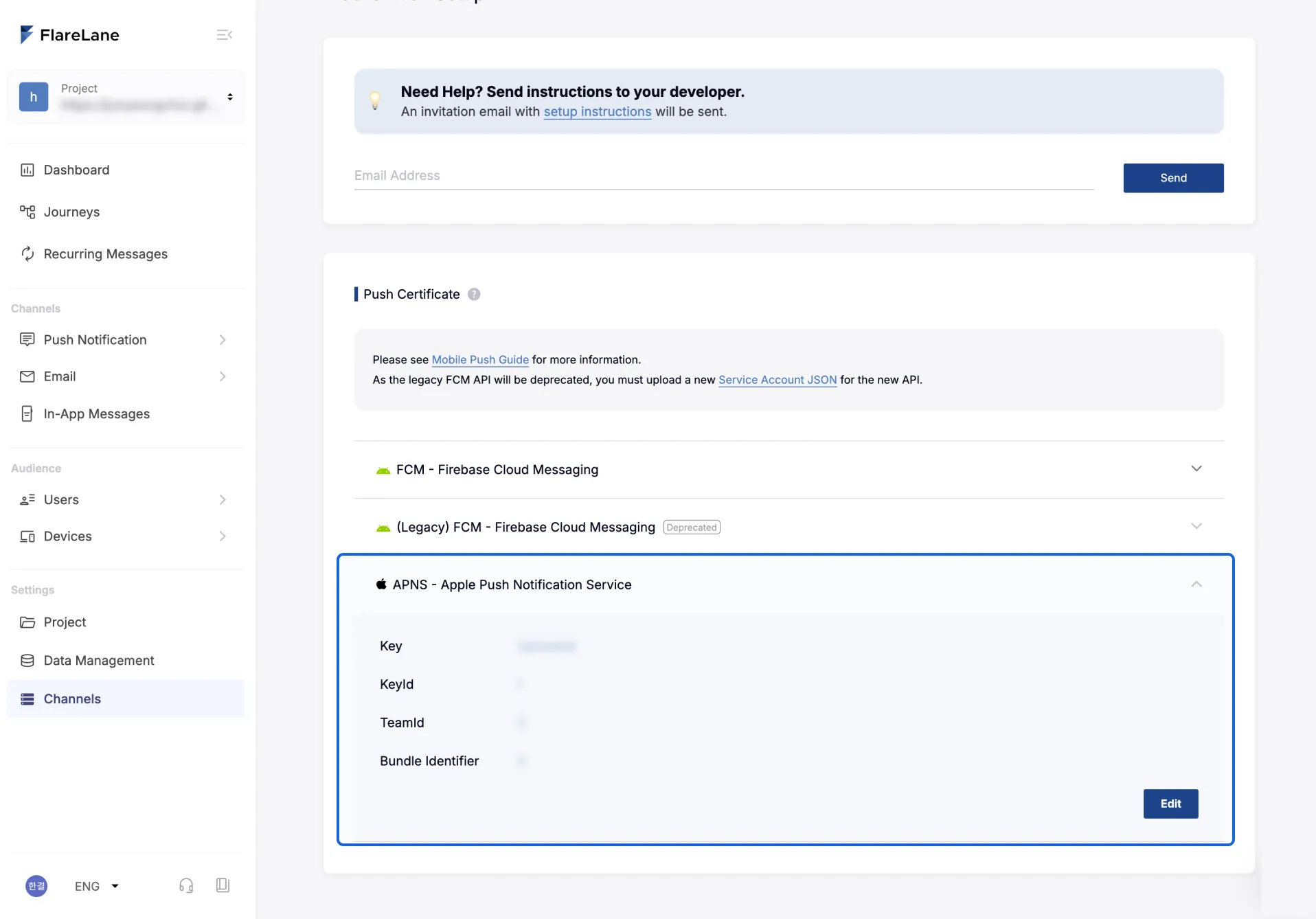
Section titled “4. Connect to FlareLane”Enter the credentials obtained in step 2 into the APNS fields under 'Mobile Push' in your FlareLane channel settings, one by one.