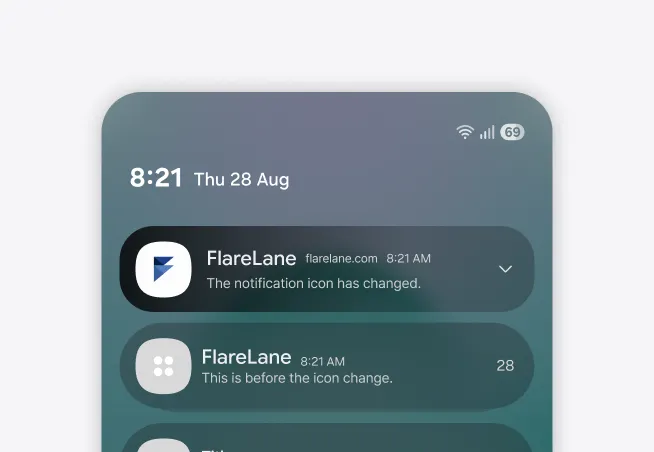
Android - Notification Icon Setup
If you operate an Android app, you can change the notification icon. No extra code is required to change the icon. As long as you name the resource according to the convention when creating the icon, the FlareLane SDK automatically recognizes the notification icon.
In this guide, we'll create the icon using Android Studio.
1. Open the project in Android Studio
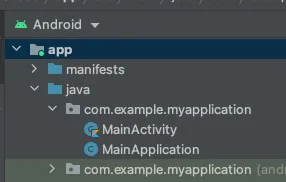
Section titled “1. Open the project in Android Studio”Once you open a valid Android project, it will be recognized as one, as shown below.
2. Open the Image Asset creation window
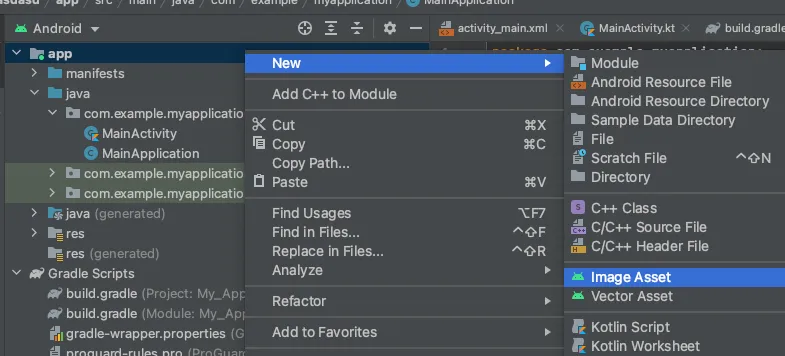
Section titled “2. Open the Image Asset creation window”Right-click the root project, then select New -> Image Asset.
3. Create the notification icon
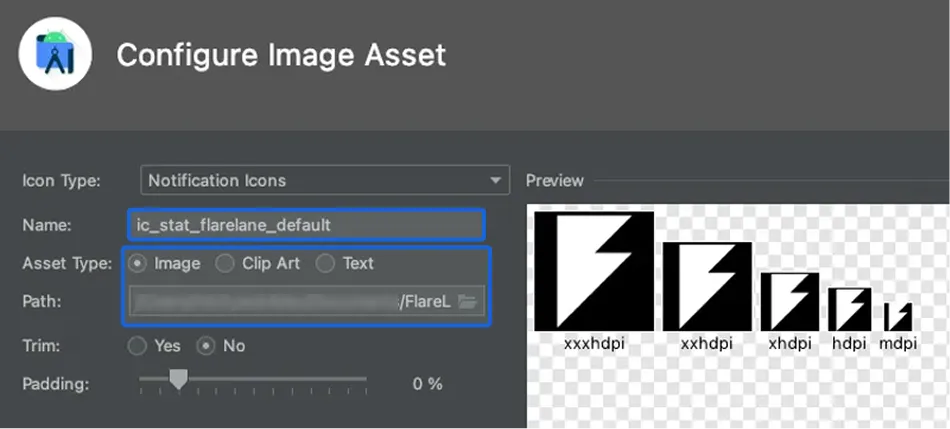
Section titled “3. Create the notification icon”a. Select 'Notification Icons' for Icon Type
b. Enter ic_stat_flarelane_default for Name (Important!)
c. Select 'Image' for Asset Type, then attach the icon image you want to use
4. Verify the changed icon
Section titled “4. Verify the changed icon”If the icon was created correctly, rebuild the app and send a push notification. You should see the icon displayed correctly with the new image.