MCP
About FlareLane MCP
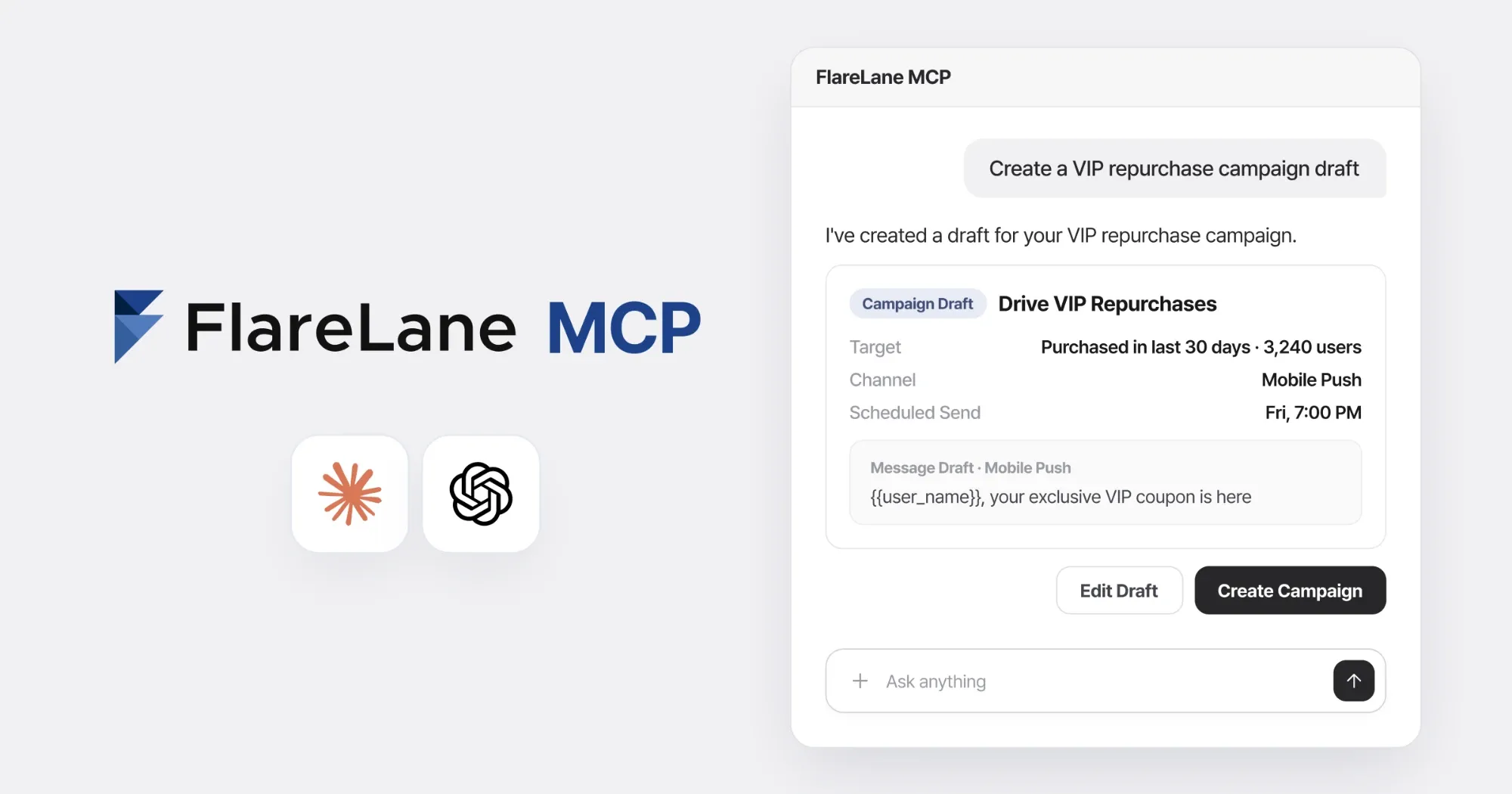
Section titled “About FlareLane MCP”FlareLane MCP helps marketers look up data quickly and use AI for a wide range of work, from creating journeys and campaigns to analysis. Try FlareLane through the AI service you already use, such as Claude or ChatGPT.
MCP use cases
Section titled “MCP use cases”- Performance lookups for sends, clicks, and conversions over a given period
- Statistical visualizations built from the performance data you look up
- Journey and campaign drafts that fit your campaign plan
- Data-driven segment recommendations and creation
- Insights and funnel statistics in analytics boards, built by combining data
- Status checks and monitoring for event and tag integrations
- Sensitive personal data such as email, phone number, name, and date of birth cannot be looked up.
- The FlareLane MCP server only logs which tools are called and does not store any information from your conversations.
- Requesting or cancelling template inspection for Kakao Alimtalk is only available in the console.
- To prevent sending mistakes, journeys and campaigns can only be created as drafts.
- Setup tasks such as creating or deleting a project, enabling channels, and changing member permissions are only available in the console.
Connecting MCP
Section titled “Connecting MCP”Connect from Claude
Section titled “Connect from Claude”The steps are the same on claude.ai and the desktop app.
Open Settings from the profile menu in the bottom-left corner.
Go to Connectors and choose Add → Add custom connector.
Enter
FlareLaneas the name and the address below as the server URL, then select Add.https://mcp.flarelane.com/mcpSelect Connect on the FlareLane connector and sign in with your FlareLane console account to finish.
Connect from ChatGPT
Section titled “Connect from ChatGPT”Open Settings from the profile menu in the bottom-left corner.
In the security settings, turn on developer mode. This is required to add custom connectors.
Open the plugins menu in the sidebar and select the + button in the top-right corner.
Select Create app → Create MCP app.
Enter
FlareLaneas the name and the address below as the server URL, choose OAuth for authentication, review the notice, then select Create.https://mcp.flarelane.com/mcpSign in with your FlareLane console account on first use to finish.
Other MCP clients
Section titled “Other MCP clients”Any tool that supports MCP, such as Claude Code or Cursor, can use FlareLane by registering the same server URL.
https://mcp.flarelane.com/mcp