Schedule a Journey
Journey scheduling lets you schedule the start and end times of a Customer Journey in advance. Instead of manually activating or pausing a journey each time, you can have it activate or end automatically at the date and time you choose.
For example, if a journey only runs during a specific promotion period, simply scheduling the promotion’s start and end dates in advance lets you run the journey without any further steps.
Schedule a Journey
Section titled “Schedule a Journey”Open the scheduling menu
Section titled “Open the scheduling menu”After saving the journey you created, click the dropdown menu to the right of the Activate button.
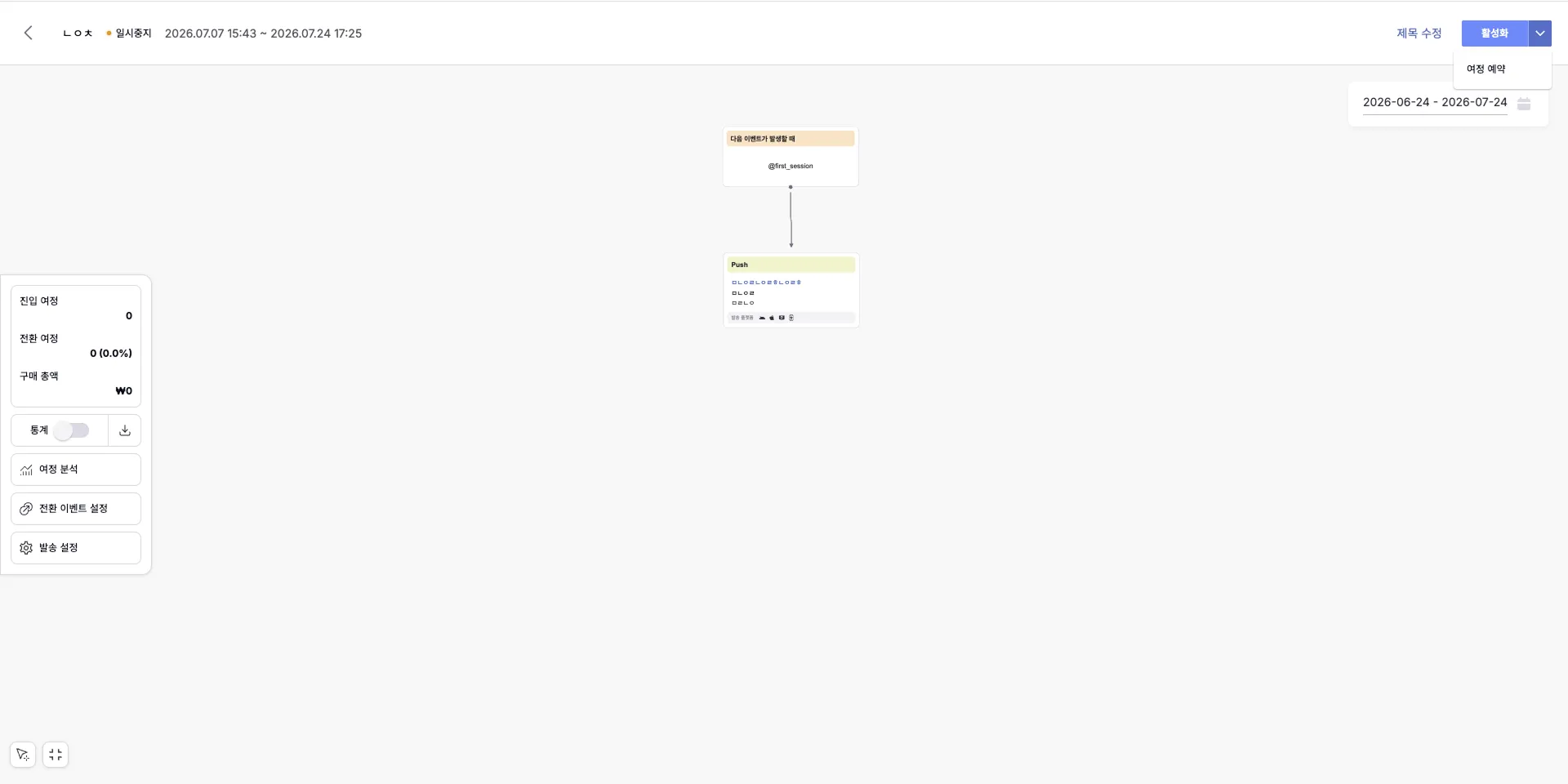
Set the schedule
Section titled “Set the schedule”Set the values below and save. You can edit a saved schedule at any time.
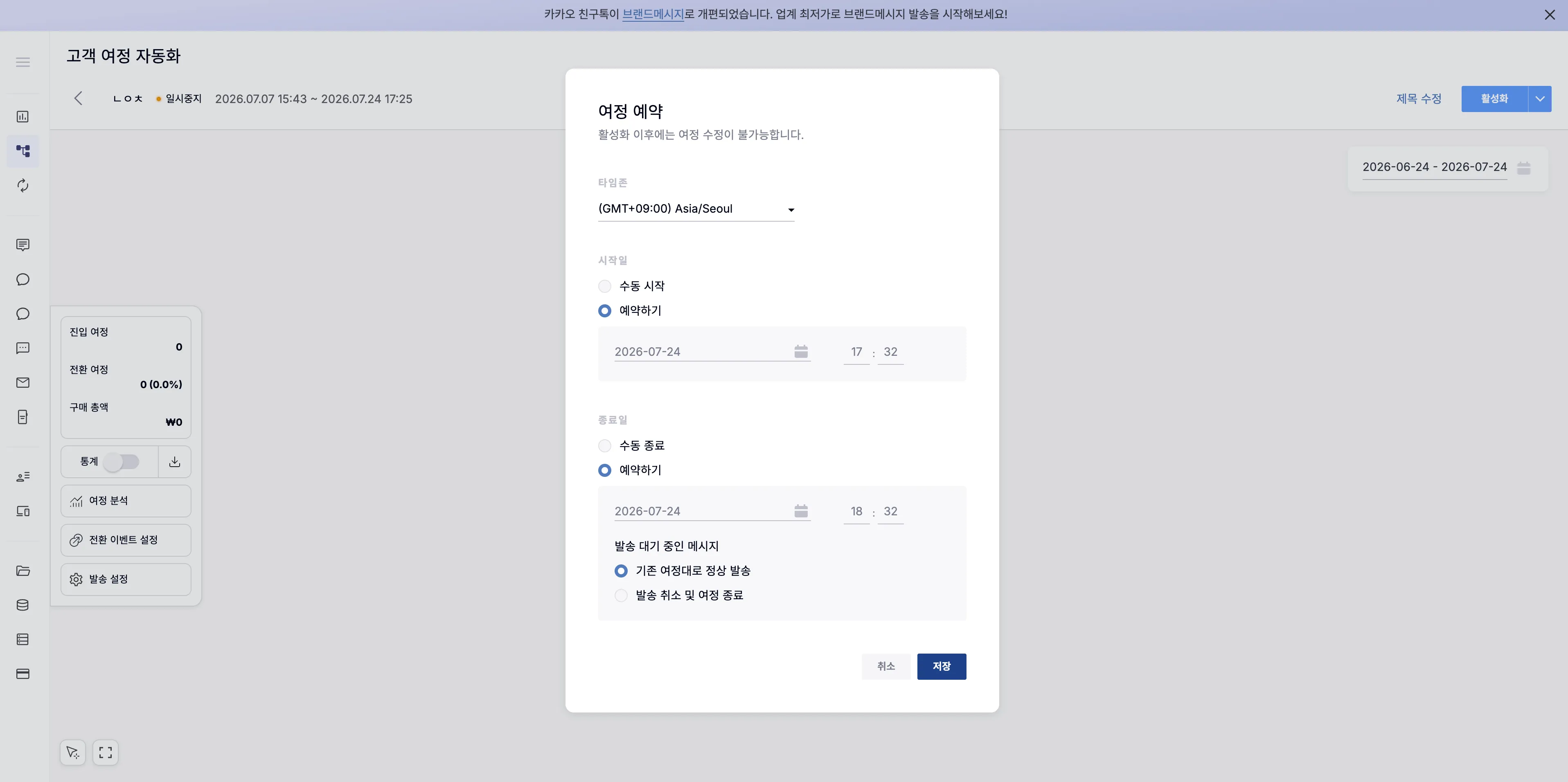
| Option | Description |
|---|---|
| Time zone | Select the time zone of the users receiving the messages. |
| Start date | Sets when the journey becomes active. Click Schedule to set the exact date and time. |
| End date | Sets when the journey stops being active. Click Schedule to set the exact date and time. |
| Pending messages | Choose whether messages still waiting to be sent are delivered when the journey ends. |