Customer Journey Components
The actual behavior within a Customer Journey automation is made up of a sequence of actions. By sending messages or branching based on specific conditions, you can design a Customer Journey in any shape you want.
Messages
Section titled “Messages”Supported channels
Section titled “Supported channels”The following channels are supported for sending messages.
Most channels are sent immediately upon entering the node, while in-app messages are queued for display and shown at the next trigger point.
| Channel | Description |
|---|---|
| App push Web push Kakao Alimtalk Kakao Brand Message SMS | Off-site channels that bring inactive users back |
| In-app message (popup) | On-site channel that instantly converts active users (display trigger setup required) |
| Webhook | External API integration channel that enables special actions like issuing coupons |
Cross-channel chaining
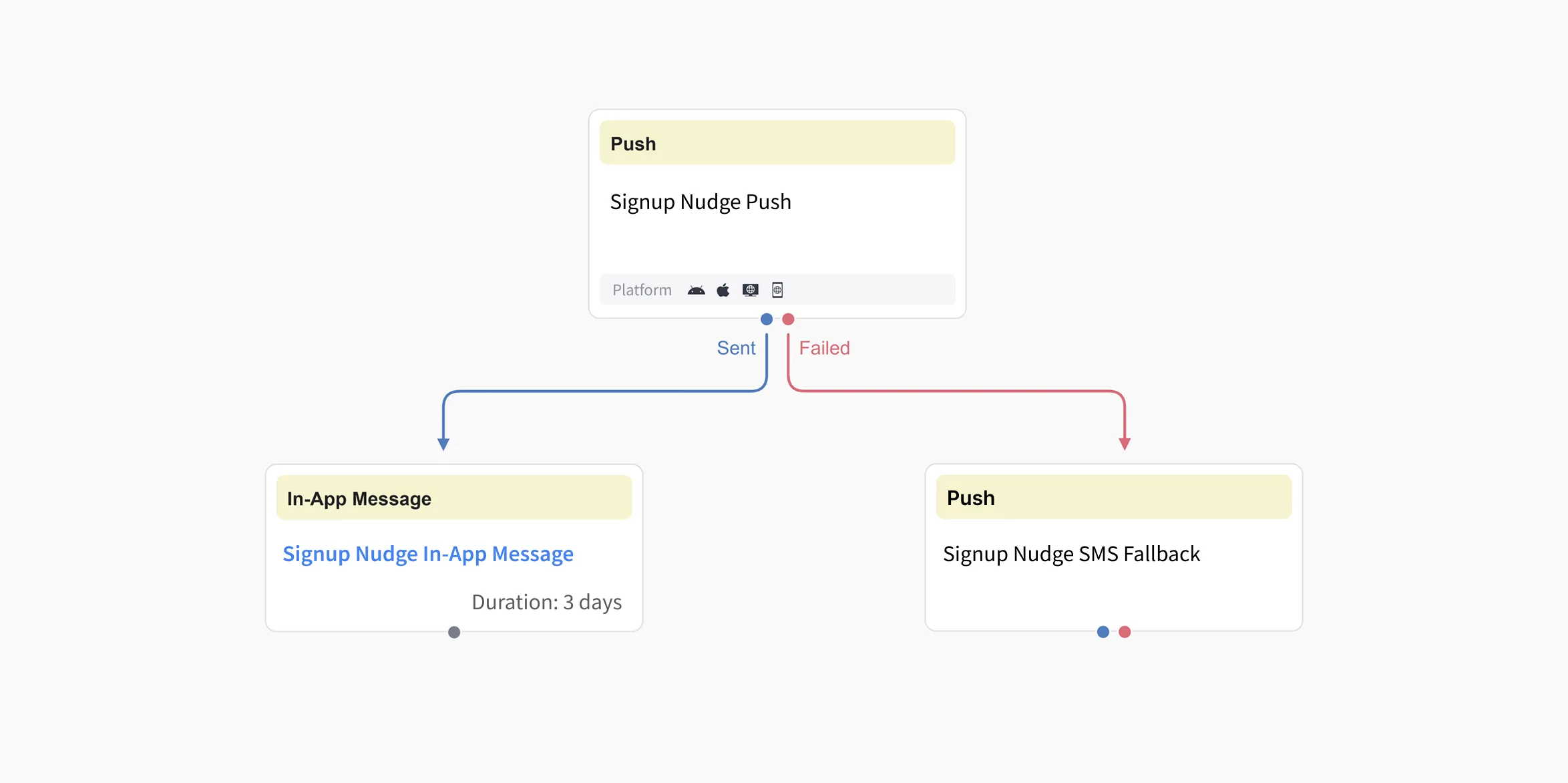
Section titled “Cross-channel chaining”You can set up additional branches based on whether a send succeeds or fails.
- Chaining a push notification and an in-app message together lets you send a push to the user and then also show an in-app message popup when they open the app, delivering a unified on-site and off-site experience.
- Chaining another channel when a push notification fails (due to reasons such as app deletion) lets you implement fallback delivery.
Analytics
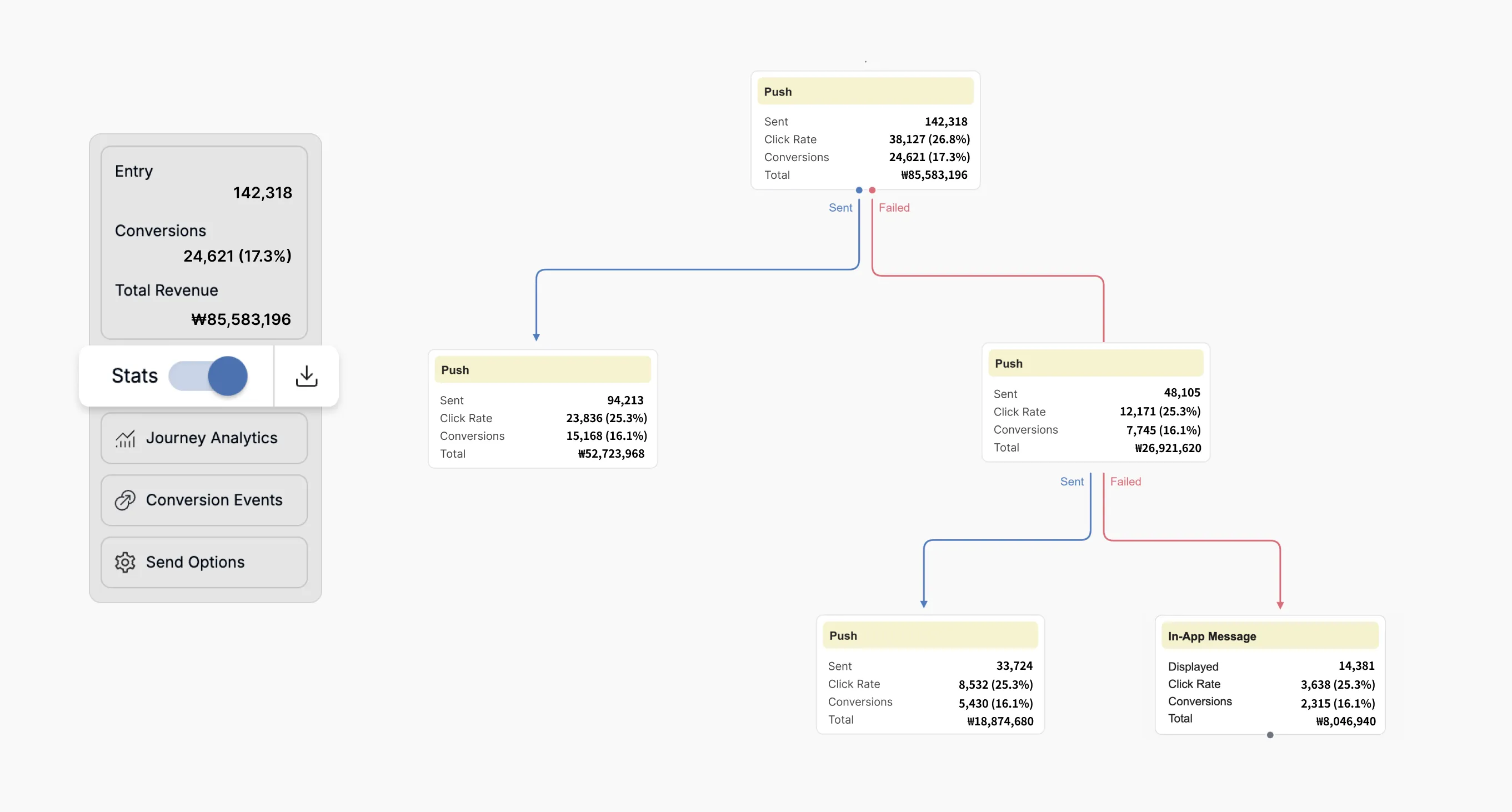
Section titled “Analytics”When you switch to statistics mode within a journey automation, you can view the statistics for each node.
The following flows let you control how the Customer Journey progresses.
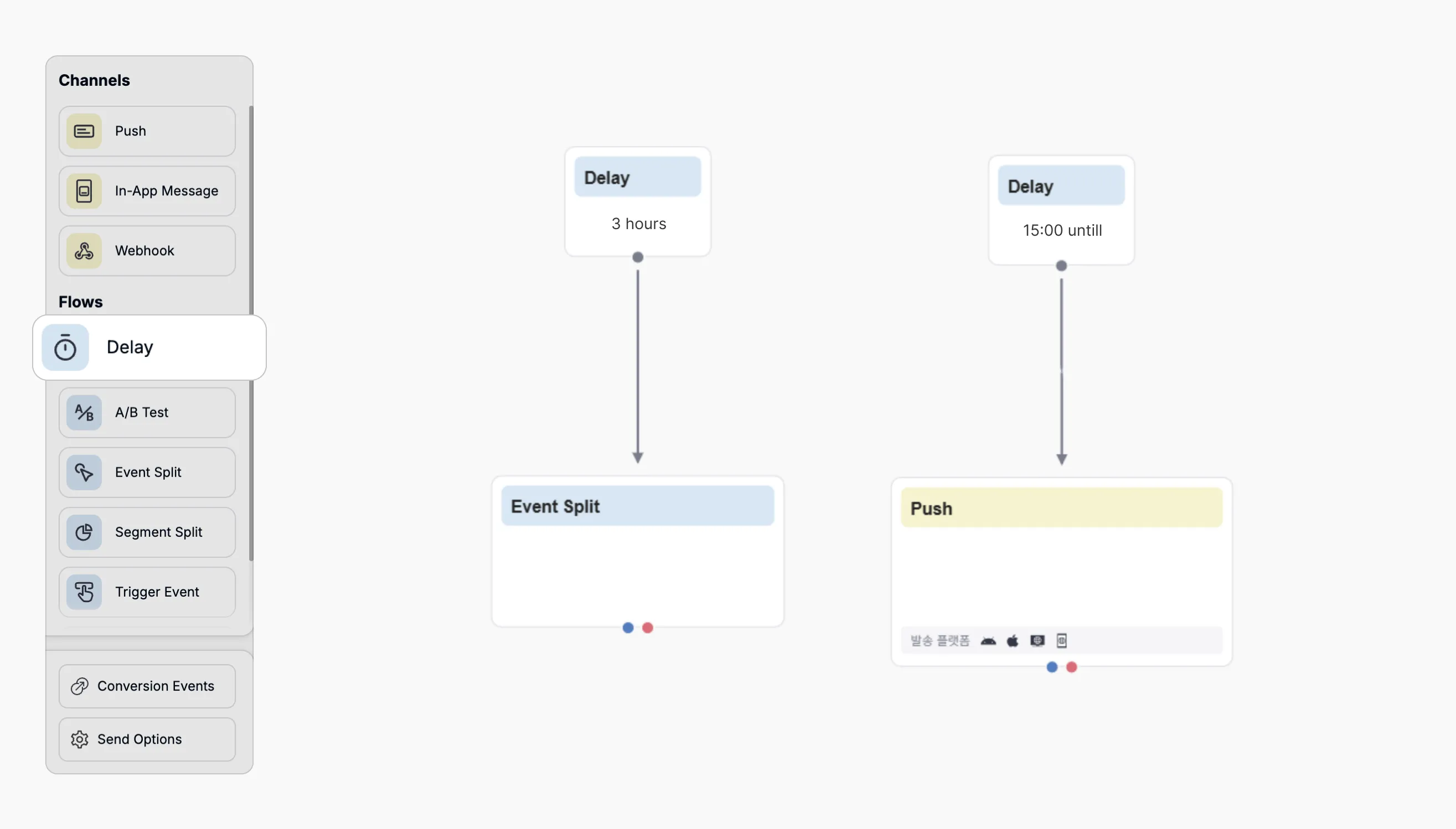
You can intentionally pause the automation and resume it at the moment you want. Two types of delay are supported.
- Wait for a specific duration (e.g., wait for N hours).
- Wait until a specific time (e.g., wait until 3:00 PM).
A/B testing
Section titled “A/B testing”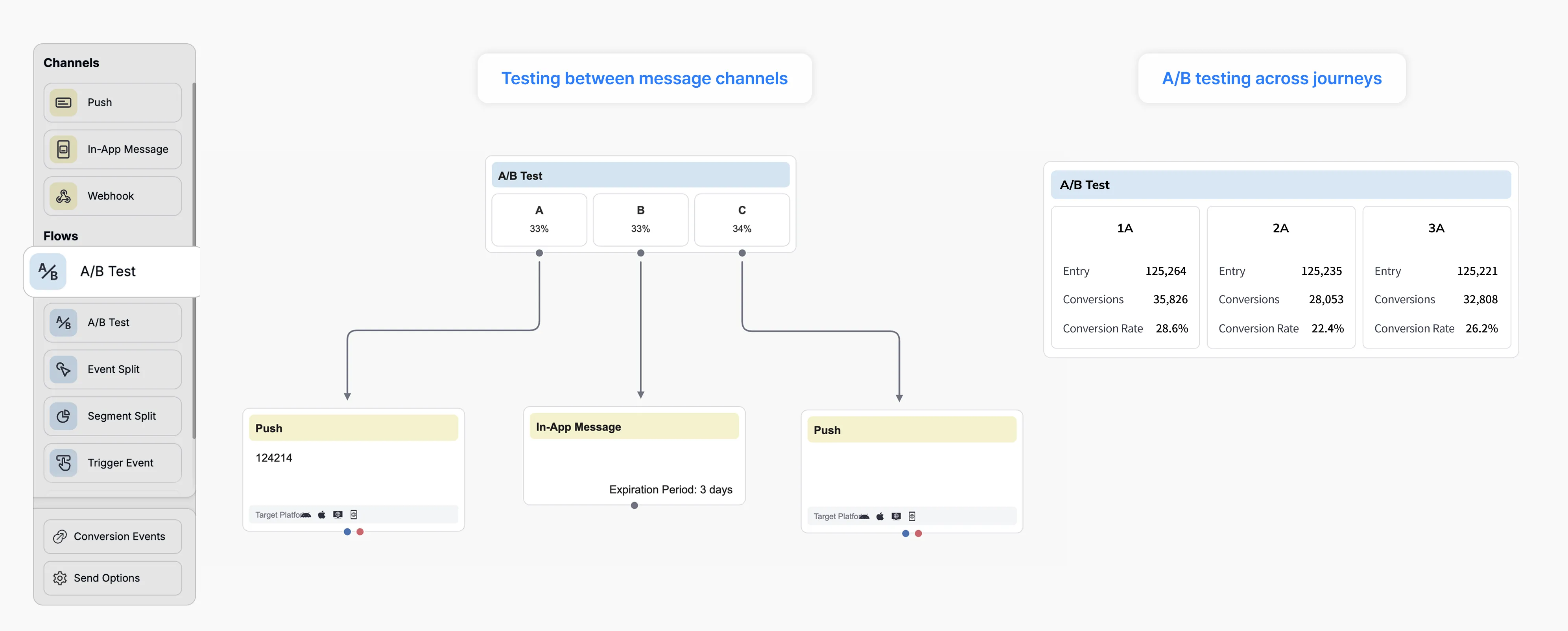
Branches users randomly according to the ratios you set. You can test between message channels or A/B test the journey itself. You can configure multiple test groups, and by including a control (no-send) group, you can also compare the conversion rate difference against a journey that takes no action.
Event Split
Section titled “Event Split”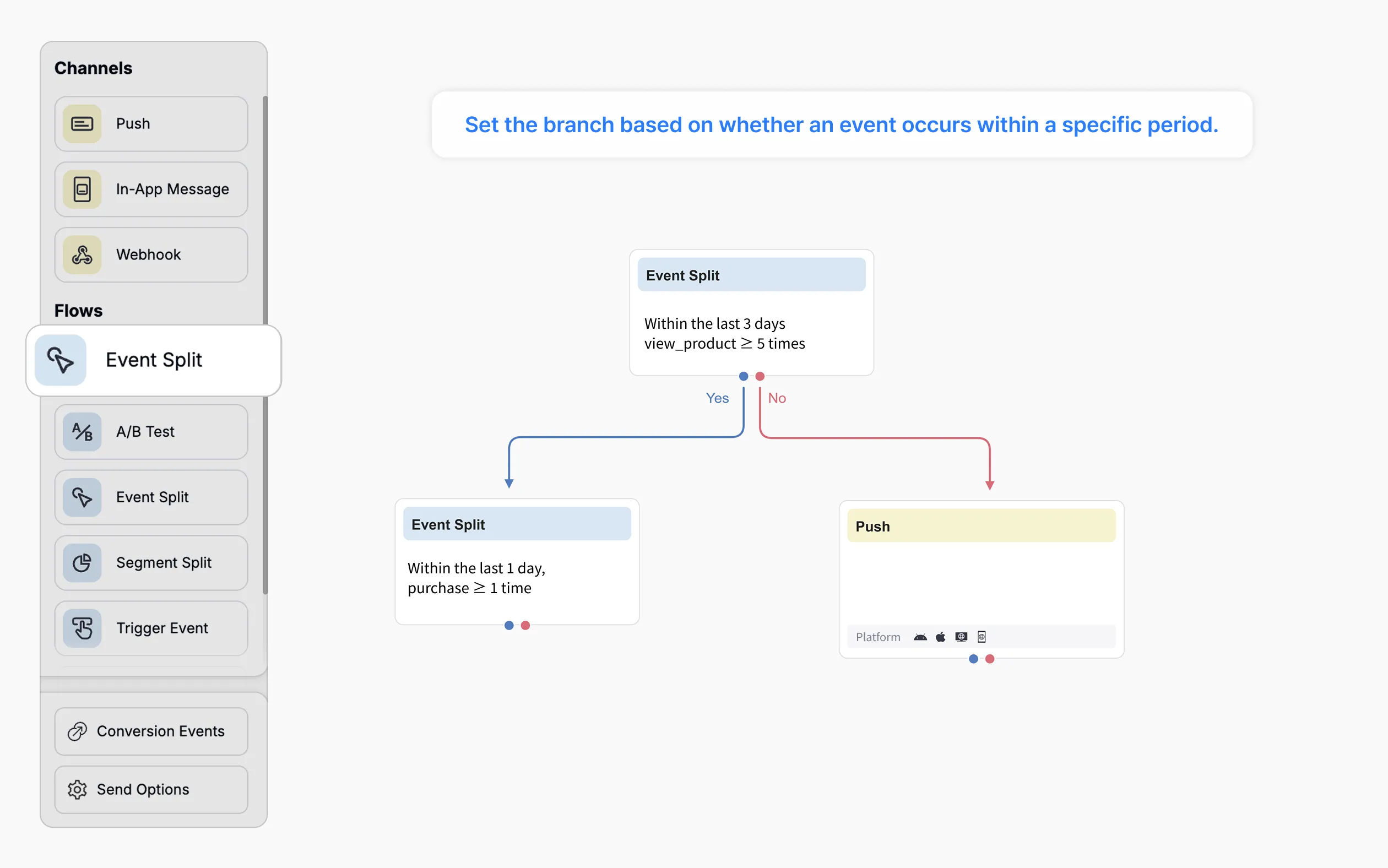
You can split into Yes/No branches based on whether an event occurs within a specific period.
- You can create more specific conditional branches based on the sub-data within an event.
- You can chain two or more event splits to build AND/OR conditions.
- You can also branch on frequency conditions based on the number of times an event occurs.
Segment Split
Section titled “Segment Split”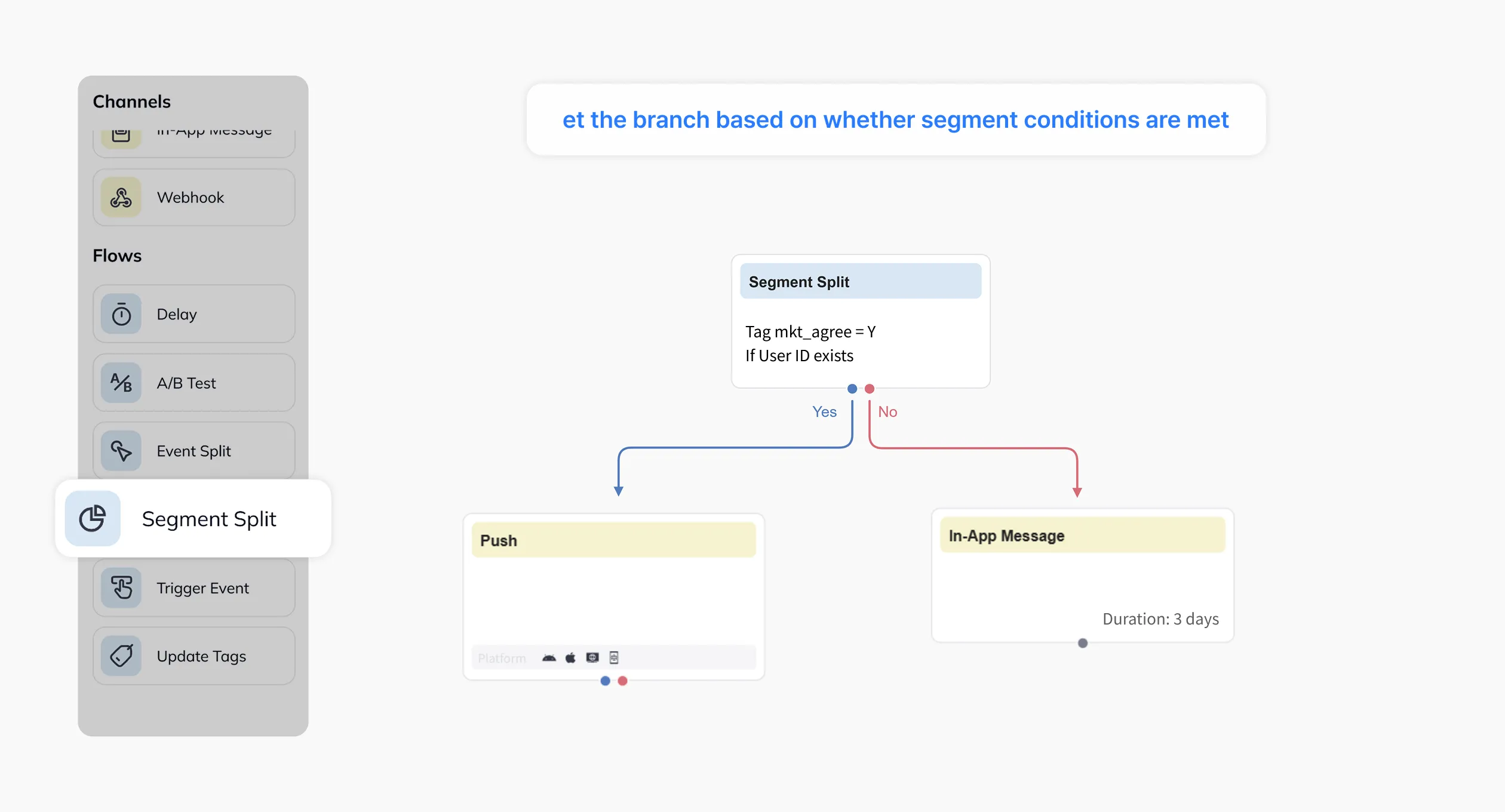
You can set segment filter conditions and split into Yes/No branches based on whether they're met.
- Using segment filters, you can branch based on a variety of conditions and operators.
- You can chain two or more segment splits to build AND/OR conditions.
Trigger Event
Section titled “Trigger Event”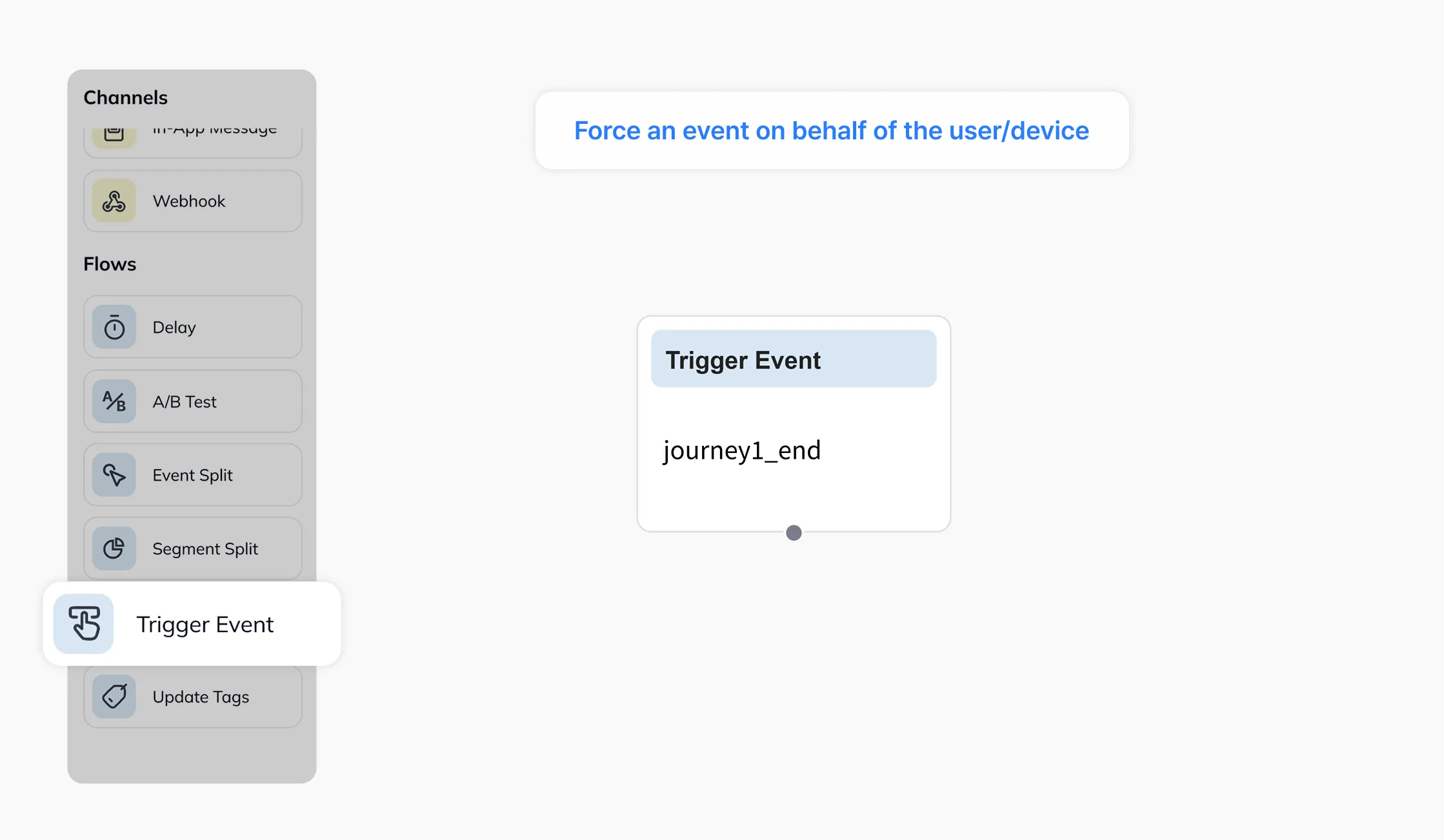
Forcibly triggers an event on behalf of the user/device. You can use the events triggered this way to integrate with other automations or to build segments.
Update Tags
Section titled “Update Tags”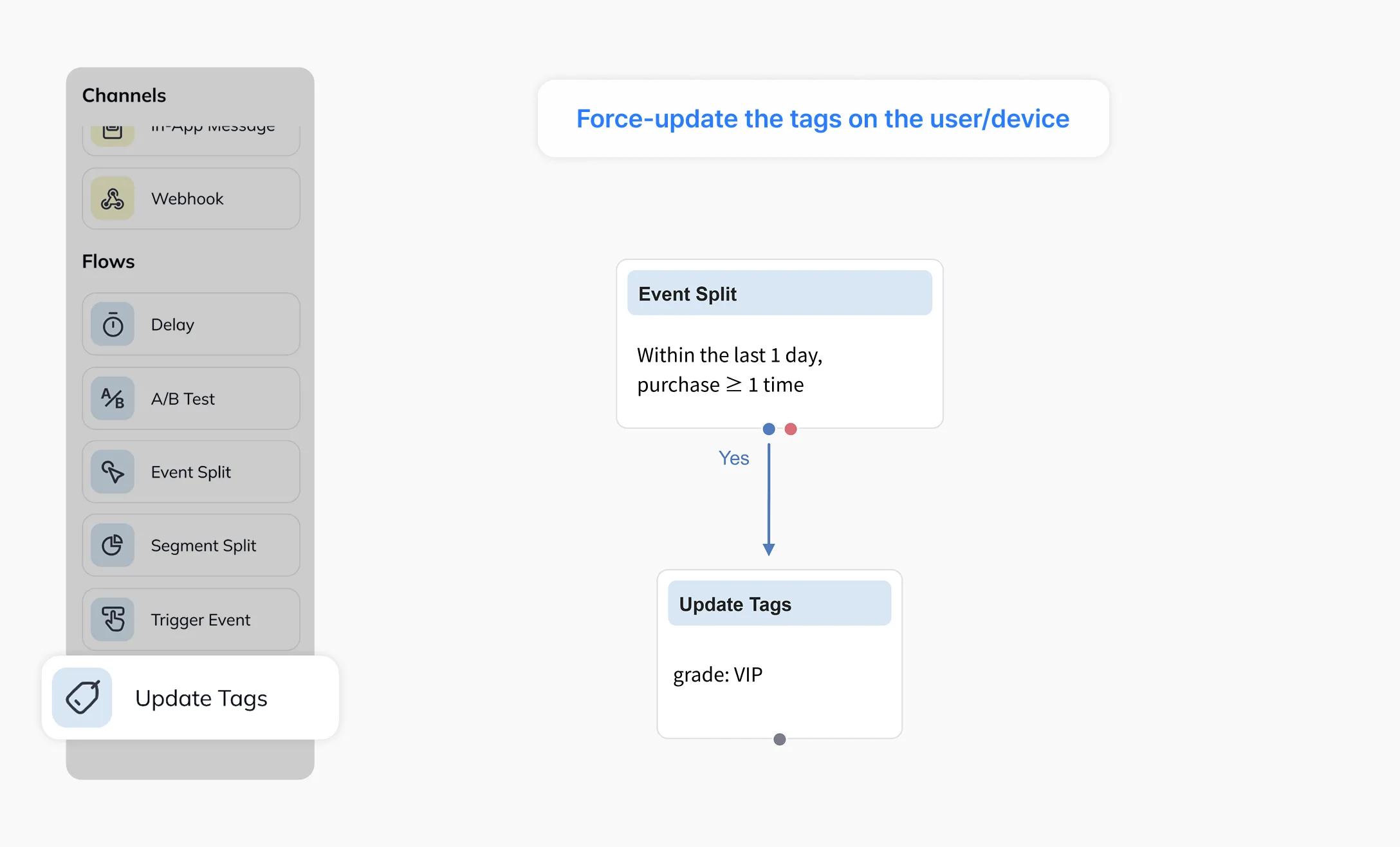
Forcibly updates tags on the user/device. After updating tags in special cases, you can use them to integrate with other automations or to build segments.