Google Tag Manager Integration
Google Tag Manager is a solution for managing web scripts without modifying code. With GTM, you can run scripts easily without writing code or going through complex development and deployment processes.
It's an especially useful tool because it lets you integrate FlareLane events and tags based on a variety of triggers that occur on your web pages—page views, button clicks, scrolling, and more—with just a few clicks and no coding required.
Setup and Usage
Section titled “Setup and Usage”1. Install the FlareLane GTM tag
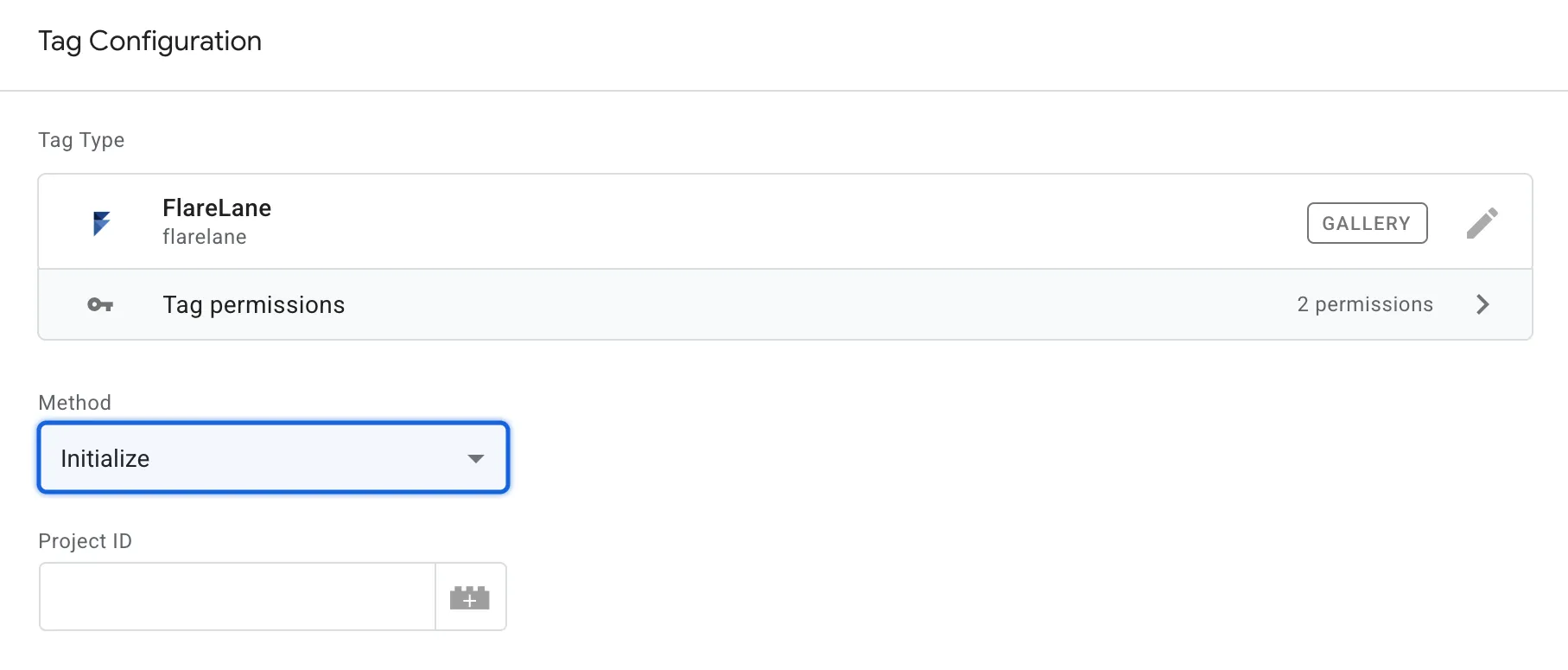
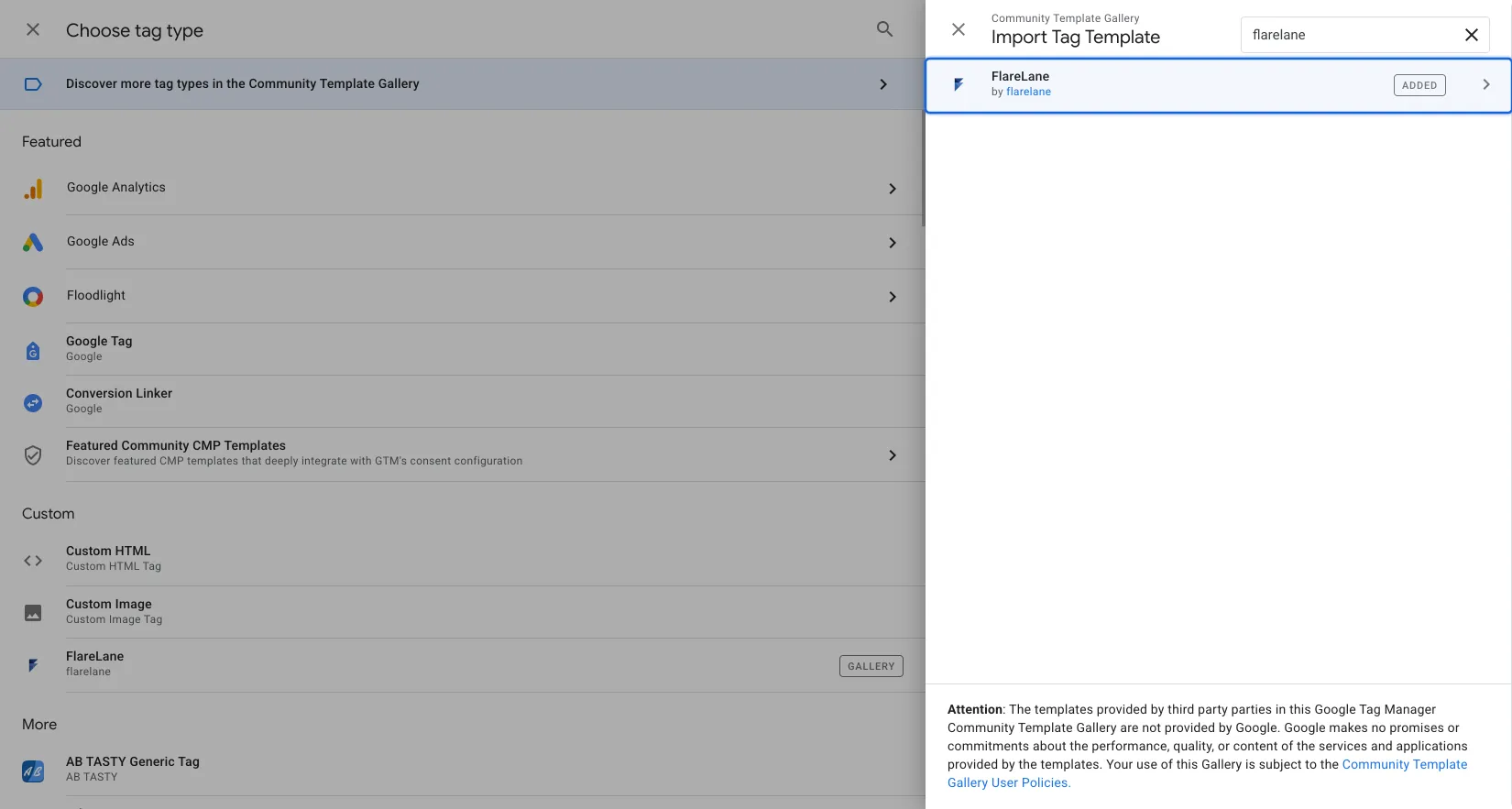
Section titled “1. Install the FlareLane GTM tag”In your Google Tag Manager workspace, go to Templates > Search Gallery, search for "flarelane," and install the official template.
2. Configure the GTM tag
Section titled “2. Configure the GTM tag”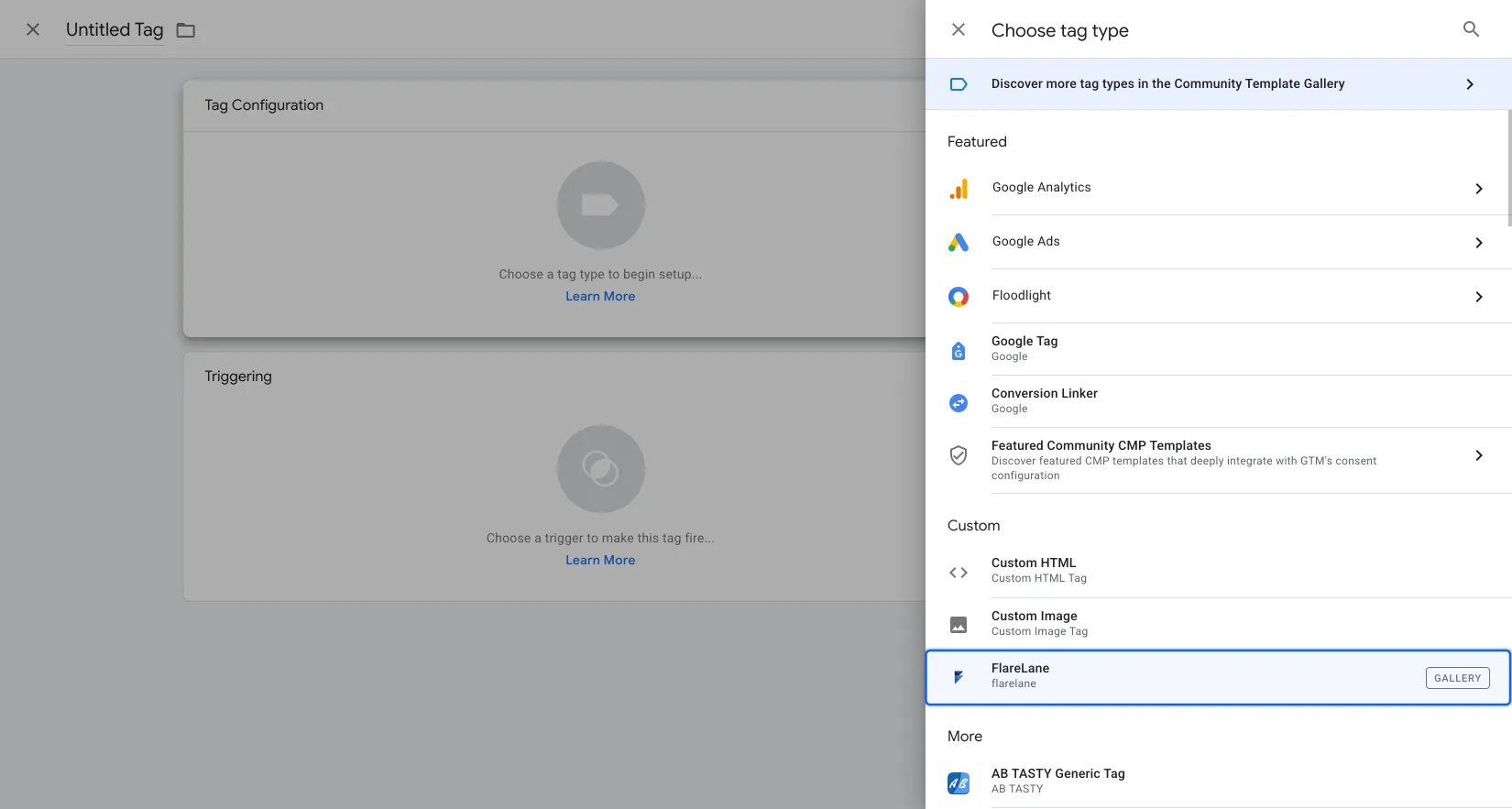
The installed FlareLane GTM tag lets you integrate customer data such as events and user profiles & tags, and even define the trigger group used to display in-app messages (pop-ups).
For detailed configuration of each function, see the Available Functions section below.
3. Test and publish
Section titled “3. Test and publish”You can use GTM's debugging tools to verify that your configured tags work as expected.
When you enable Debug Mode within the FlareLane tag, browser console logs are recorded as the tag runs.
You can also use the Network tab in your browser's developer tools to inspect the actual network requests being sent and received.
Once all tag configuration is complete, publish to apply the changes to your live website.
Available Functions
Section titled “Available Functions”Trigger an event
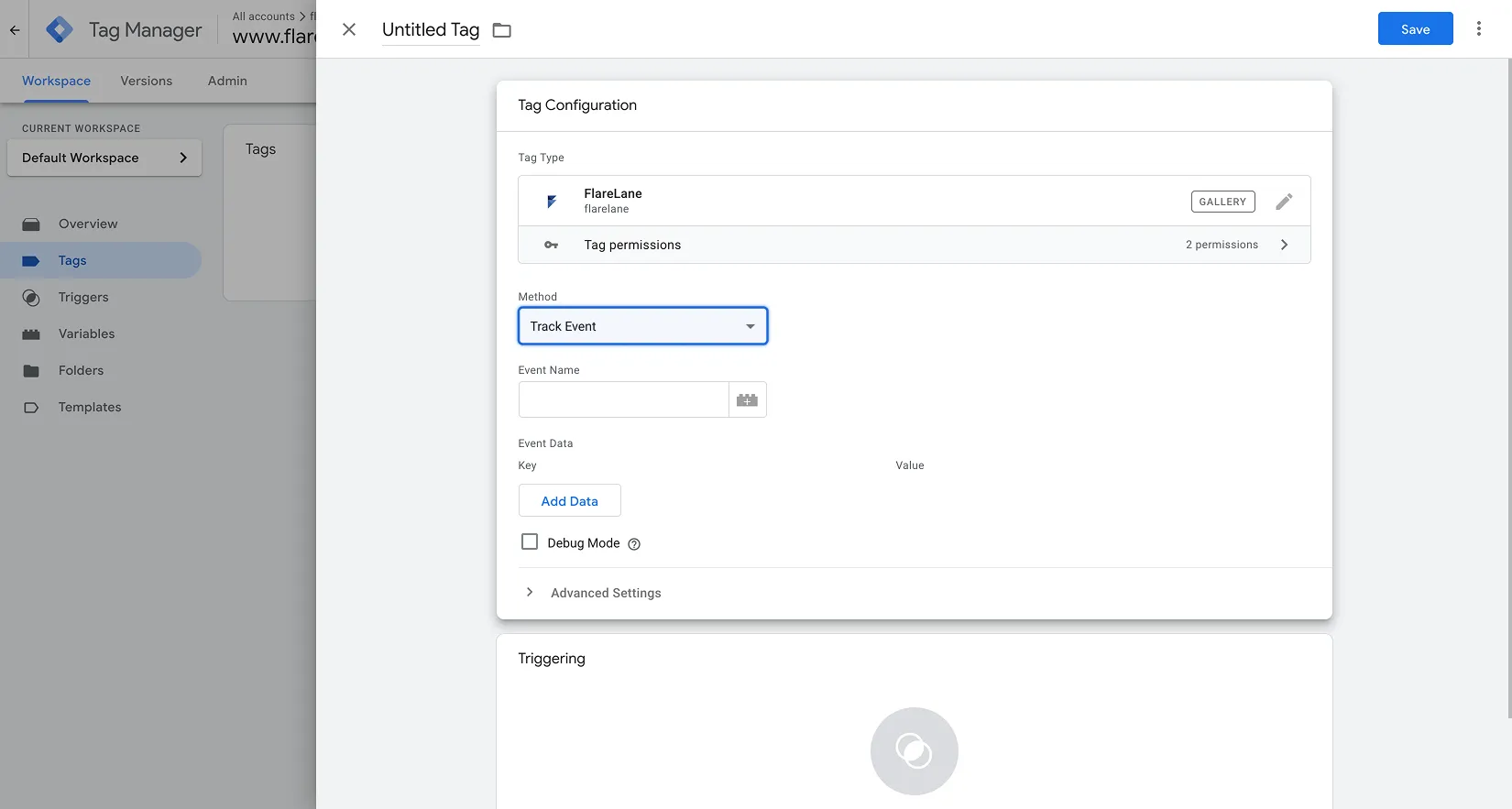
Section titled “Trigger an event”Fires a FlareLane event according to the configured trigger. You can also attach detailed data as variables along with the event name.
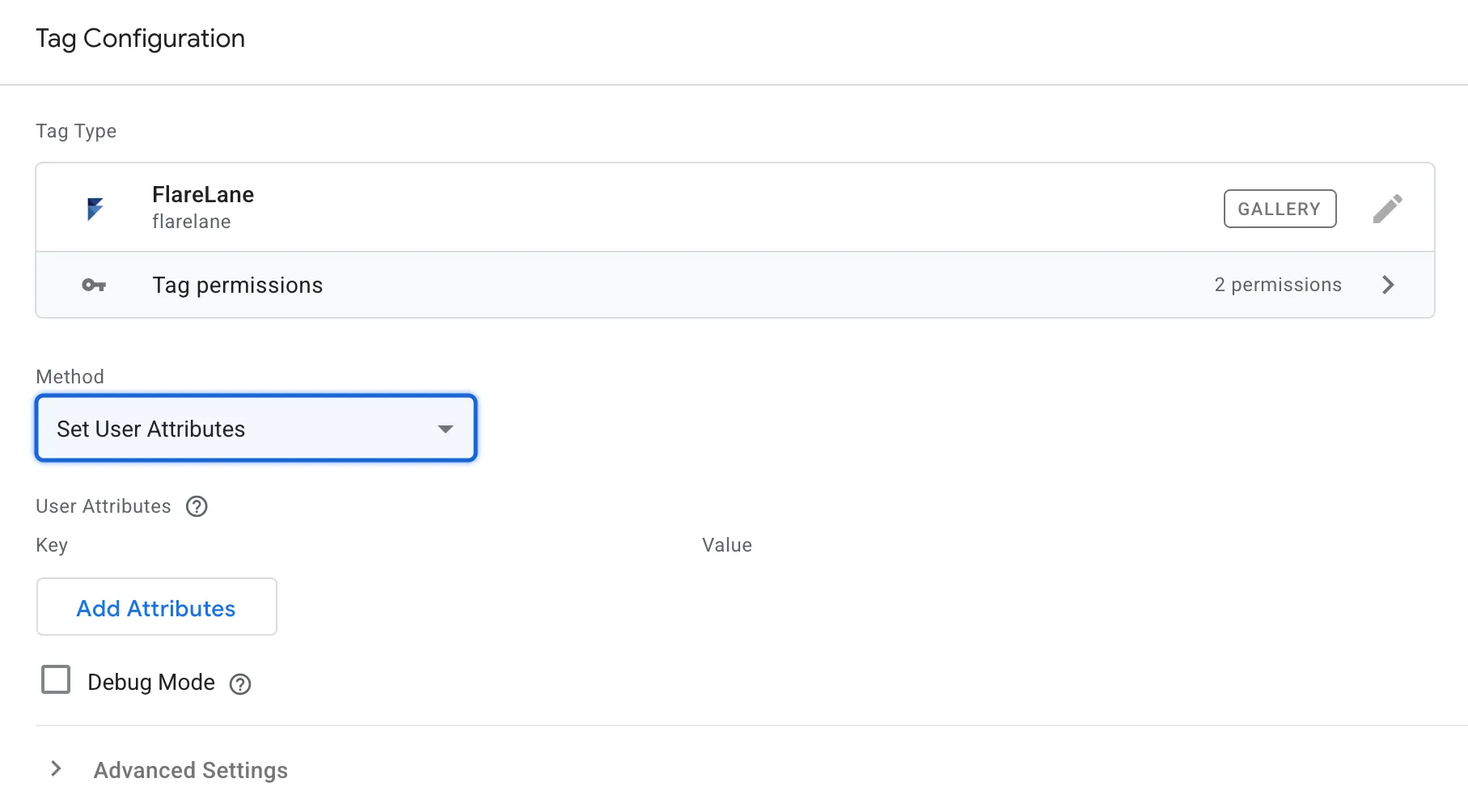
Set and remove user profiles
Section titled “Set and remove user profiles”Integrates FlareLane user profiles & tags according to the configured trigger.
Set and remove tags
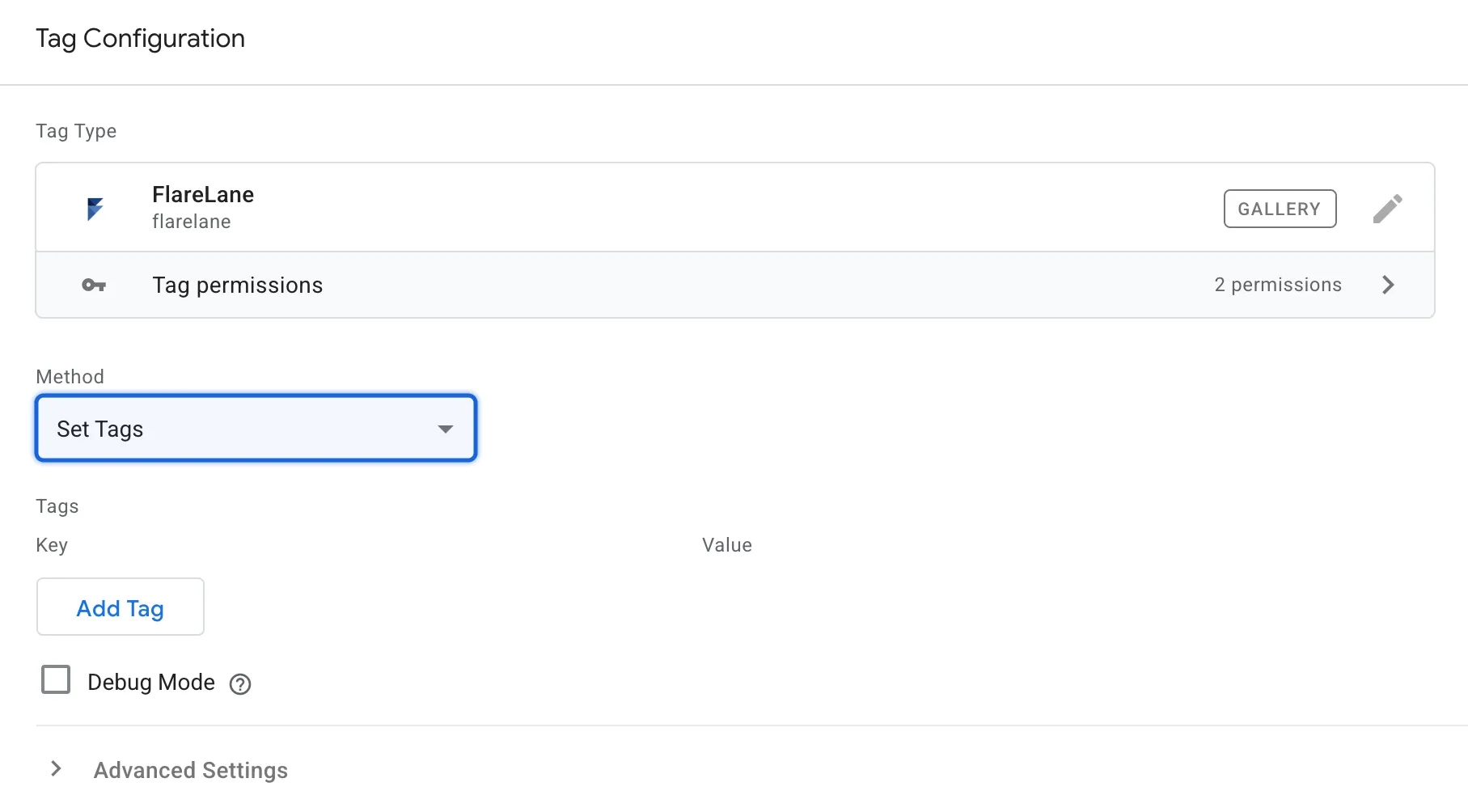
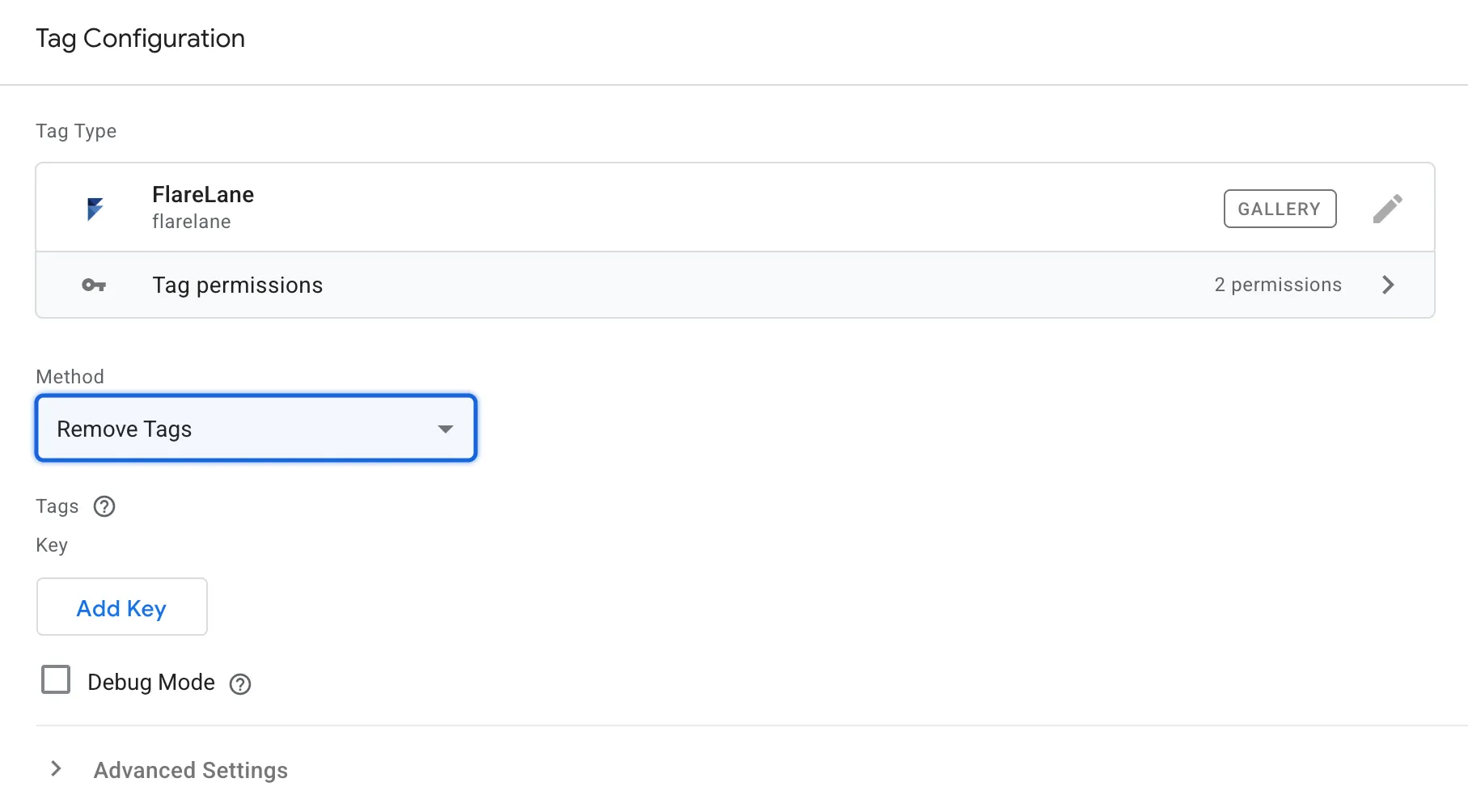
Section titled “Set and remove tags”Integrates FlareLane tags according to the configured trigger. You can assign the value explicitly or via a variable. To remove a tag, enter the tag you want to remove and run the dedicated tag-removal function.
Display in-app messages
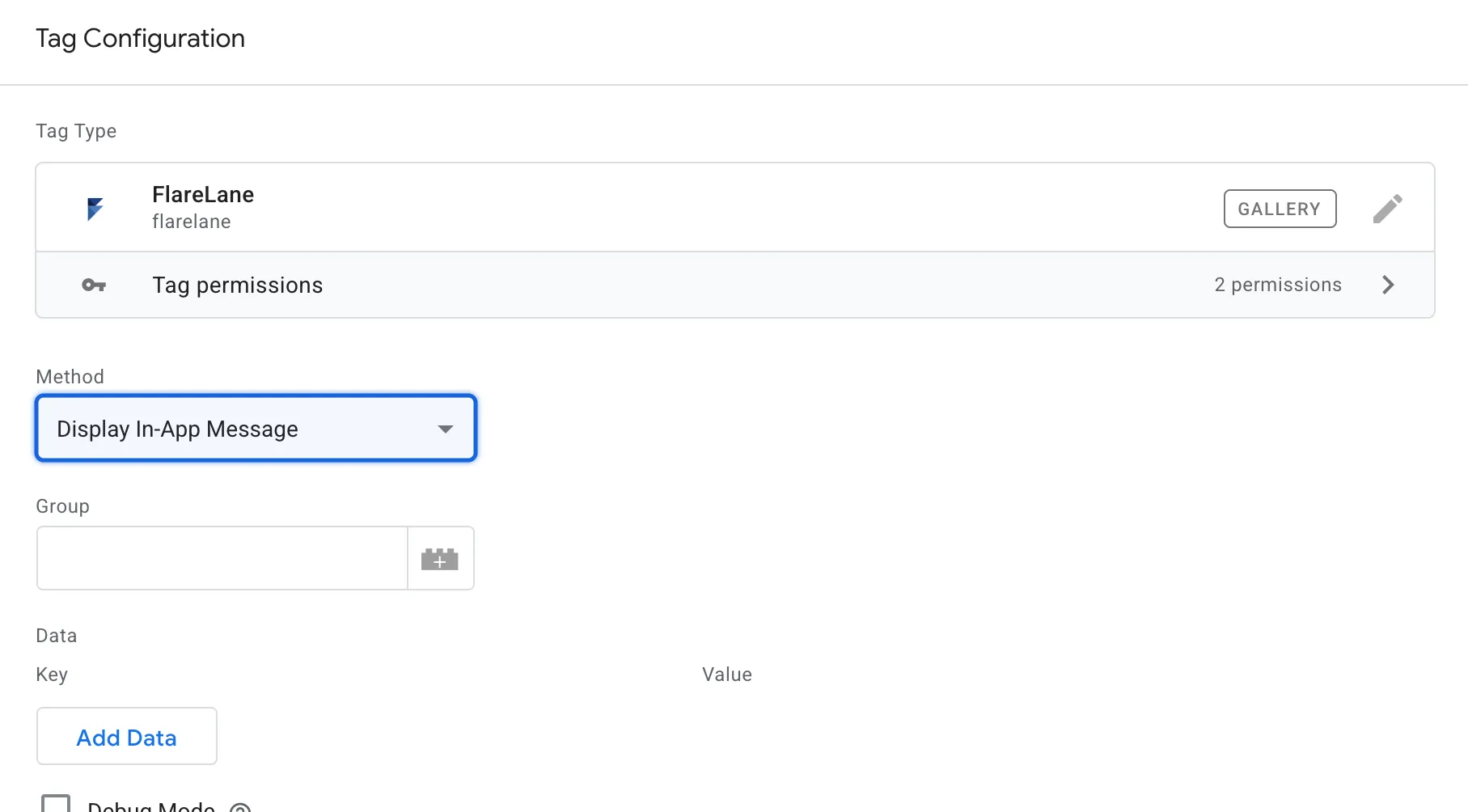
Section titled “Display in-app messages”Configures the display group (trigger) for in-app messages (pop-ups) according to the configured trigger. For example, you can set which in-app message group to display when a user reaches a specific page view.
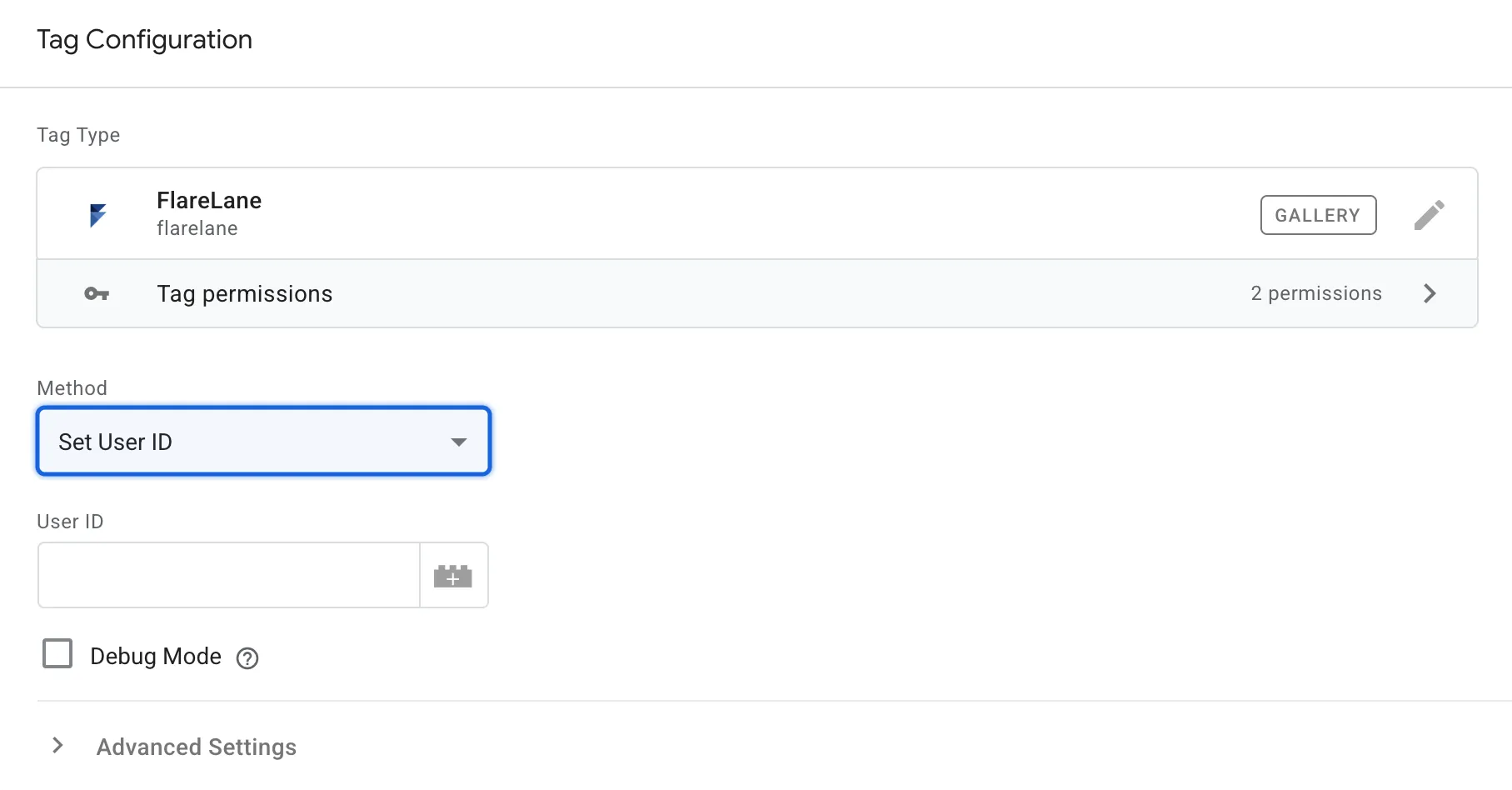
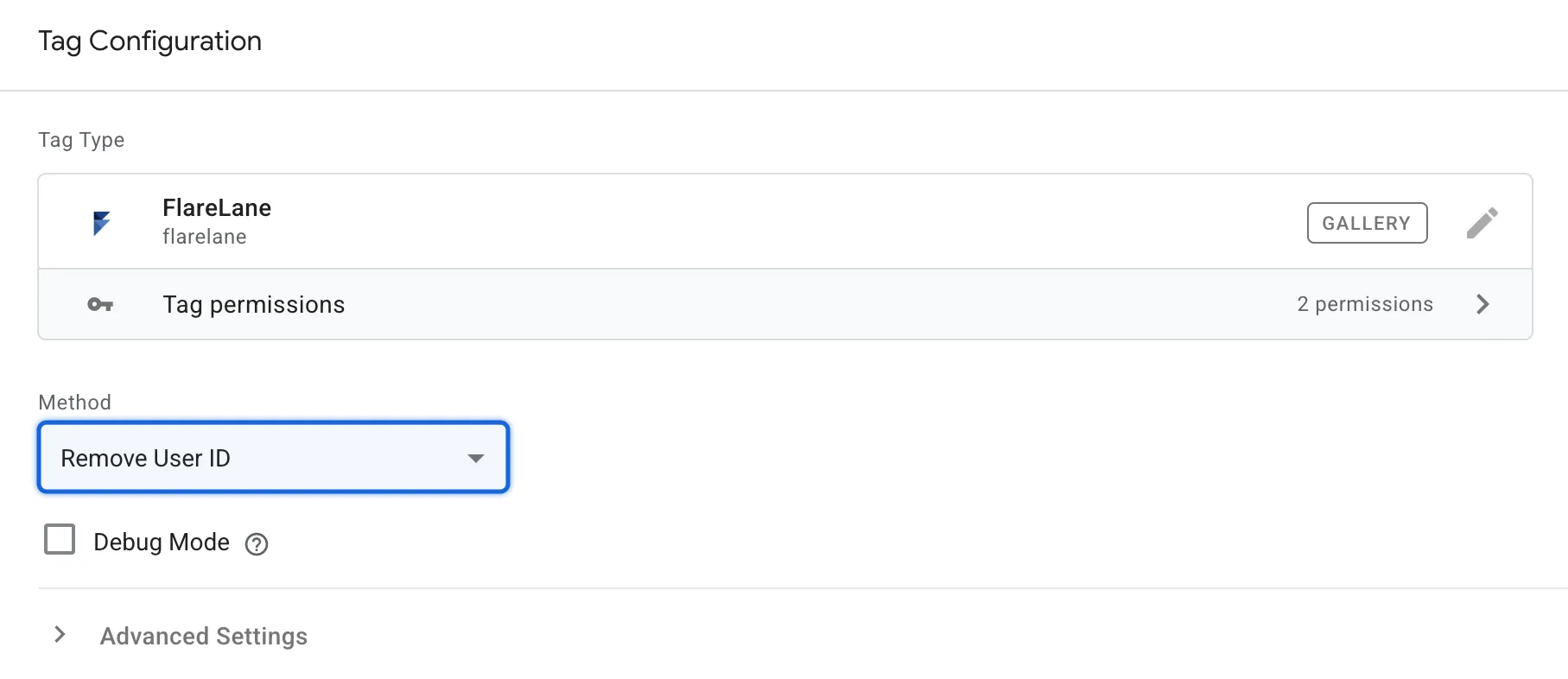
Set and remove the user ID
Section titled “Set and remove the user ID”Integrates the FlareLane user ID according to the configured trigger. If you need to remove the user ID, run the dedicated user-ID removal function.
Initialize the FlareLane SDK
Section titled “Initialize the FlareLane SDK”You can also integrate the Web SDK through the FlareLane GTM tag. However, since using web push also requires uploading a Service Worker file, we recommend inserting the code directly rather than using GTM for SDK integration. (Web SDK)