Cafe24 Integration
If you use Cafe24, you can get started with FlareLane even more easily.
This guide explains how to install FlareLane and describes the data FlareLane collects automatically.
How to install FlareLane
Section titled “How to install FlareLane”Learn how to set up web push on your Cafe24 website. With the Cafe24 FlareLane app, you can install web push even more easily with just a few clicks.
Integrating through the Cafe24 App Store
Section titled “Integrating through the Cafe24 App Store”1. Install the Cafe24 FlareLane app
Section titled “1. Install the Cafe24 FlareLane app”Go to the FlareLane app on the Cafe24 App Store, click the [Install] button, and agree to the data usage terms.
2. Start the FlareLane integration process
Section titled “2. Start the FlareLane integration process”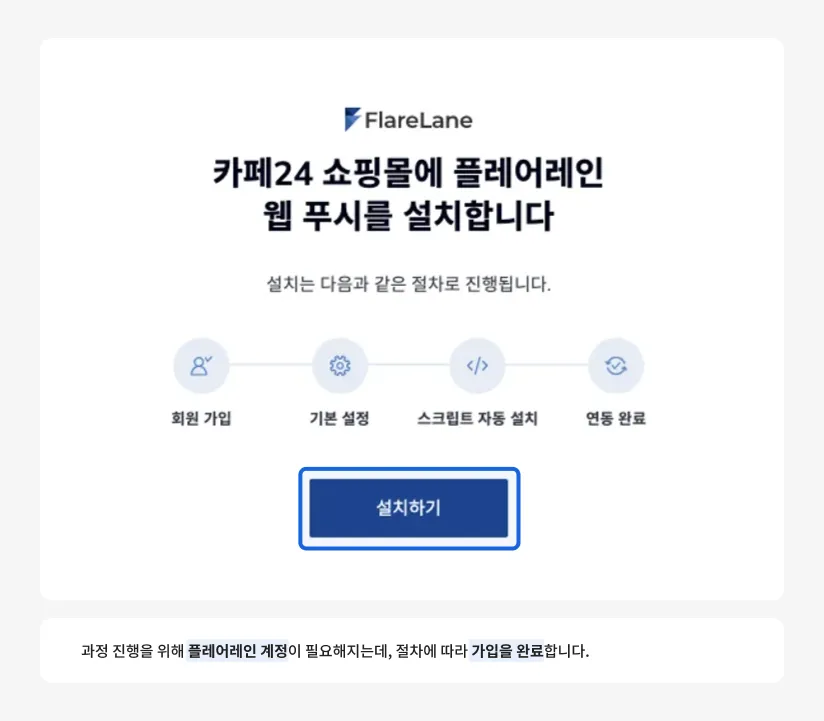
After agreeing, click the [Install] button once more on the FlareLane–Cafe24 integration site.
3. Enter initial setup information
Section titled “3. Enter initial setup information”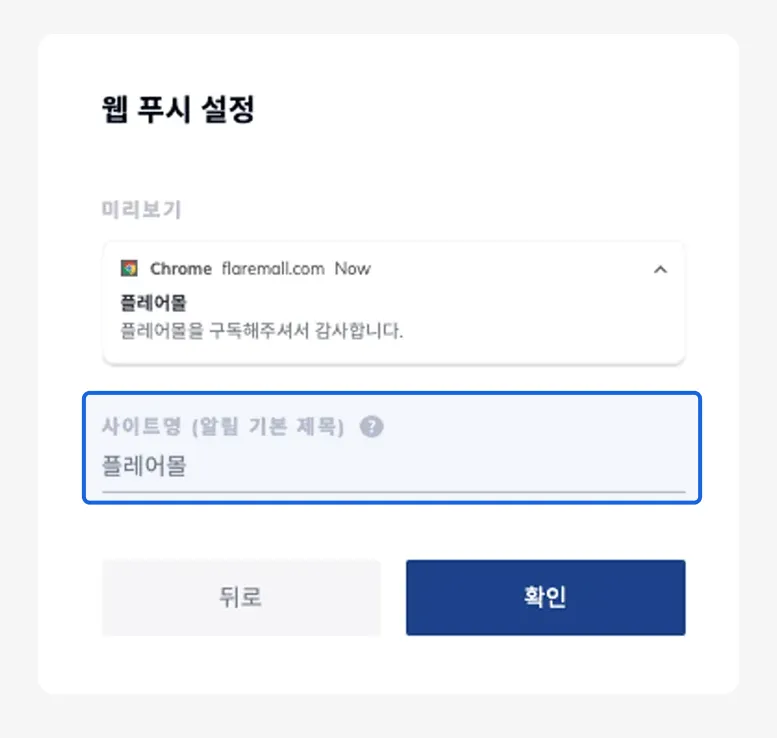
Using the preview as a reference, enter your site name. The site name you enter will be used as a fallback whenever a notification title is left blank.
4. Web push installation complete
Section titled “4. Web push installation complete”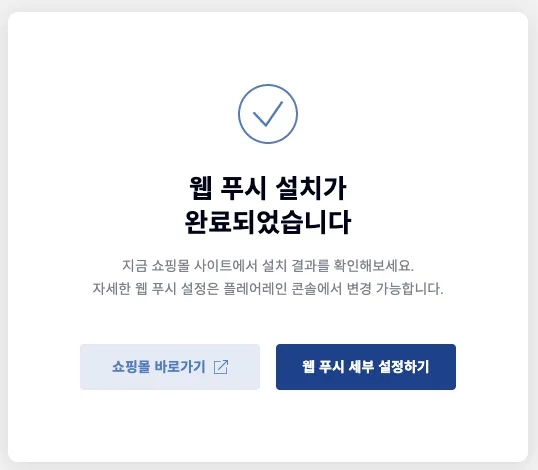
Once setup is complete, a subscription pop-up appears when users visit your website. (The pop-up language follows the visitor’s browser language.)
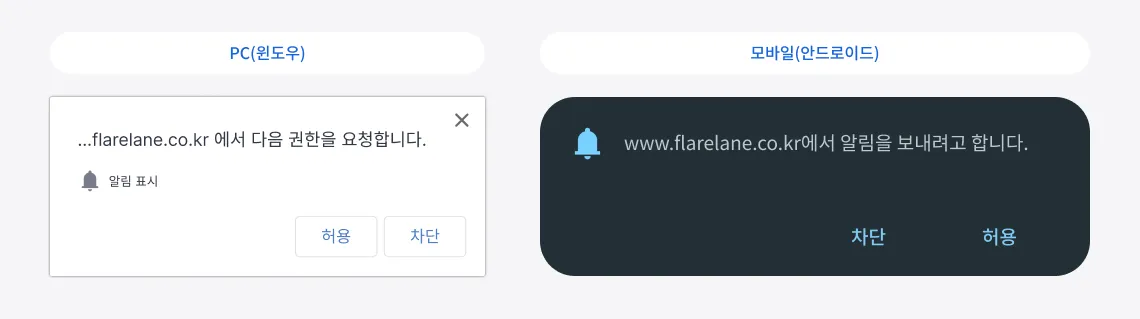
When a user taps Allow, they are automatically subscribed to notifications, and from then on they can receive notifications even after leaving the browser.
You can then use the [Configure Web Push Details] button to fine-tune the pop-up and widget that are displayed.
Automatically collected data
Section titled “Automatically collected data”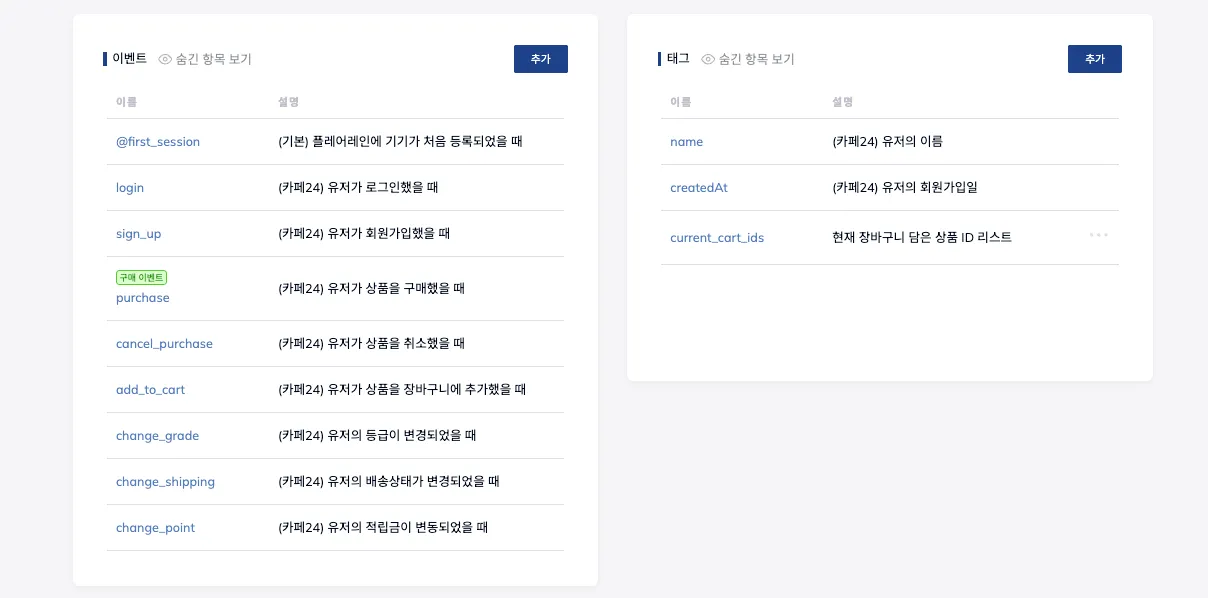
With the Cafe24 FlareLane app, various data is collected automatically without any additional development, making it even more convenient to use. Through the installed Cafe24 FlareLane app, user ID, event, user profile & tag, and coupon data are collected automatically.
A user is linked one-to-one with a Cafe24 member account, and the user ID is assigned to match the Cafe24 member ID. A user is created or updated when the member logs in or during the periodic sync that runs about every 60 minutes.
When a visitor allows notifications on your website, a device is created, and once they log in, that device is automatically linked to the user ID.
At this point, key profile fields such as name, phone number, and email are linked as well, so you can reach users across multiple channels—SMS, KakaoTalk, email, and more—with no extra setup.
User profiles and tags are updated at the times shown below. Depending on the Type, each value is linked as a user profile or a tag.
On first page visit
Section titled “On first page visit”The basic information available immediately on visit is linked.
| Field | Type | Description |
|---|---|---|
| name | Profile | Member name |
| phone | Profile | Mobile phone number (E.164 format) |
| Profile | ||
| groupName | Tag | Member grade name |
| group_no | Tag | Member group number |
| created_date | Tag | Sign-up date |
| available_point | Tag | Available points |
| total_point | Tag | Total accumulated points |
| used_point | Tag | Used points |
| returned_point | Tag | Returned points |
| unavailable_point | Tag | Unavailable points |
| all_credit | Tag | All deposits |
| member_total_credit | Tag | Member total deposits |
| total_credit | Tag | Total deposits |
| used_credit | Tag | Used deposits |
| refund_wait_credit | Tag | Deposits pending refund |
| nick_name | Tag | Member nickname |
| is_birthday | Tag | Whether today is the member’s birthday (Y if the visit date is their birthday) |
| guest_id | Tag | ID assigned before login |
Periodic sync (about every 60 minutes)
Section titled “Periodic sync (about every 60 minutes)”User information is refreshed about every 60 minutes. Values that are not collected on the first visit—such as date of birth (dob) and marketing opt-in status—are also linked at this stage.
| Field | Type | Description |
|---|---|---|
| dob | Profile | Date of birth (yyyy-MM-dd format) |
| name | Profile | Member name |
| phone | Profile | Mobile phone number (E.164 format) |
| Profile | ||
| nick_name | Tag | Member nickname |
| groupName | Tag | Member grade name |
| group_no | Tag | Member group number |
| available_point | Tag | Available points |
| total_point | Tag | Total accumulated points |
| used_point | Tag | Used points |
| news_email | Tag | Newsletter email opt-in (Y / N) |
| sms | Tag | SMS opt-in (Y / N) |
| created_date | Tag | Sign-up date |
On order / login
Section titled “On order / login”Tags that are updated when the user places an order or logs in.
| Field | Type | Timing | Description |
|---|---|---|---|
| first_order_date | Tag | On order placed | First order date |
| last_order_date | Tag | On order placed | Last order date |
| last_login_date | Tag | On login | Last login date |
Coupon
Section titled “Coupon”Coupons are linked as data separate from user profiles and tags.
In the console, go to [Audience] → [Users] → [All Users] or [Audience] → [Devices] → [All Devices], then click the [Coupon] button on a row to view the coupons held by that user or device.
| Item | Value format |
|---|---|
| Coupon number | String (e.g., Y0013200) |
| Issue date | Date (e.g., 2026.05.12) |
| Expiration date | Date (e.g., 2026.05.17) |
| Used | String (e.g., Y / N) |
Coupon information is linked in the following two ways.
| Sync method | Timing |
|---|---|
| Real-time | On first page visit When a purchase, cancellation, return, or refund occurs |
| Periodic sync | About every 60 minutes |
Basic events
Section titled “Basic events”Events are data collected when a user takes a specific action on your website. You can view triggered events under [Customer Data Integration] → [Recent Events] in the console.
Store activity events
Section titled “Store activity events”Triggered when an order- or member-related change occurs in your store.
| Event name | When it occurs |
|---|---|
| sign_up | A new member signs up in your store |
| login | A store member logs in |
| add_to_cart | A product is added to the cart in your store |
| purchase | An order is placed in your store |
| cancel_purchase | An order’s status changes to canceled, returned, or refunded |
| change_shipping | A store order’s shipping status changes |
| change_grade | A store member’s grade changes |
| change_point | A store member’s reward points change |
For each event, the resource sent from Cafe24 is mapped into the event’s data field and collected together. This data can be used in segment conditions or as personalization variables in messages.
For the detailed resource structure of each event, see the Cafe24 webhook sample data documentation.
Page view events
Section titled “Page view events”Triggered when a visitor views one of your store’s main pages.
view_home
Section titled “view_home”Triggered when the main page is viewed.
view_product
Section titled “view_product”Triggered when a product detail page is viewed.
| Data | Description | Format | Example |
|---|---|---|---|
| product_no | Product number | Number | 1024 |
| product_name | Product name (max 250 characters) | String | Cold Brew Beans 500g |
| price | Product selling price | Number | 18000 |
| discounted_price | Discounted price | Number | 15300 |
| category_no | Category number | Number | 108 |
| display_group | Display group number | Number | 2 |
view_product_list
Section titled “view_product_list”Triggered when a product category (list) page is viewed.
| Data | Description | Format | Example |
|---|---|---|---|
| category_no | Category number | Number | 108 |
| category_name | Category name (max 50 characters) | String | Coffee beans |
view_cart
Section titled “view_cart”Triggered when the cart page is viewed.
| Data | Description | Format | Example |
|---|---|---|---|
| total_quantity | Total quantity | Number | 3 |
| items_count | Line items | Number | 2 |
| items_unique_count | Unique products | Number | 2 |
| total_order_price | Total order amount | Number | 48600 |
| product_nos | List of product numbers (max 100) | List | [1024, 2087] |
| product_names | List of product names (max 100) | List | ["Cold Brew Beans", "Tumbler"] |
| option_ids | List of option codes (max 100) | List | ["001A", "002C"] |
view_checkout
Section titled “view_checkout”Triggered when the checkout page is viewed.
| Data | Description | Format | Example |
|---|---|---|---|
| product_no | List of ordered product numbers (max 100) | List | [1024, 2087] |
| price | Total before discount | Number | 54000 |
| discounted_price | Total after discount | Number | 48600 |
view_completed_order
Section titled “view_completed_order”Triggered when the order completion page is viewed.
| Data | Description | Format | Example |
|---|---|---|---|
| order_id | Order number | String | 20260312-0004517 |
| price | Order amount | Number | 48600 |
| discounted_price | Amount actually paid | Number | 45600 |
| delivery_fee | Shipping fee | Number | 3000 |
| is_coupon_used_order | Whether a coupon was used | Boolean | true |
| order_date | Order date (YYYYMMDD) | Number | 20260312 |