Amplitude Integration
You can target Amplitude cohorts to enroll users into FlareLane's customer journey automation, send push notifications, display in-app messages, and run a wide range of connected CRM marketing.
1. Create an integration
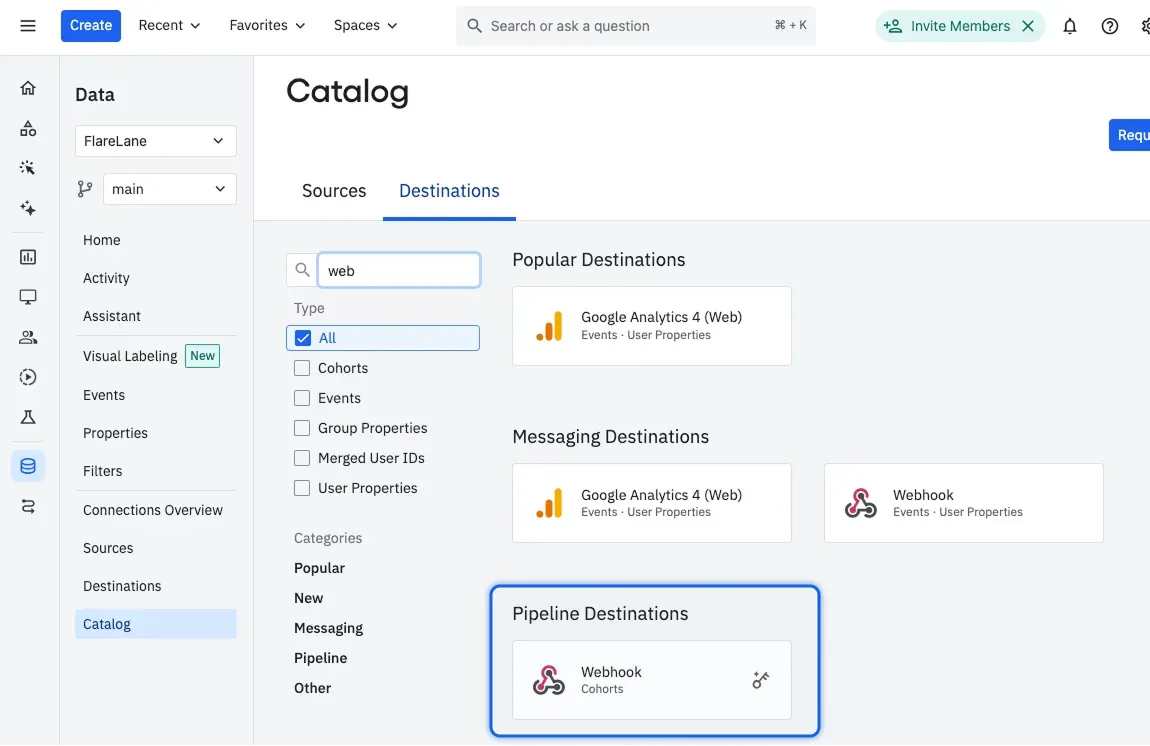
Section titled “1. Create an integration”1. In the Amplitude console, go to Data > Catalog > Destinations > Webhook (Cohorts).
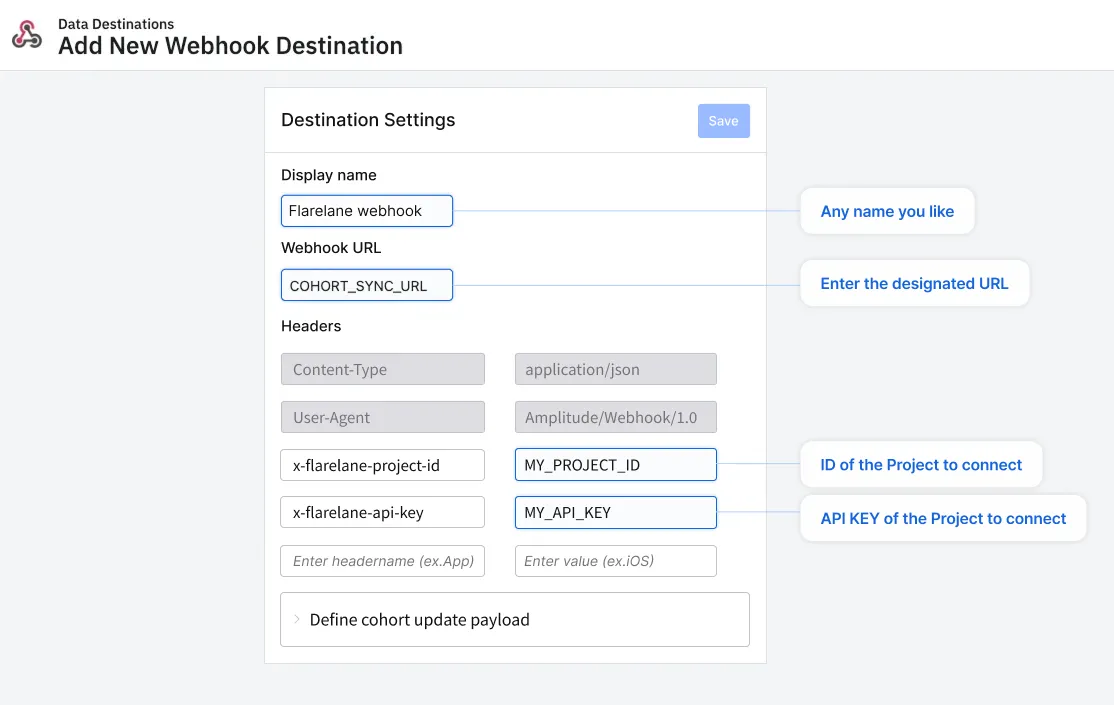
2. Under Destination Settings, enter the following values for Webhook URL and Headers.
| Field | Value |
|---|---|
| Webhook URL | https://api.flarelane.com/v1/cohort-sync/amplitude |
| x-flarelane-project-id | The ID of the FlareLane project to integrate |
| x-flarelane-api-key | The API key of the FlareLane project to integrate |
2. Sync cohorts
Section titled “2. Sync cohorts”Once the integration is created, you can use it to sync Amplitude cohorts to FlareLane.
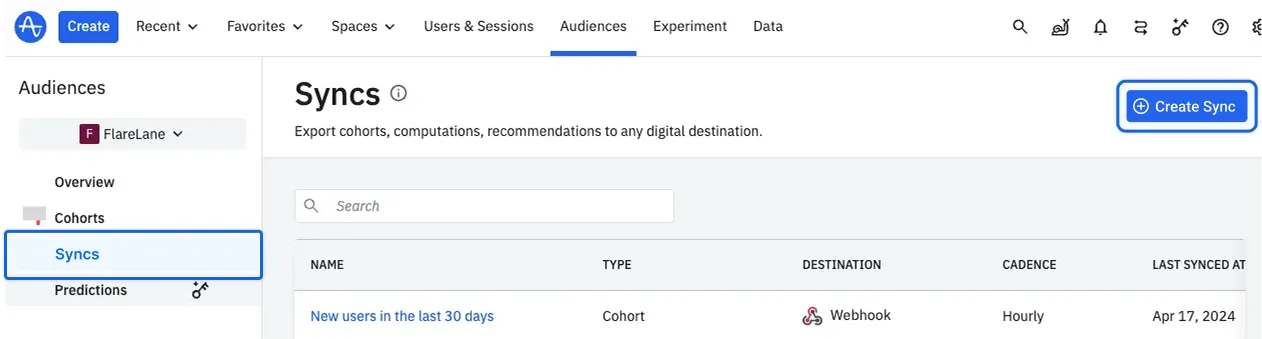
1. In the Amplitude console, click Audiences > Syncs > Create Sync.
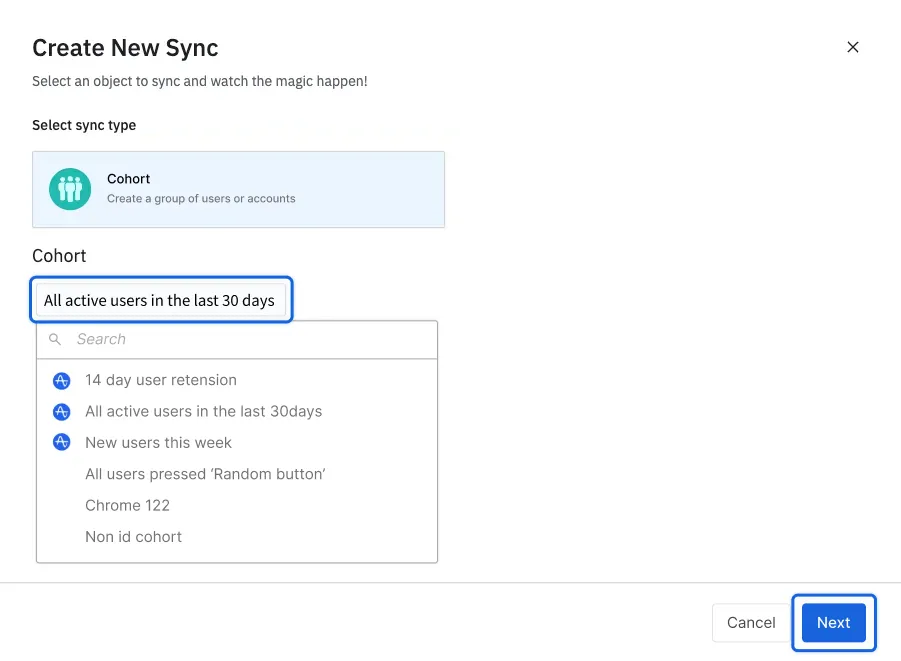
2. Select the cohort you want to sync and click Next.
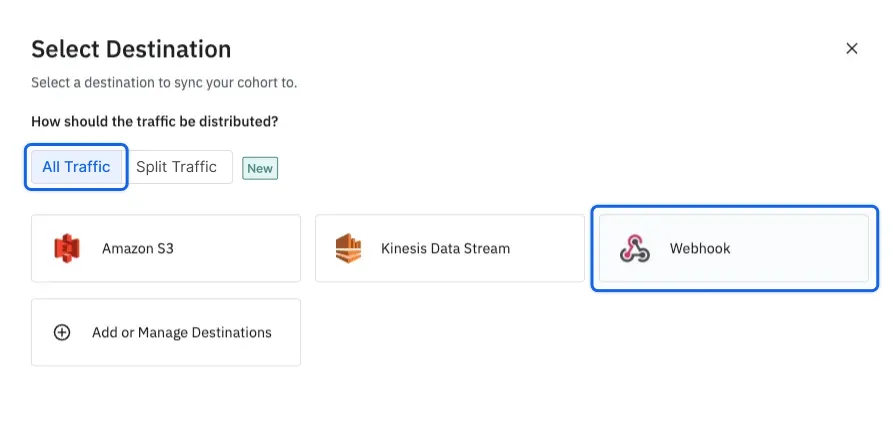
3. Select All Traffic > Webhook as the Destination.
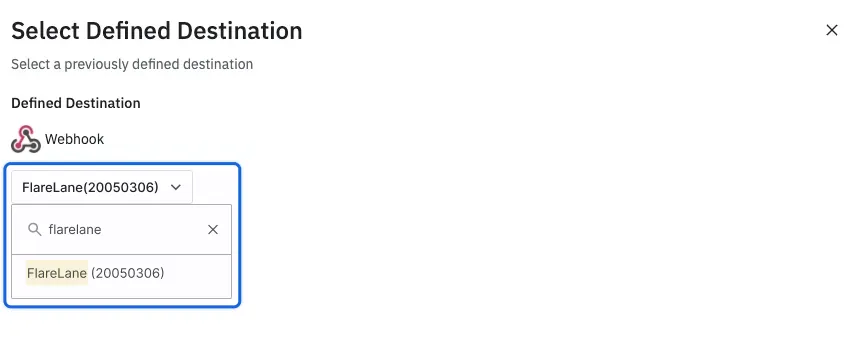
4. Select the FlareLane integration you created earlier.
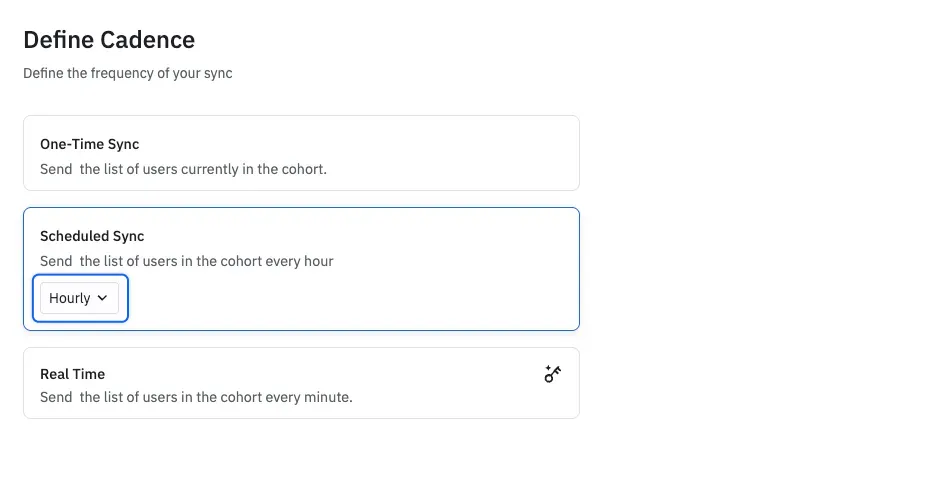
5. Select the sync type. Scheduled syncs have the following limits by type.
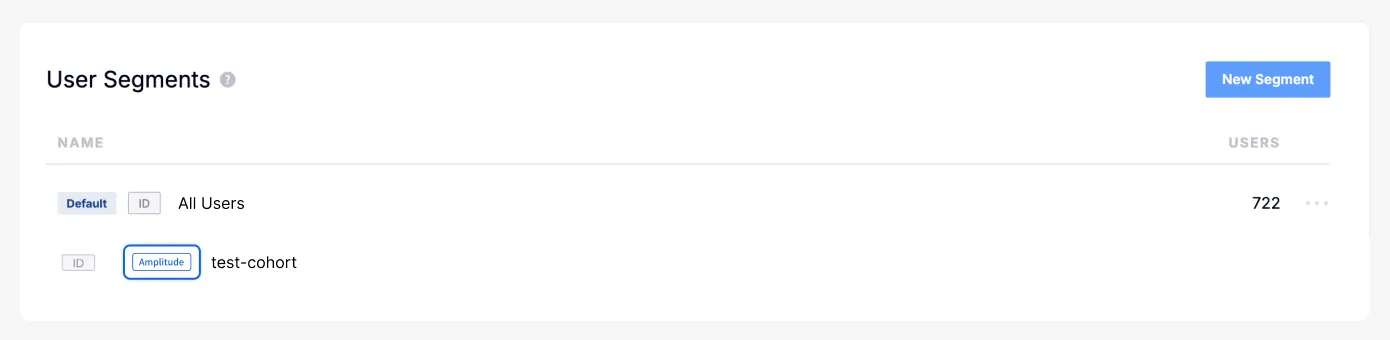
6. Once the sync starts, a separate segment with an Amplitude badge is automatically created in FlareLane Segments.
Troubleshooting
Section titled “Troubleshooting”1. Force a cohort re-sync
Section titled “1. Force a cohort re-sync”If an Amplitude cohort doesn't seem to be syncing to FlareLane correctly, you can trigger a manual re-sync.
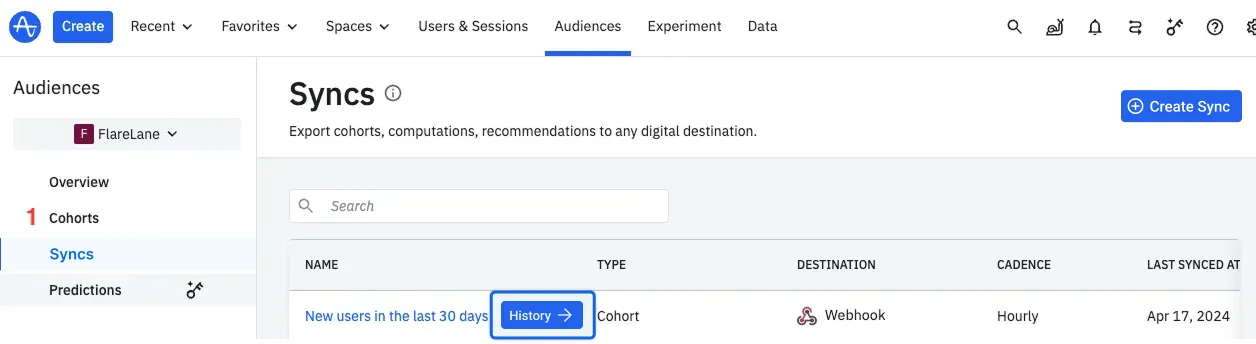
1. In the Amplitude console, go to Audiences > Syncs, hover over the cohort, and click History.
2. On the cohort detail page, click the Sync button.
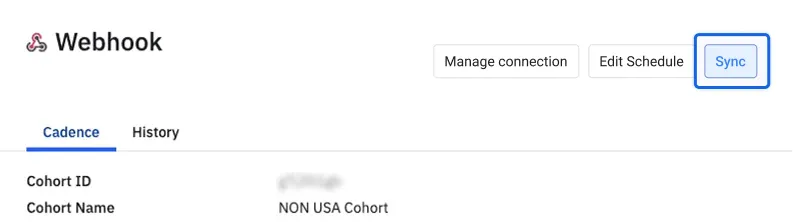
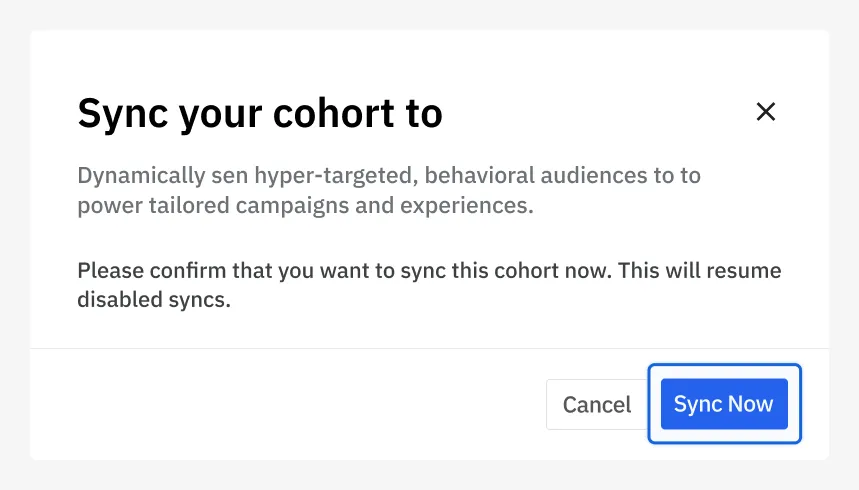
3. Click Sync Now in the pop-up to start the re-sync.