Events
Events are specific actions a user performs within your service, such as adding to cart or making a purchase. Based on these events, you can run advanced marketing such as customer journey automation.
Integrating events
Section titled “Integrating events”Trigger an event each time a user performs a specific action.
Run the following code at the moment the event is triggered:
- (Recommended) REST API:
POST /v1/projects/PROJECT_ID/track- Recommended, because firing events from your server via the API enables more accurate integration that is independent of your app version.
- Web SDK / Mobile SDK:
FlareLane.trackEvent("test_event")
Example: integrating events via the API
curl --request POST \ --url https://api.flarelane.com/v1/projects/PROJECT_ID/track \ --header 'Authorization: Bearer API_KEY' \ --header 'accept: application/json' \ --header 'content-type: application/json' \ --data '{ "events": [ { "subjectType": "user", "subjectId": "userid1", "type": "purchase", "data": { "productId": "123", "productName": "Product Name", "amount": 10000 } } ]}'Supported data types
Section titled “Supported data types”The data values you can send with an event support the following types:
- String
- Number
- Time (use one of the two and follow the exact format)
- ISO8601 string: e.g. "2024-04-19T14:23:56+09:00"
- Unix Timestamp in milliseconds: e.g. 1681721331085
- Boolean (true/false)
- Array (types must match: all strings or all numbers)
- null (deletes the tag)
Verifying integrated events
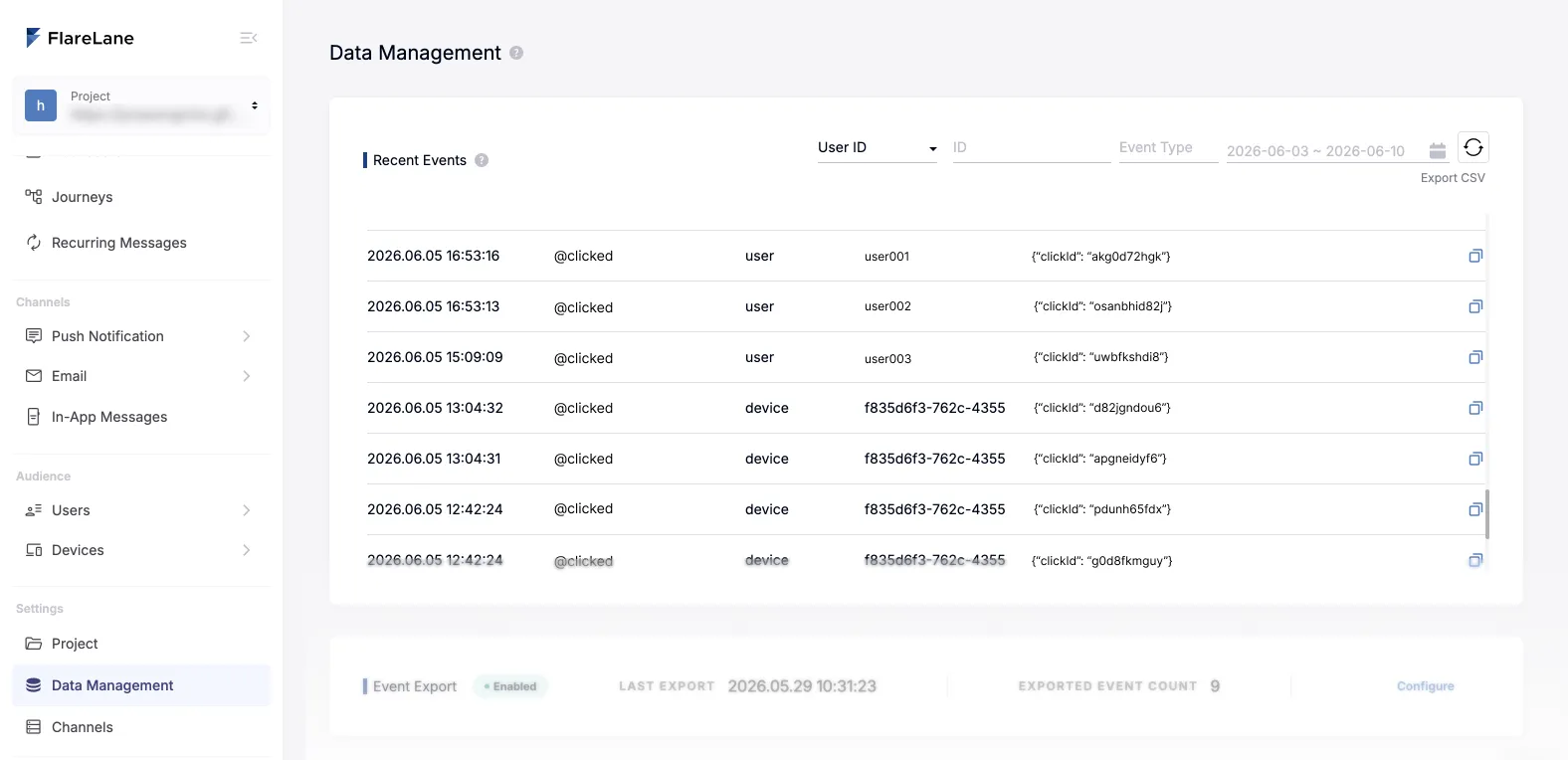
Section titled “Verifying integrated events”On FlareLane's customer data integration page, you can see every event that has occurred in the Recent Events list. You can also filter by a specific User ID or device ID.
In the integrated events list further down the same page, you can review the events available for use. When you integrate a new event, it is added to the list automatically after a short delay; rather than waiting, you can also add it to the list manually and use it right away. (Being added to the list does not necessarily mean the data has been integrated correctly.)
Use case 1) Creating segment groups
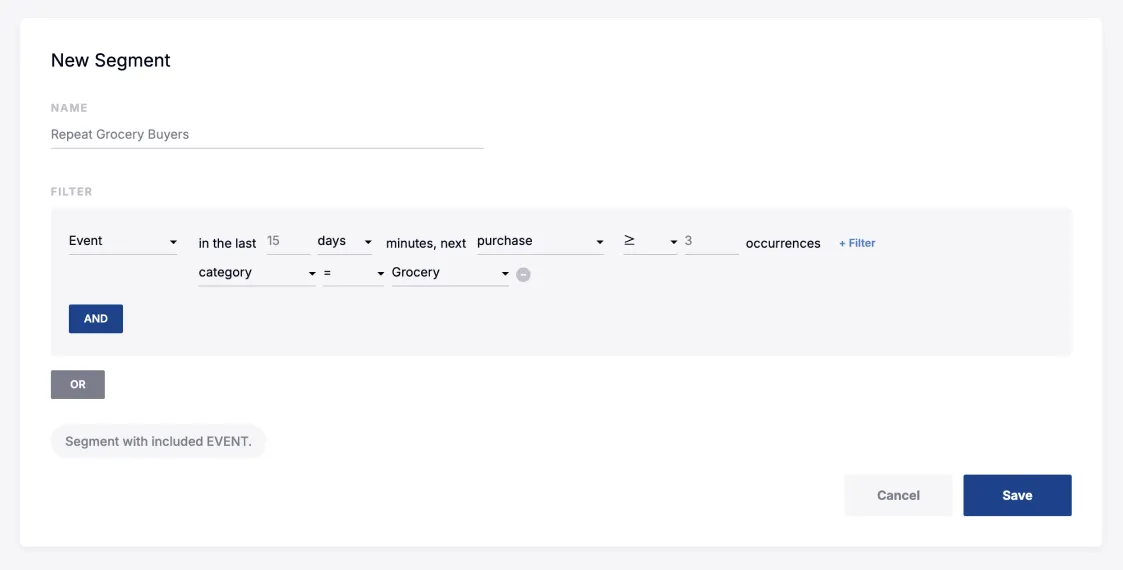
Section titled “Use case 1) Creating segment groups”Using event filters in segment filters, you can freely build groups of all kinds. You can configure a variety of conditions, such as how often an event occurred within a time period and detailed event data criteria.
Use case 2) Message personalization variables
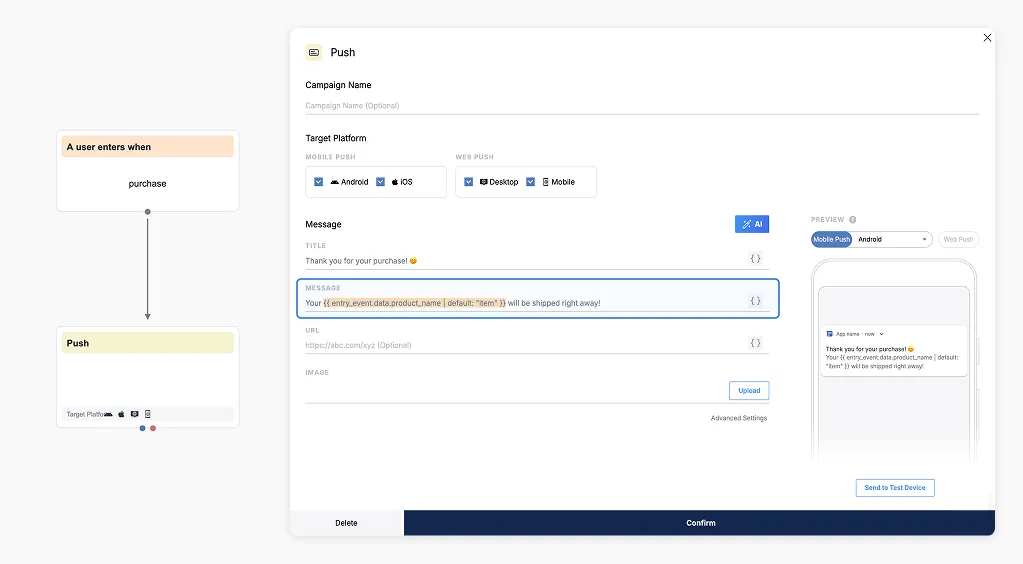
Section titled “Use case 2) Message personalization variables”In customer journey automation, integrated events let you insert detailed data into message content using the personalized message (Liquid) syntax.
Usage: {{ entry_event.data.dataName | default: defaultValue }}
Automatically collected events
Section titled “Automatically collected events”These are events FlareLane collects automatically, distinguished by an @ prefix in their names. The following five events are currently collected automatically, with more to be added over time.
- @first_session: Fired when a device is created
- @clicked: Fired when a push notification is clicked
- @iam_displayed: When an in-app message is displayed
- @iam_clicked: When an in-app message is clicked
- @iam_closed: When an in-app message is closed