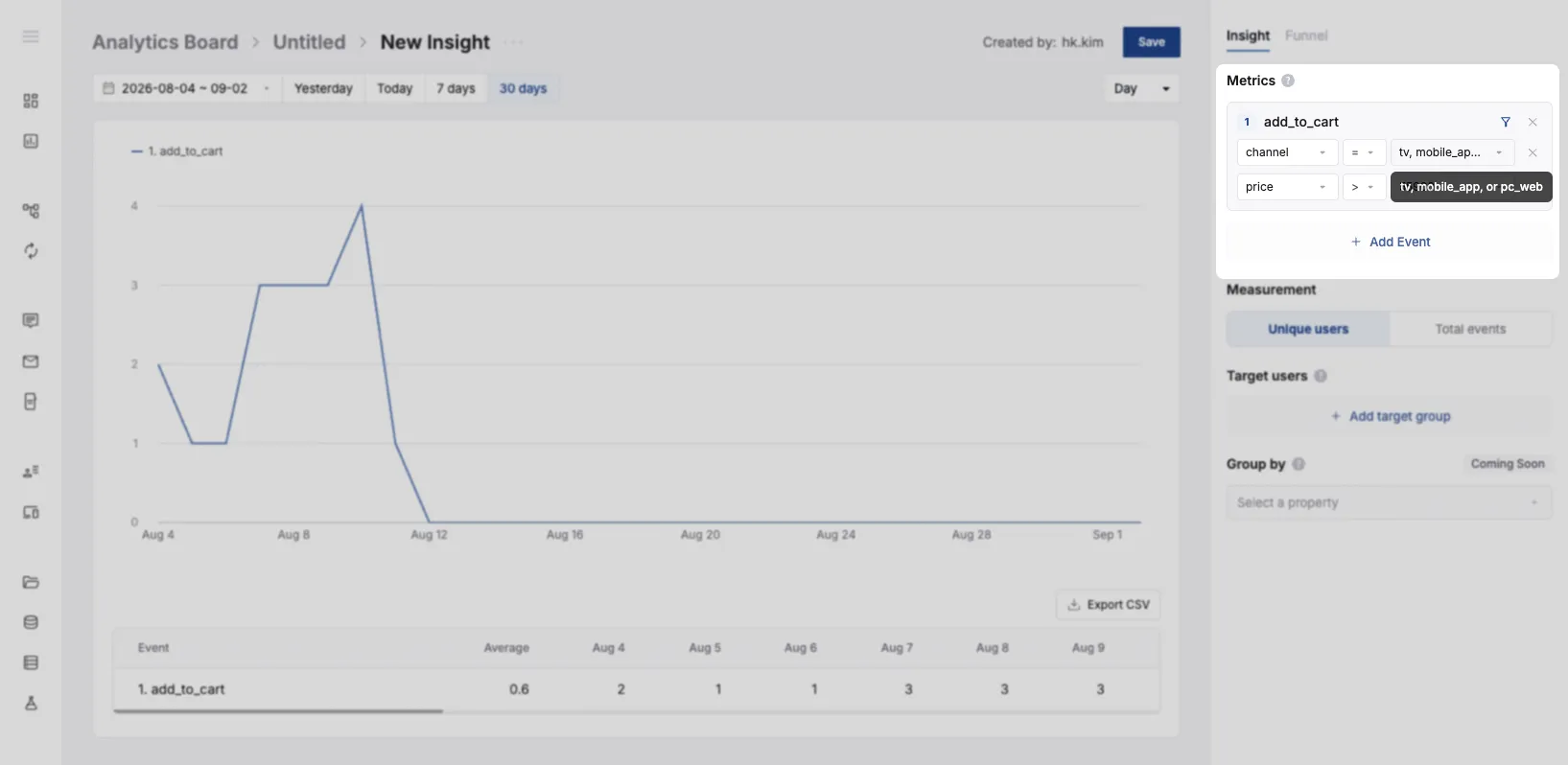
Metric
Metric is where you decide what to analyze. The events you add here become the lines (Insight) or the steps (Funnel) of the graph.
If you add no events, the report cannot be created.
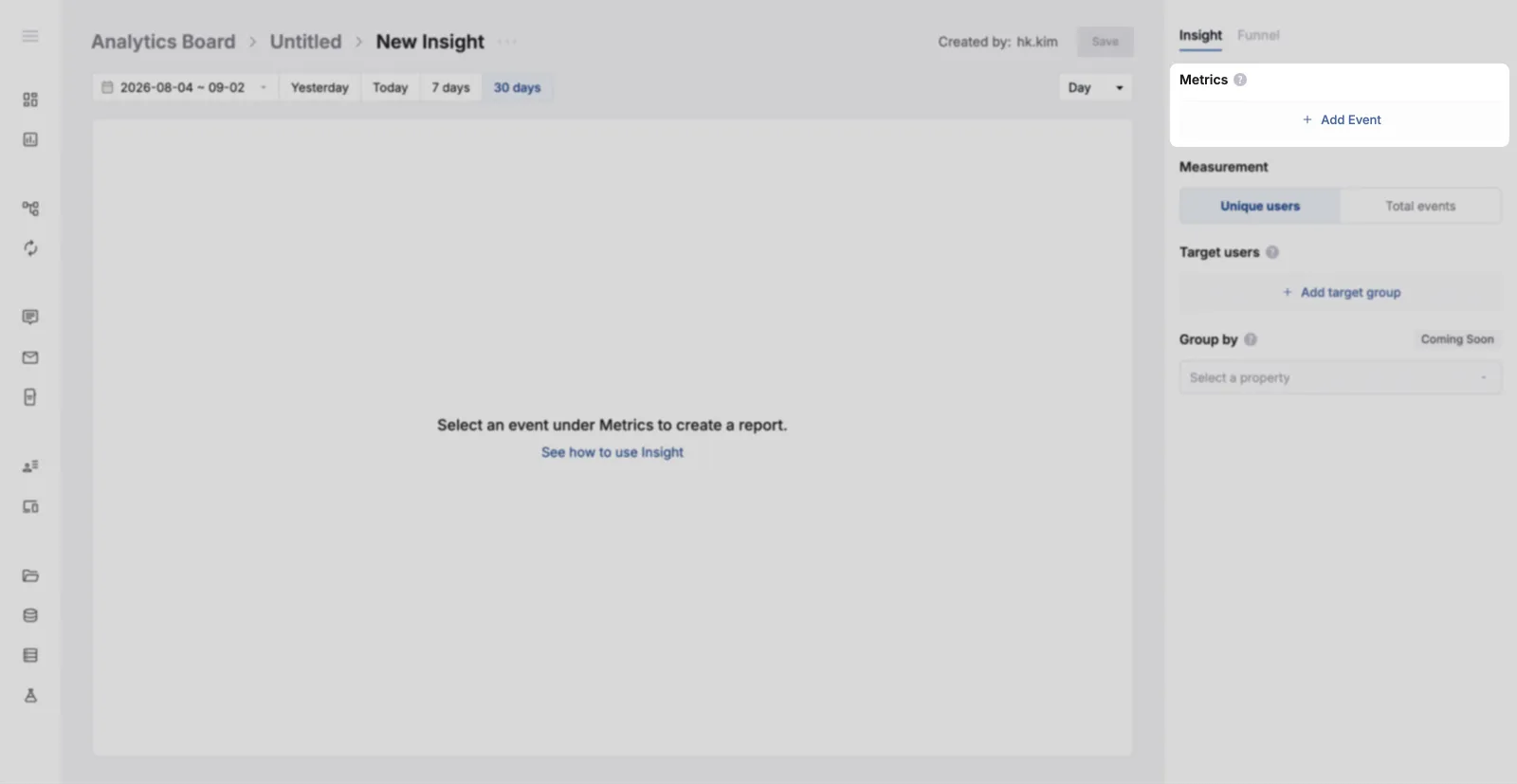
Adding events
Section titled “Adding events”- Click the Add Event button.
- An event block appears, along with the selector.
- Select an event.
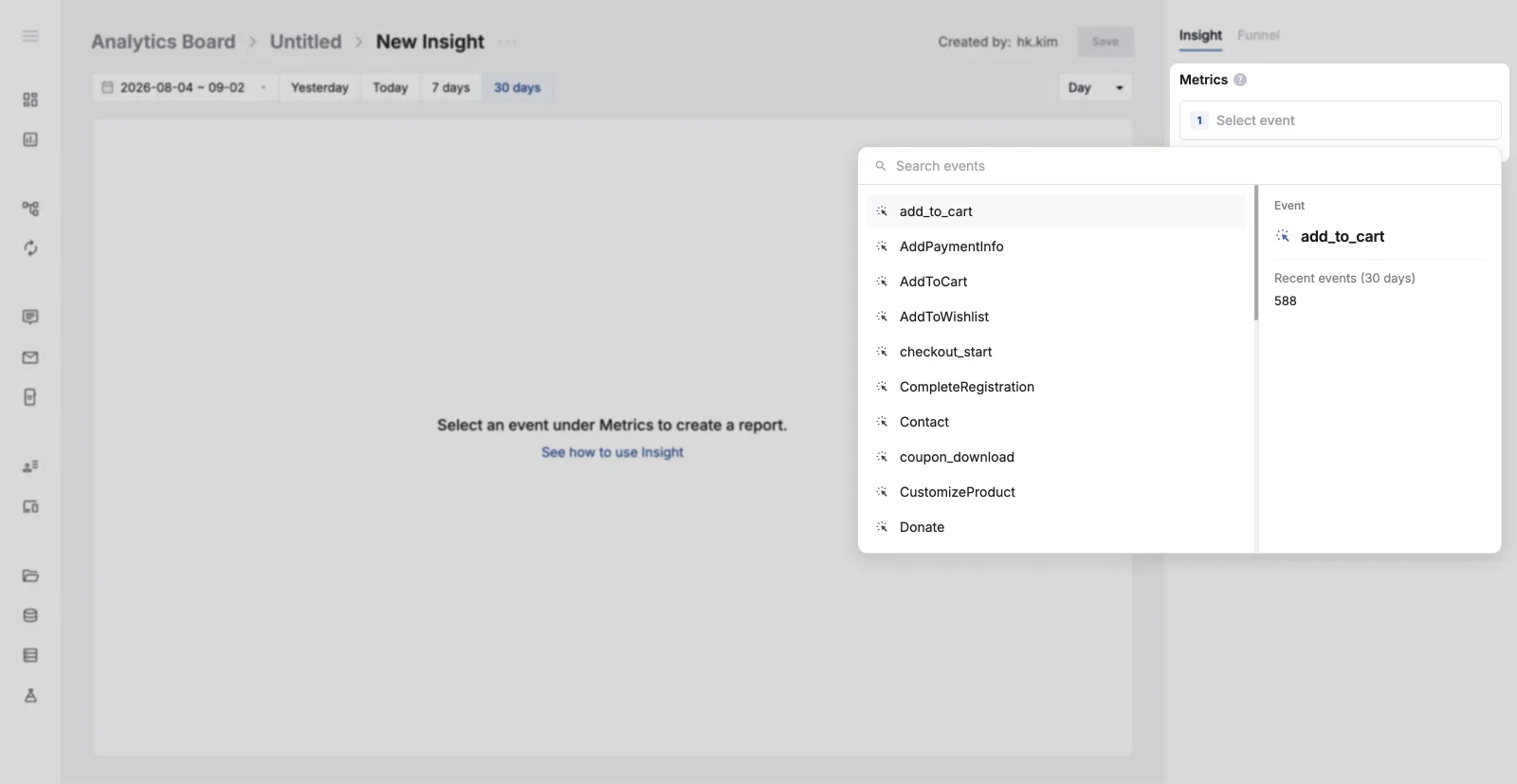
Types of events you can select
Section titled “Types of events you can select”| Type | Description |
|---|---|
| Auto-collected events | Default events FlareLane collects automatically |
| CRM events | Events from FlareLane activity, such as message sends and clicks |
| Custom events | Events you define yourself |
Narrowing the scope with property filters
Section titled “Narrowing the scope with property filters”Adding a property filter to an event (a user action) lets you define “what specifically that action was”.
For example, you can check how many times a specific product (product_id) was purchased (purchase).
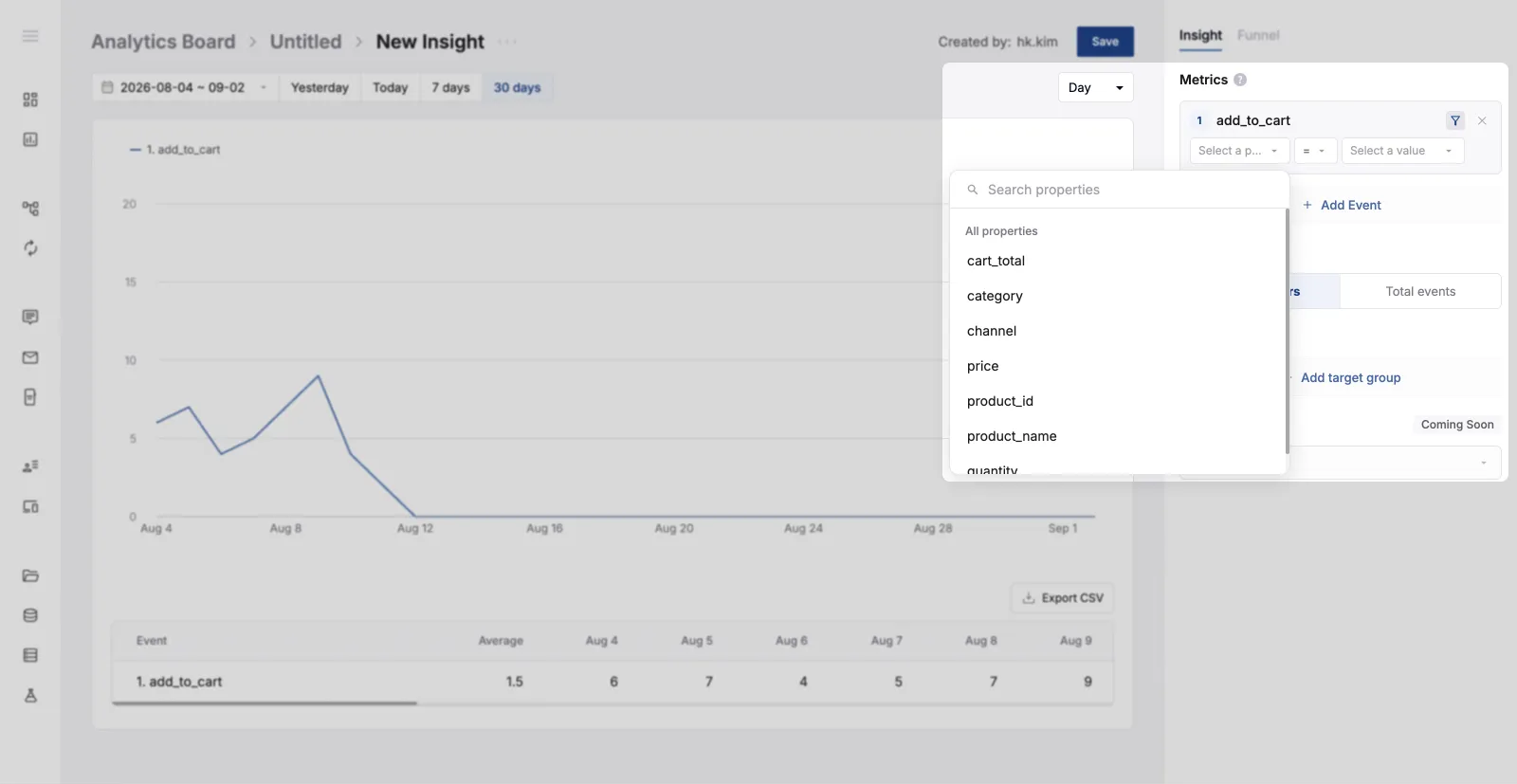
- Hover over the event block and click the property filter icon that appears.
- Select a property and a value.
How property filters combine
Section titled “How property filters combine”- You can attach several properties to one event, and all properties work as AND conditions.
- Example:
category = shoes+price ≥ 50000→ shoes that cost 50,000 or more
- Example:
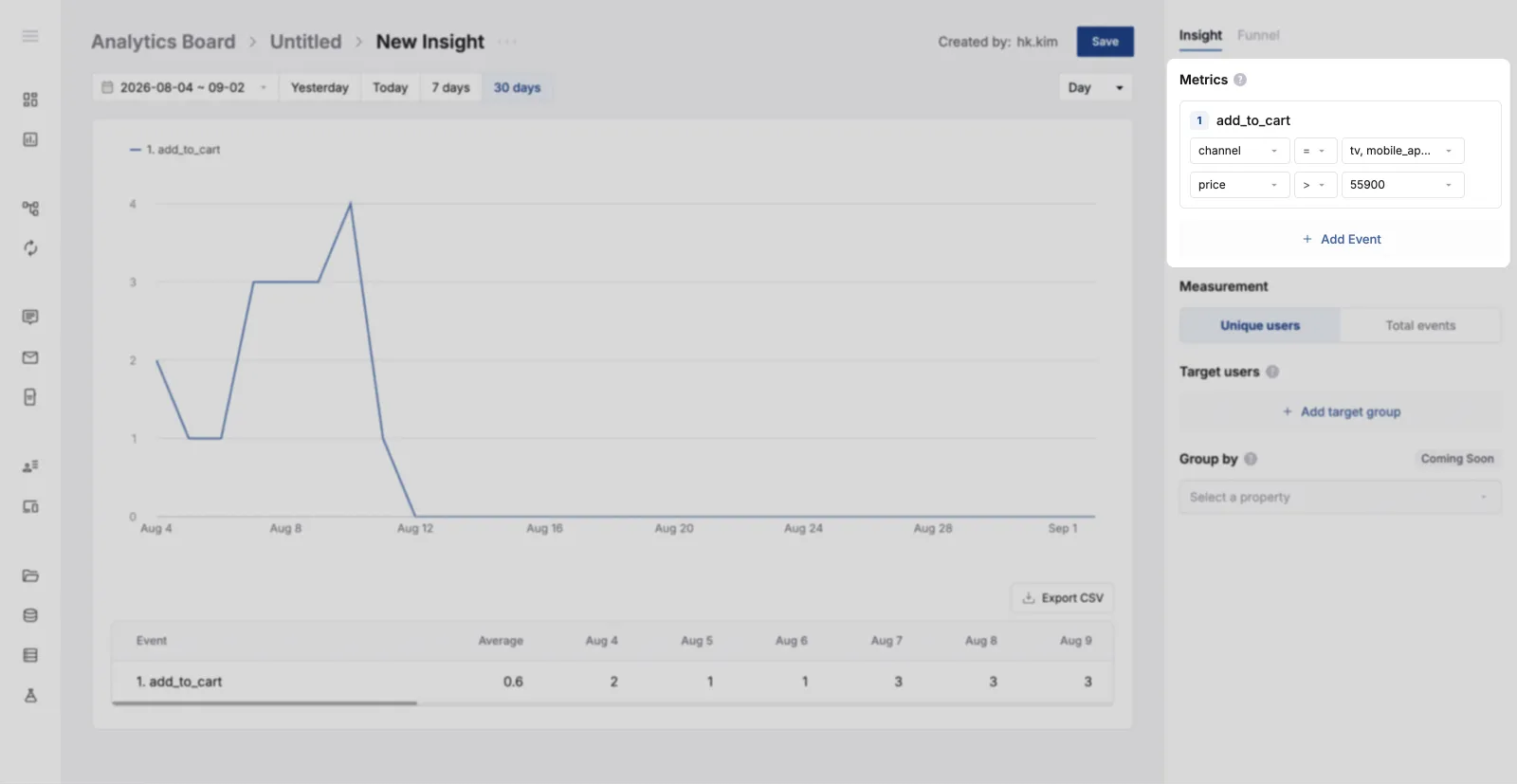
- If you pick several values for one property, matching any one of them (OR) counts.
- Example:
category = shoes, bags or hats→ any of the three categories
- Example: