SMS
SMS lets you send text messages straight to customers’ phone numbers—ideal for time-sensitive alerts and reaching users you can’t reach through app or web push.
Sending SMS
Section titled “Sending SMS”With FlareLane, you can send one-off messages or automate your messaging through Customer Journey Automation.
One-off Messages
Section titled “One-off Messages”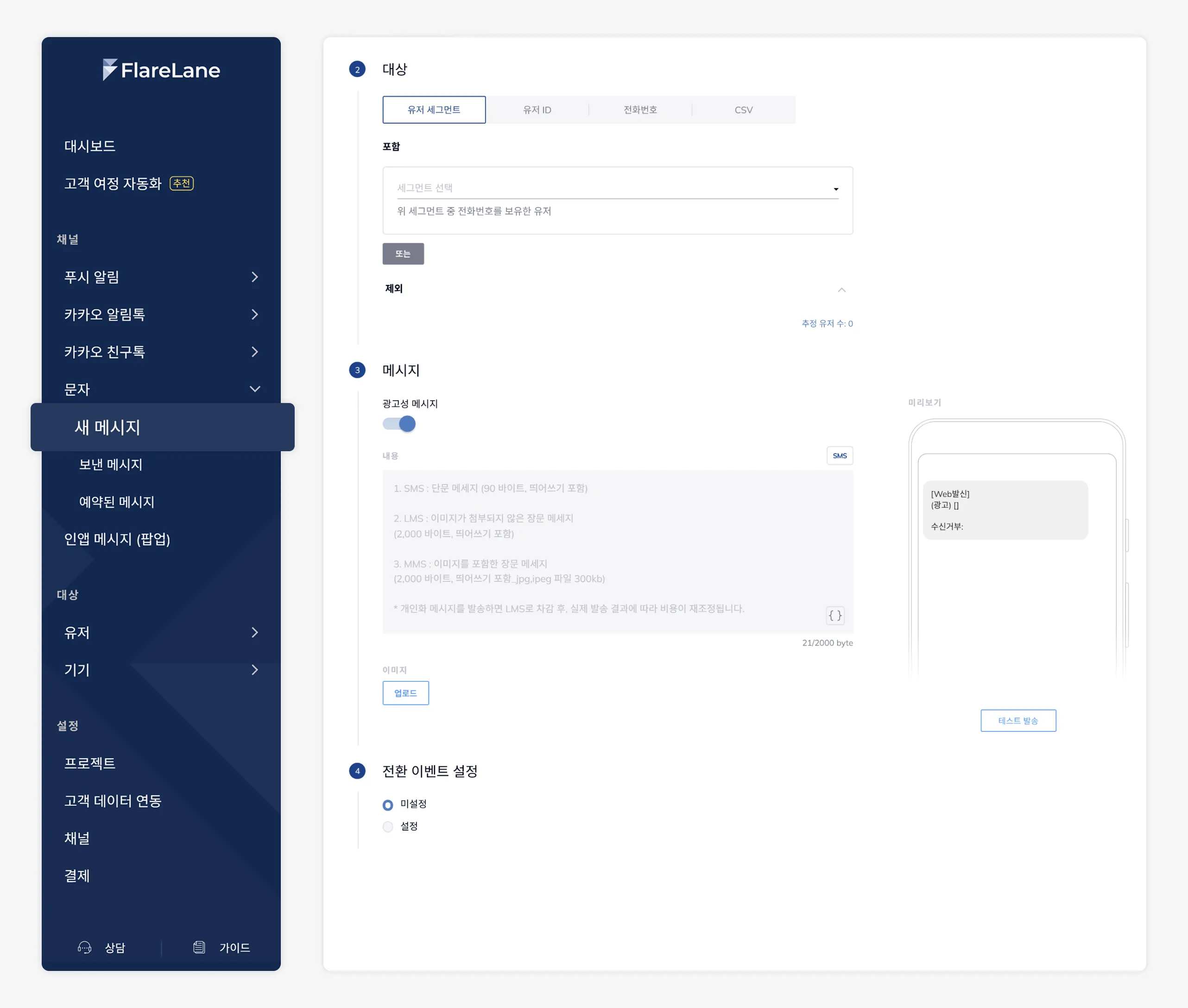
- Set your audience Define the recipients for your message. You can send to a user segment that has phone numbers, or send based on a file (xlsx, csv).
- Compose your message Compose the content of your SMS. You can also set up per-user personalization variables with the Personalized Messages (Liquid) feature. When you enable promotional messaging, the following are applied in accordance with the Promotional Notification Guidelines: a. Insertion of an “(Ad)” label b. Display of your company name (based on your business registration) c. Display of an opt-out number
- Send a test Once your message is ready, you can send a test to internal team members to see how the actual message will look.
- Set up conversion events Set a goal event for the message you’re sending, and you can perform conversion event setup and analysis based on the users who completed that action.
- Set the send timing You can send immediately or schedule the message for a specific time.
Customer Journey Automation
Section titled “Customer Journey Automation”To automate message sending, use the Customer Journey Automation feature. You can build data-driven automation based on events or customer profiles.
Reviewing SMS Performance
Section titled “Reviewing SMS Performance”FlareLane provides statistical metrics that let you analyze the performance of sent messages and gain insights.
Registering a Sender Number Profile
Section titled “Registering a Sender Number Profile”About Sender Number Pre-registration
Section titled “About Sender Number Pre-registration”Sender number pre-registration is a system in effect since October 16, 2015. Sender numbers that are not pre-registered are restricted from sending text messages.
This is a measure under Article 84 of the Telecommunications Business Act, introduced to prevent user harm caused by falsely displayed phone numbers.
Therefore, you must register your sender number in advance before you can send SMS.
Sender Number Profile Registration Procedure
Section titled “Sender Number Profile Registration Procedure”To register an SMS sender number profile, review the sender number registration form, then prepare your documents and complete the form.
How to View Registered Sender Number Profiles
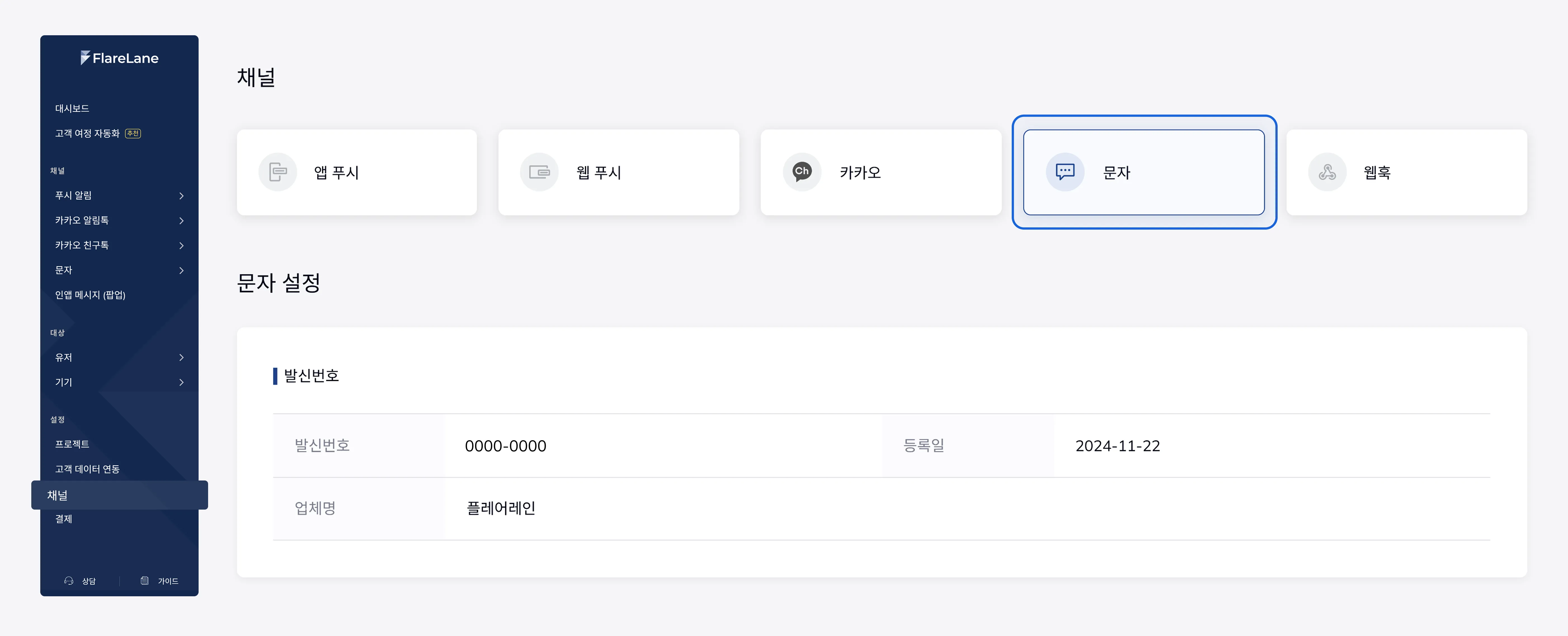
Section titled “How to View Registered Sender Number Profiles”You can view registered sender number profiles on the [Channels] page in the FlareLane console.
080 Opt-out Feature
Section titled “080 Opt-out Feature”About 080 Opt-out Number Issuance
Section titled “About 080 Opt-out Number Issuance”When sending promotional SMS, you must provide a way to opt out, and FlareLane issues and provides an 080 opt-out number on your behalf. If you have an existing internal SMS opt-out list, a migration process to FlareLane is supported, so please reach out to us.
Opt-out Add/Remove Webhook
Section titled “Opt-out Add/Remove Webhook”When a new phone number is added to or removed from the 080 opt-out list managed by FlareLane, you can receive this via webhook and store it on your own server to manage alongside FlareLane.
Your business builds an API to receive the webhook, then registers it on the SMS channel settings page in the FlareLane console. The webhook is fired with the following format.
// HTTP Method: POST
{  requestId: string; // UUID  type:"ReportSMSUnsubscribed";  data: {    phoneNumber: string; // +820100000000    subscribed: boolean; // true, false  }}
Opt-out Add/Remove API
Section titled “Opt-out Add/Remove API”To add or remove opt-out numbers you hold directly in FlareLane, use the Opt-out Add/Remove API (/sms/unsubscribe, /sms/subscribe).