Mobile Push
Mobile Push is a marketing channel that lets you send messages to devices through Android and iOS apps.
What Makes FlareLane Mobile Push Different?
Section titled “What Makes FlareLane Mobile Push Different?”- You can build a sophisticated push marketing environment for sending, operations, and analytics with a single line of code, saving valuable time and labor costs.
- A vast number of push tokens and notification histories are managed through FlareLane, so there's no need to build an expensive database for them.
- It supports extremely fast and reliable sending proven at large scale, and also offers a Rate Limiting feature so your servers aren't overloaded.
- It enables highly advanced Personalized Messages (Liquid) using variables.
- When notification permission is blocked, it simplifies the path to re-granting permission by, for example, taking users straight to app settings, maximizing the re-opt-in rate.
- Even for a single message, you get fundamental performance analysis after sending, from click-through rates to goal conversion rates and conversion value, including purchases.
- Depending on the URL format, such as a deep link or website, best-practice click handling is applied automatically when the mobile push is tapped.
- It enables unified management and performance analysis for API-based sending, such as with API Templates.
- User fatigue management features like Frequency Capping are already built in.
Sending Mobile Push
Section titled “Sending Mobile Push”One-off Messages
Section titled “One-off Messages”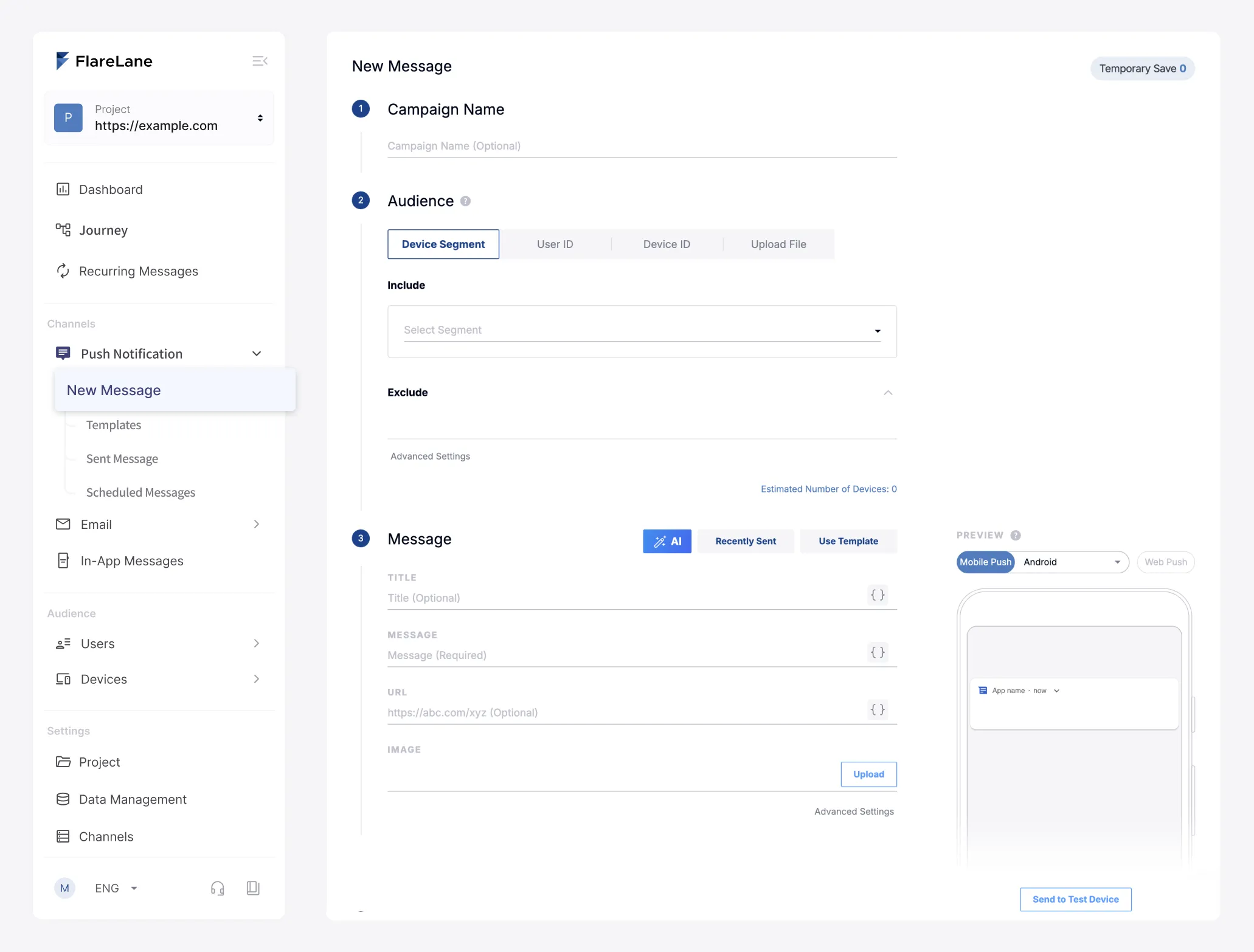
- Set your audience Define the recipients for your message. You can target a variety of conditions, including Segment Filters and CSV/Excel targets.
- Compose your message Compose your push message, including title, body, and image. You can also enter per-user personalization variables with the Personalized Messages (Liquid) feature.
- Send a test Once your message is ready, you can send a test to internal team members to see how the actual message will look.
- Set up conversion events Set a goal event for the message you're sending, and you can perform conversion event setup and analysis based on the users who completed that action.
- Set the send timing You can send immediately or schedule the message for a specific time.
Customer Journey Automation
Section titled “Customer Journey Automation”To automate message sending, use the Customer Journey Automation feature. You can build data-driven automation based on events or customer profiles.
Reviewing Mobile Push Performance
Section titled “Reviewing Mobile Push Performance”FlareLane provides statistical metrics that let you analyze the performance of sent messages and gain insights.
Mobile Push Components
Section titled “Mobile Push Components”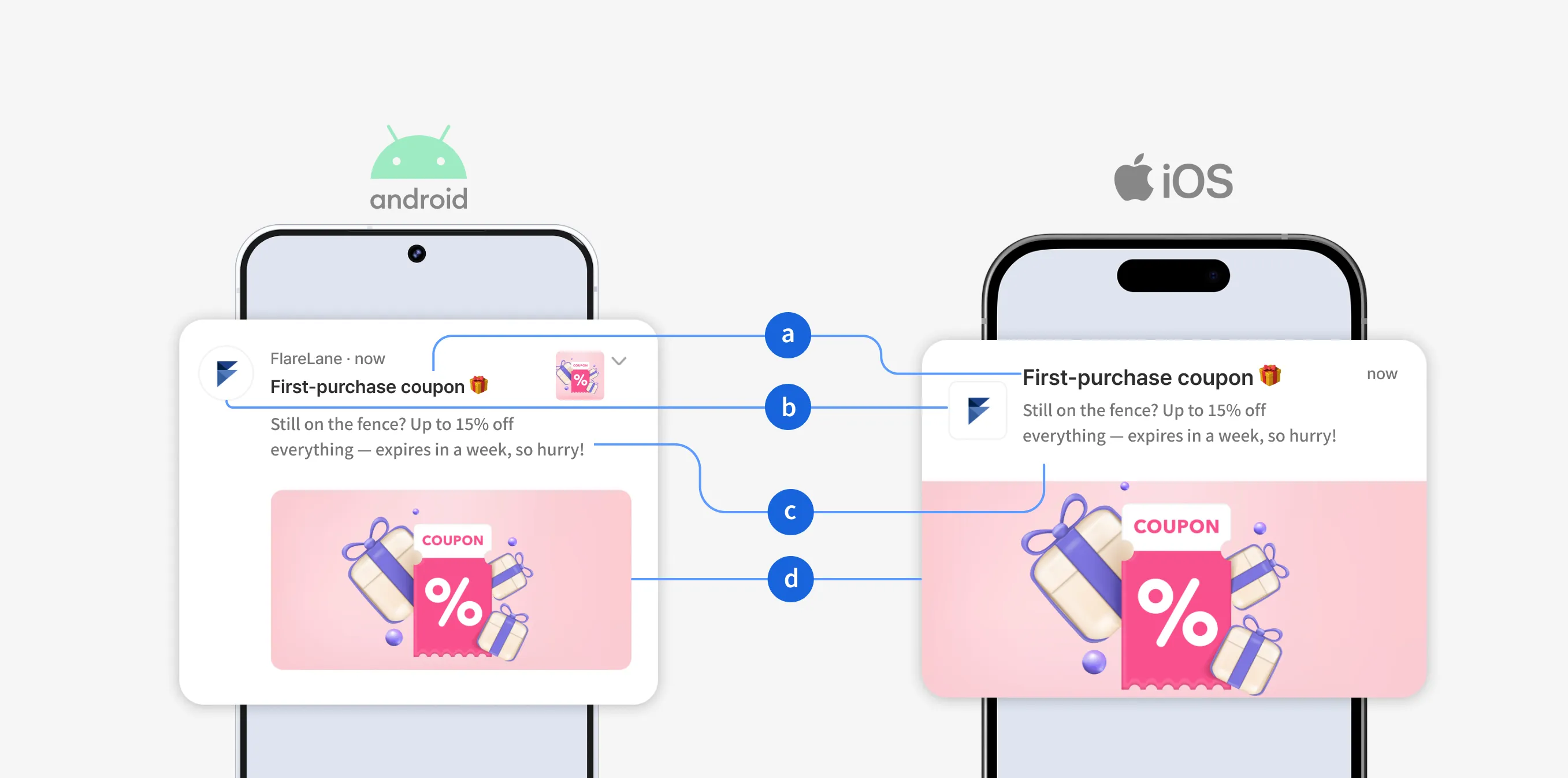
| Element | Description |
|---|---|
| a (title) | The title of the push notification |
| b (icon) | iOS: uses the default app icon Android: notification color and icon set separately (see integration guide) |
| c (body) | (Required) The content of the push notification |
| d (image) | Landscape or square image |
| URL | The destination to navigate to on click, such as a deep link or https URL & Deep Linking Guide |
| Data | Free-form key/value data attached to the push notification |