Kakao Alimtalk
Kakao Alimtalk is a messaging channel that lets you send messages to customers through KakaoTalk, with the advantage that you only need a phone number to send. However, only "informational" messages approved by Kakao can be sent. Promotional messages—such as new product launches, sales promotions, or other messages that encourage users to make purchases—cannot be sent.
Sending Alimtalk
Section titled “Sending Alimtalk”With FlareLane, you can send one-time messages or automate message delivery through customer journey automation.
One-Time Message
Section titled “One-Time Message”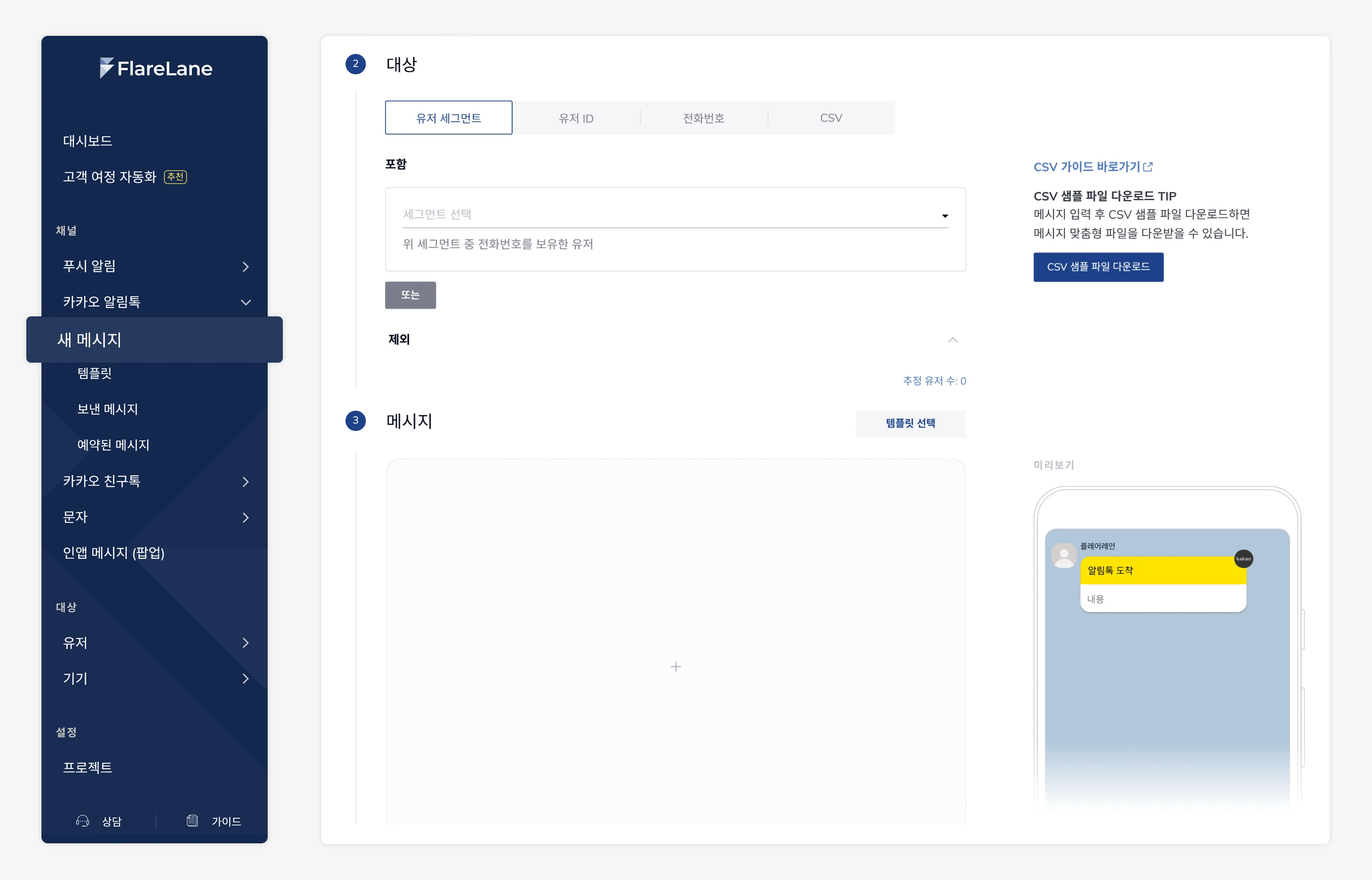
- Set the audience Define the recipients for your message. You can target a user segment with phone numbers or send via file upload (xlsx, csv).
- Compose the message Build your message using an approved Alimtalk template. To use personalization variables, submit a template written in the #{variable_name} format through FlareLane.
- Send a test Once your message is ready to send, you can send a test to internal team members to see what the actual message looks like.
- Set the conversion event Set a goal event for the message you're sending, and enable conversion event setup and analysis based on users who completed that action.
- Set the delivery timing Send immediately or schedule delivery for a specific time.
File Upload Rules
Section titled “File Upload Rules”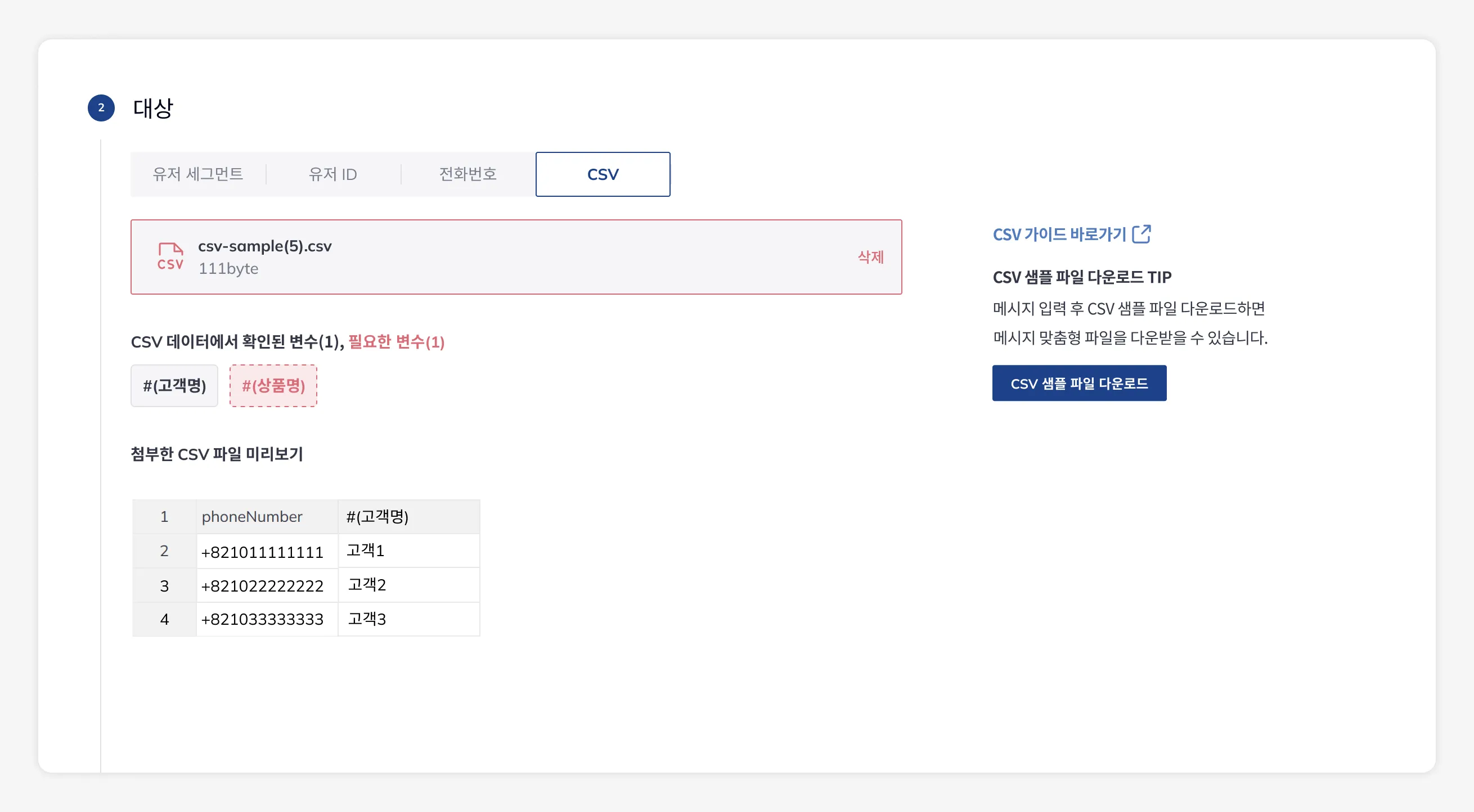
To send based on a file, it's important to structure your xlsx or csv file according to the rules.
FlareLane provides basic rule validation for smooth file-based delivery, and if your content contains personalized message (Liquid) variables, you can easily download a sample file based on them.
The key rules for structuring your file are as follows. You can also review error details in the console.
- The first row is the header, and phoneNumber is required. The remaining columns are used as personalization variable names.
- phoneNumber must be in the first row and the first column, and must be entered in E.164 format (e.g., +821011112222).
- For conversion measurement, events are measured based on the user ID of the user matching the phone number.
- The header must not contain empty cells or duplicates.
- There must be no duplicate phone numbers.
- CSV files must be UTF-8 encoded.
Customer Journey Automation
Section titled “Customer Journey Automation”If you want to automate message delivery, use the customer journey automation feature. Data-driven automation is possible based on events or customer profiles.
Creating an Alimtalk Template
Section titled “Creating an Alimtalk Template”Alimtalk Templates
Section titled “Alimtalk Templates”To send Kakao Alimtalk, you need an "Alimtalk template"—the message you'll send to users, which must be reviewed and approved in advance.
Template review takes about 2–3 days from the time of submission. If a template is rejected, you can check the rejection reason on the template detail page and make corrections.
If you already have approved Kakao Alimtalk templates, contact FlareLane and we can support migration.
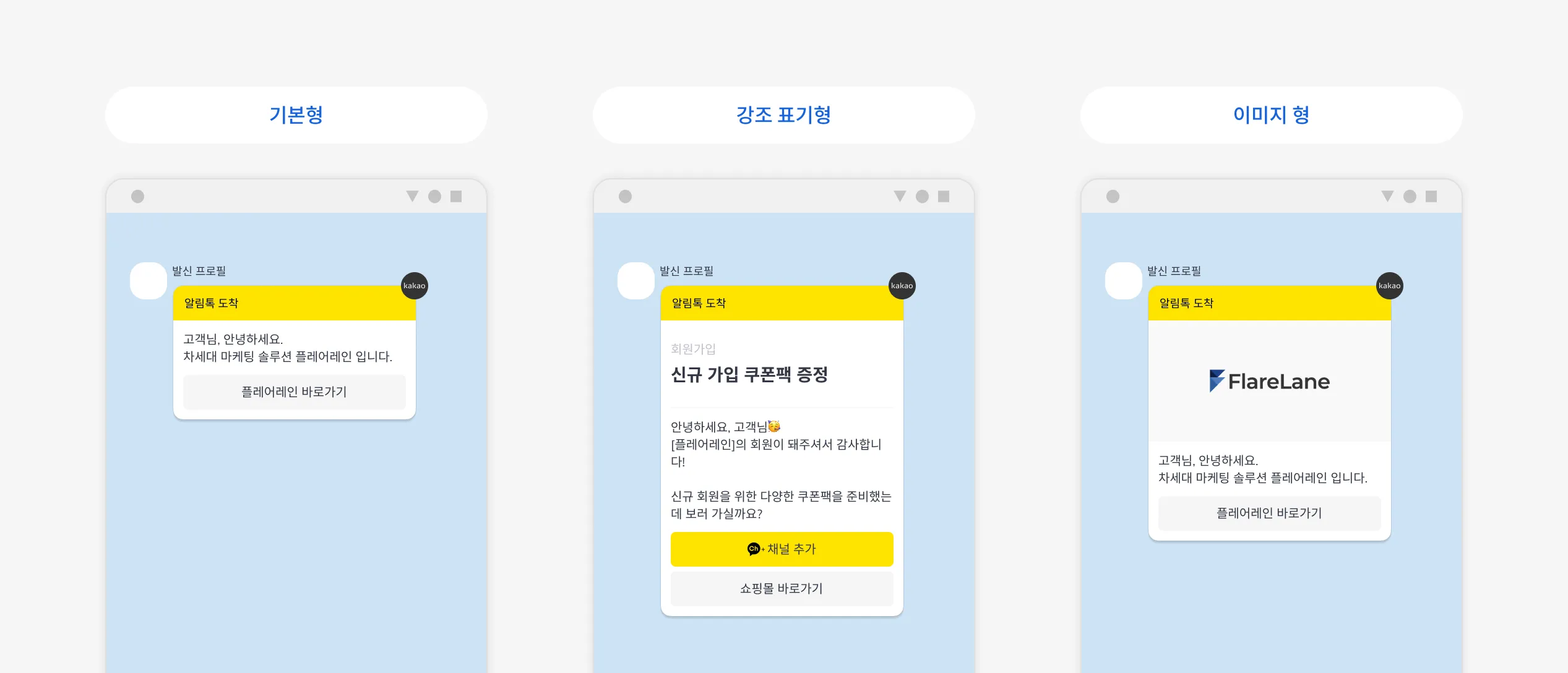
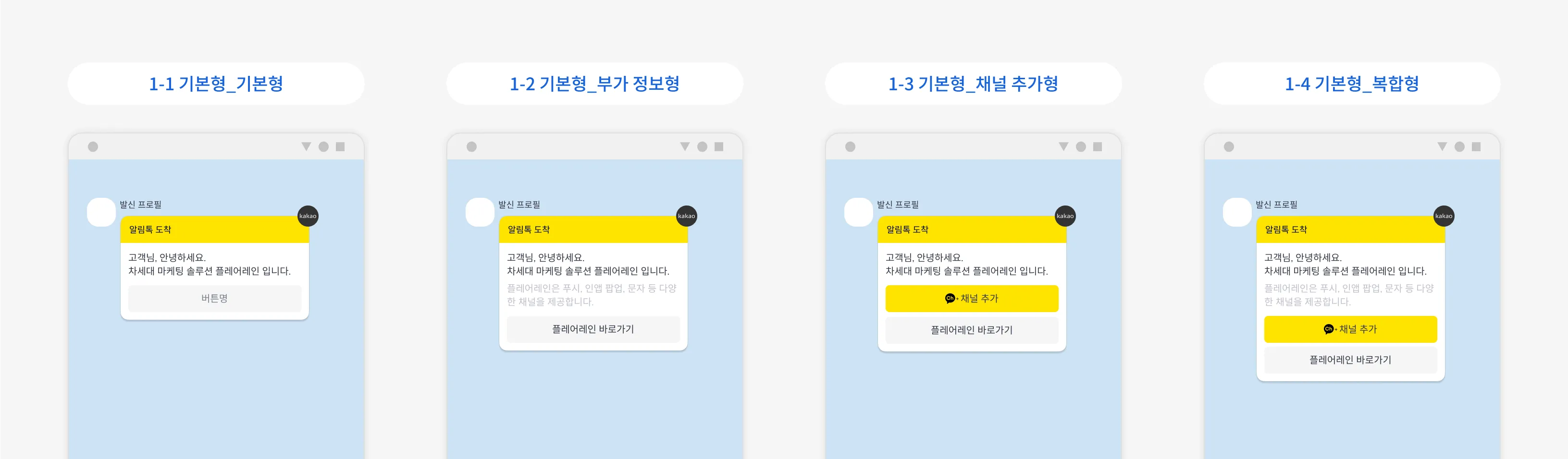
Emphasis Types and Message Types
Section titled “Emphasis Types and Message Types”You can set the emphasis type and message type to match the nature of the Alimtalk you want to send.
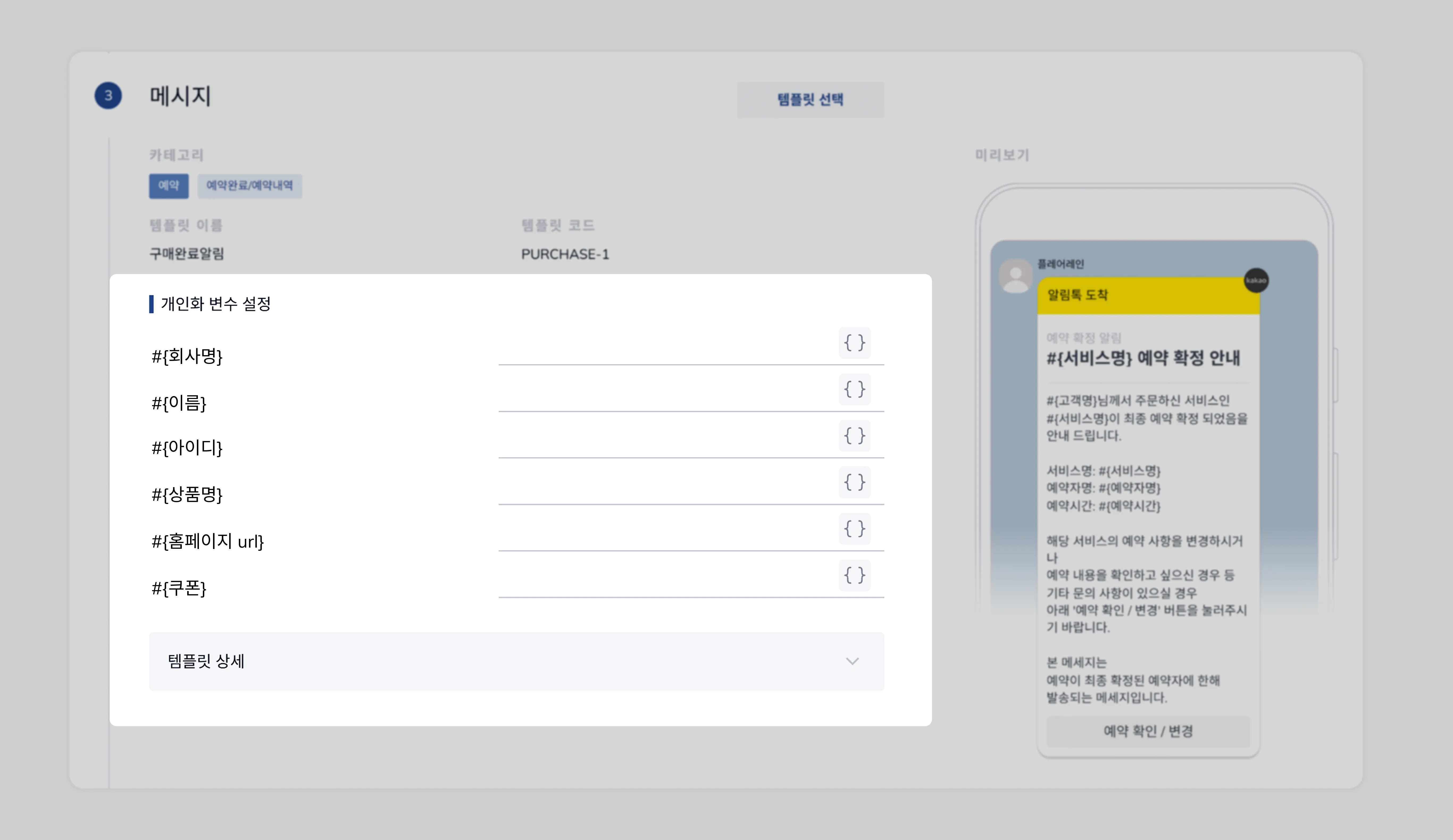
Personalization Variables
Section titled “Personalization Variables”Personalization variables must be written in the #{variable_name} format, and at the time of actual sending, they are connected using FlareLane's personalized message (Liquid) syntax.
Button Settings
Section titled “Button Settings”A single Alimtalk template can have up to 5 buttons. Each button type is described below.
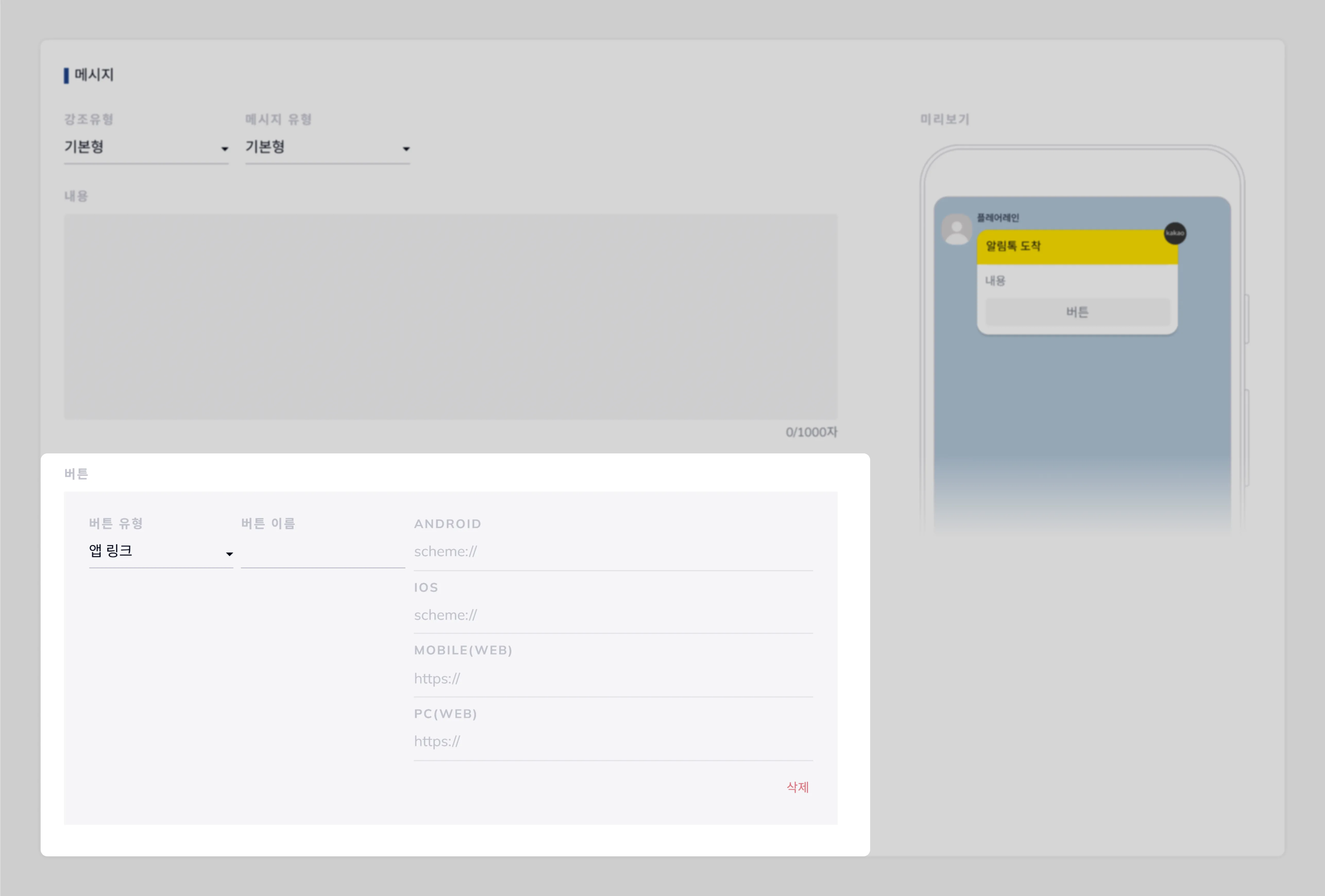
| Button Type | Description |
|---|---|
| Web link | Sets a web landing URL for each of the mobile and PC environments. |
| App link | Sets a deep link for users who have the app installed and a web landing URL for those who don't. |
| Delivery tracking | Links to the delivery tracking page provided by Kakao. |
| Add channel | Available only for the Add Channel and Composite message types. |
Reviewing Alimtalk Performance
Section titled “Reviewing Alimtalk Performance”FlareLane provides statistical metrics that let you analyze the performance of sent Alimtalk messages and gain insights.
Connecting Your Kakao Channel
Section titled “Connecting Your Kakao Channel”Kakao Channel Setup
Section titled “Kakao Channel Setup”1. Create a KakaoTalk channel
- If you don't have a KakaoTalk channel: Create a new channel in the KakaoTalk Channel Admin Center.
- If you already have a KakaoTalk channel: Convert your existing channel into a business channel.
2. Channel business verification and customer service information
- To convert to a business channel, you must complete business verification in the KakaoTalk Admin Center, and review takes an average of 3–5 business days.
- The documents required for review are as follows.
- Business registration certificate or unique number certificate
- Mail-order business, medical device sales, or health functional food sales registration certificate (if applicable)
- Certificate of employment or the representative's ID
- Overseas businesses cannot apply.
3. Enter and verify customer service information
- Enter the customer service information you'll use on your actual business account.
- [Profile] > Home tab card [Settings] > [Basic Information] > [Enter Customer Service Information]
- Verify the following information for FlareLane integration.
- KakaoTalk channel ID (search ID) [Kakao Channel Admin Center] > [Profile] > [Profile Settings] > Search ID
- Category [Kakao Channel Admin Center] > [Profile] > [Channel Home Settings] > [Verify Business Information] * If there's no identical category, choose the closest matching one.
- Channel admin phone number [Kakao Channel Admin Center] > Management > Phone number registered to the master
FlareLane Channel Setup
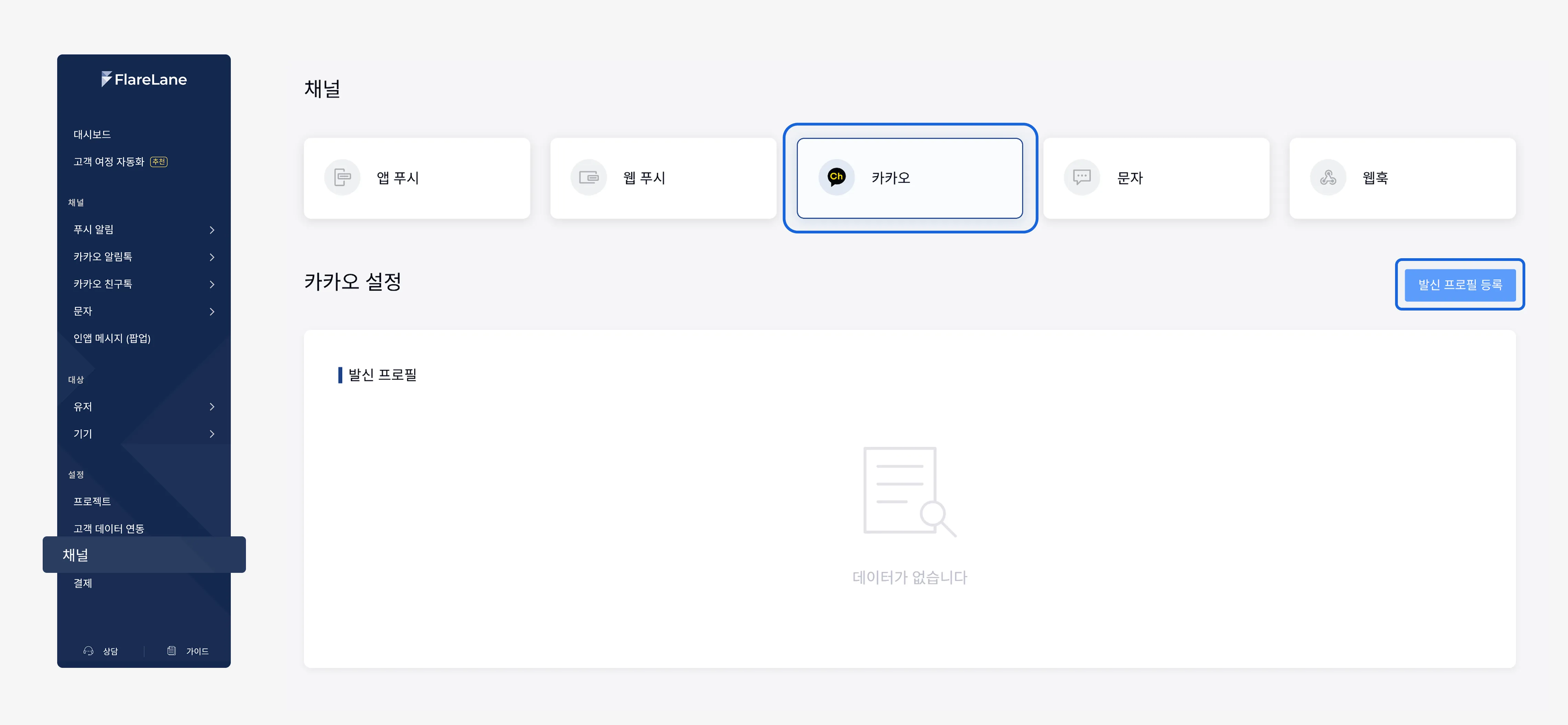
Section titled “FlareLane Channel Setup”On the [Channels] page in the FlareLane console, enter the sender profile details you verified above.