In-App Message (popup)
In-App Messages (popups) surface content to users while they're using your app or web service, prompting immediate action. They drive high conversion rates by getting customers to act right away—such as instantly moving them to a specific page.
Choosing How to Set Up In-App Messages
Section titled “Choosing How to Set Up In-App Messages”Unlike other channels, immediacy can be important for in-app messages. The setup method differs significantly depending on whether immediate display timing matters more or precise audience targeting matters more.
- Immediate display timing matters: Use the In-App Message channel in the console so messages can display right away based on triggers. When the configured display audience and period match, the message displays immediately at that moment.
- Precise audience targeting matters: Set up the in-app message within a journey using customer journey automation. Because automation takes some time to run, display isn't immediate, but once it's queued for display, a precisely personalized in-app message can be shown exactly at that user's next trigger point.
Getting Started with In-App Messages
Section titled “Getting Started with In-App Messages”1. Decide on Display Triggers
Section titled “1. Decide on Display Triggers”To prevent popups from appearing at unintended times, FlareLane in-app messages require your team to decide the display timing yourself. This is called an in-app message display trigger.
Display triggers are special triggers you integrate via the SDK, separate from the events you've integrated.
Examples:
- A trigger to display an in-app message when the customer enters the home screen (e.g., home)
- A trigger to display an in-app message when the customer enters the My Page screen (e.g., mypage)
- A trigger to display an in-app message when the customer reaches the purchase complete screen (e.g., complete_purchase)
- A trigger to display an in-app message when the customer reaches the content creation complete screen (e.g., complete_write)
- ...
2. Integrate Code for Each Display Trigger
Section titled “2. Integrate Code for Each Display Trigger”Once the display trigger names are decided, insert the displayInApp function for each trigger. When the function runs, it finds one in-app message eligible to display for that trigger and displays it.
Refer to the SDK reference for each platform (Mobile, Web), or add it via GTM.
// Run the following function when the home screen loadsFlareLane.displayInApp("home");
// Passing data can be used as a detailed trigger filter (e.g., display an in-app message when a specific product is viewed)FlareLane.displayInApp("view_product", { "product_id": 12345, "category": "food" });
3. Create the In-App Message
Section titled “3. Create the In-App Message”Once the display trigger is decided, create the content. You can get started easily using the variety of in-app message templates FlareLane has prepared in advance.
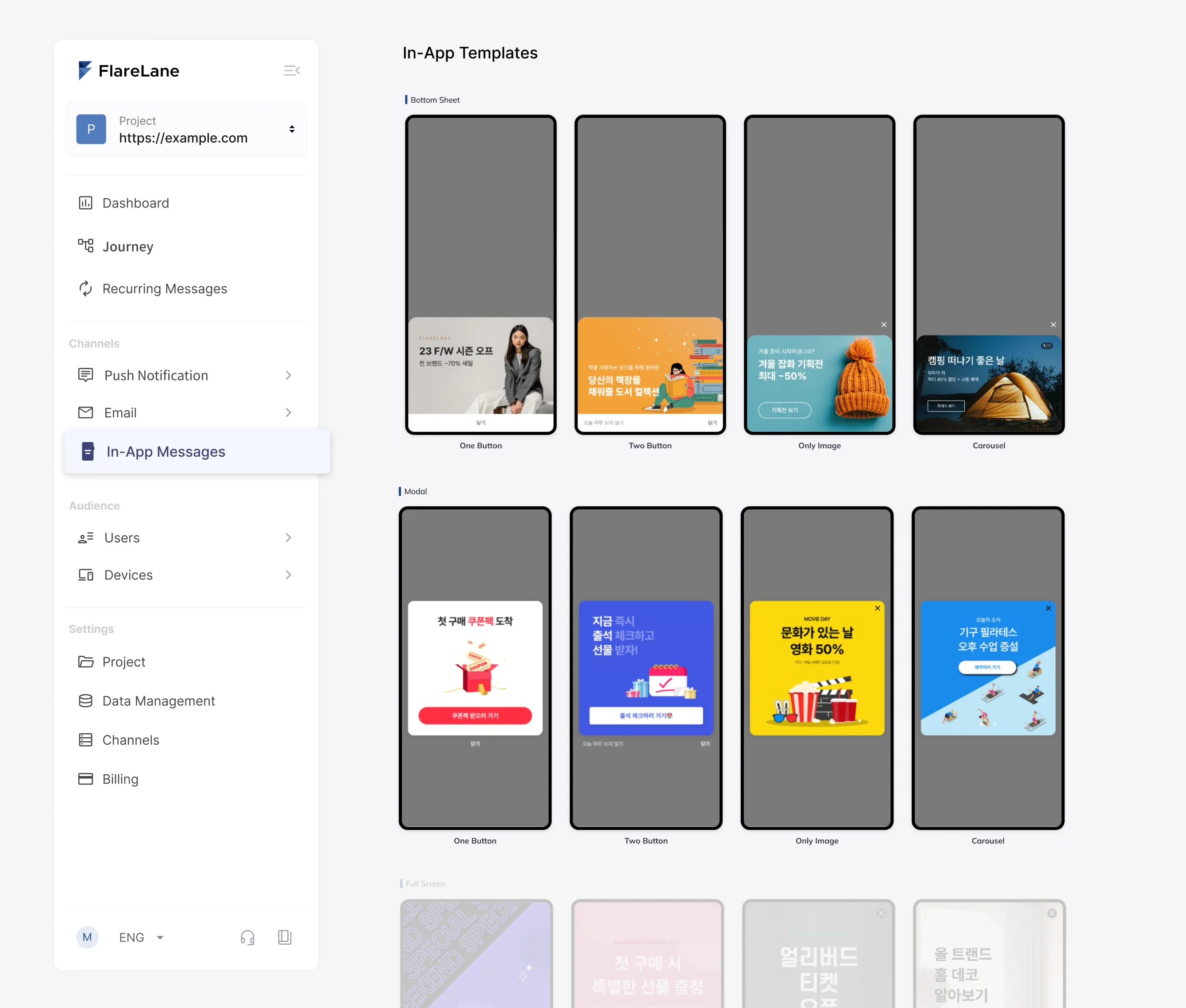
After selecting a template, you can easily define the in-app message's display trigger and actions. The actual in-app display timing uses the display trigger you defined in step 1.
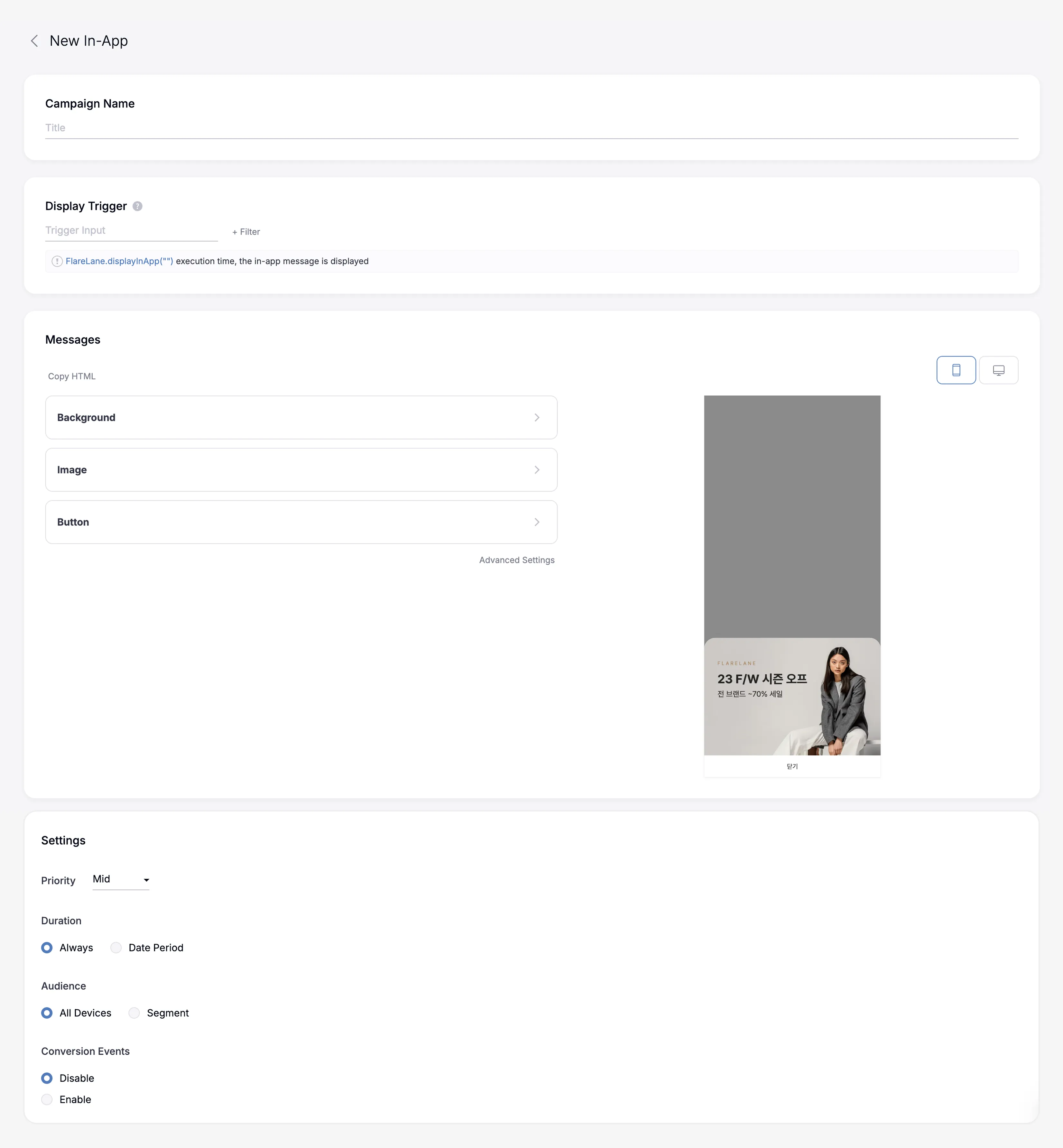
Display Period and Audience
Section titled “Display Period and Audience”When a device runs an in-app message display trigger, the following additional conditions are also checked.
- Display period: If set, FlareLane checks whether the current time falls within the period range, applying the device's timeZone.
- Display audience: If set, FlareLane checks whether the device meets the conditions based on segment filters. Note that events cannot be used as segment filters here, and you also cannot directly specify an existing segment as the condition.
Available Actions
Section titled “Available Actions”The actions you can set on an in-app message button are as follows.
| Name | Description |
|---|---|
| URL | Directly specify the destination path on click, such as an https URL or deep link. URL & deep link guide |
| Custom action | Directly implement the action to perform on click as an SDK function. (setInAppMessageActionHandler implementation required: App, Web) |
| Close | You can also set a "Don't show again for N days" option. "Don't show again" is set on a per-device basis. |
| Push subscription request | Displays a prompt to allow push notification permissions, or moves the user to the settings screen. |
Test Send
Section titled “Test Send”To test a created in-app message on a real device, click the test send button on the in-app message detail page.
A test-sent in-app message is displayed once at the highest priority at the next display timing.
For test sends, the "Don't show again" option is ignored.
Creating Custom In-App Messages (HTML)
Section titled “Creating Custom In-App Messages (HTML)”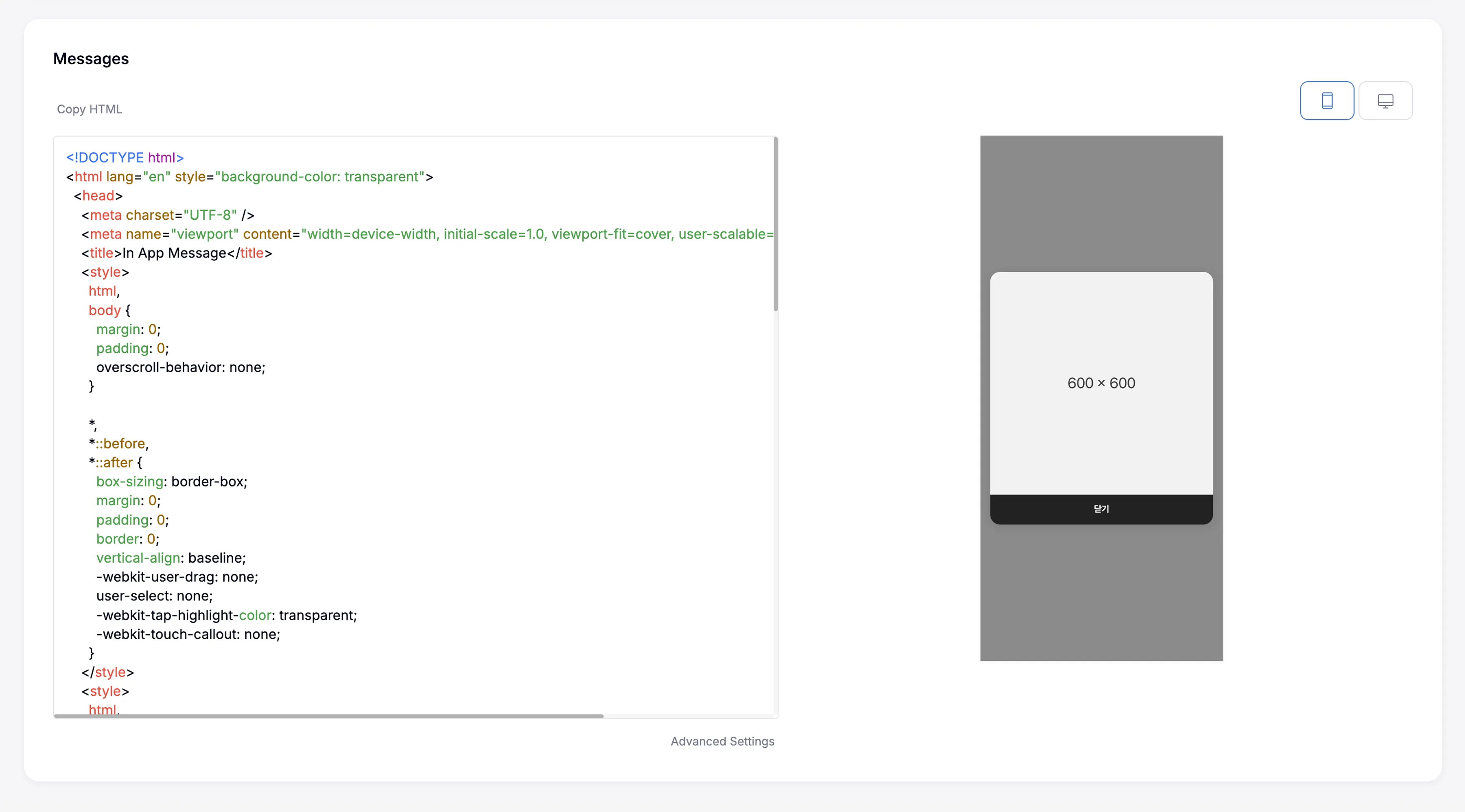
If you need your own special in-app message design and behavior, you can implement an HTML-based in-app message yourself.
You can freely build the UI by writing HTML code, and after implementing click listeners on buttons and other elements, integrate the following script. To measure click statistics, add a property such as data-flarelane-clickable-id="click1".
| Function Name | Description and Example |
|---|---|
| FlareLaneIAM.trackEvent(name, data) | Triggers an event. |
| FlareLaneIAM.setTags(tags) | Integrates tags. |
| FlareLaneIAM.openUrl(url) | Opens a specific URL. |
| FlareLaneIAM.close(minutes) | Closes the in-app message and sets the re-display period. |
| FlareLaneIAM.requestPushPermission() | Requests push notification subscription permission. |
| FlareLaneIAM.executeAction(actionId) | Performs a custom action. |
In-App Message Display Priority
Section titled “In-App Message Display Priority”Among in-app messages within the same display trigger, the message to display is determined by the following priority.
- Test sends and in-app messages within customer journey automation
- Highest priority first (High–Medium–Low)
- Oldest creation date first
Reviewing In-App Message Performance
Section titled “Reviewing In-App Message Performance”FlareLane provides statistical metrics that let you analyze the performance of displayed in-app messages and gain insights.
In-App Message Sizes by Type
Section titled “In-App Message Sizes by Type”Bottom Sheet
Section titled “Bottom Sheet”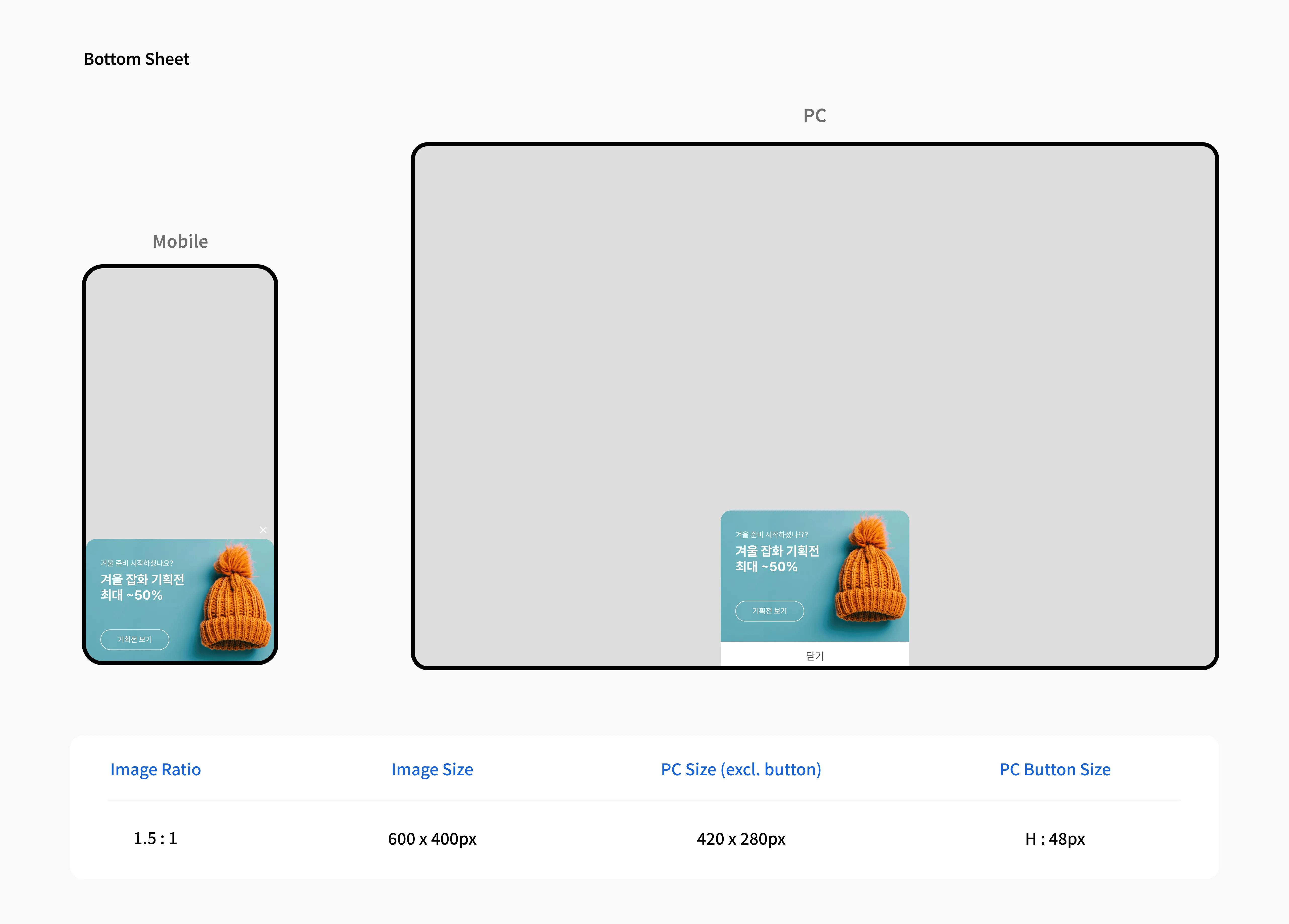
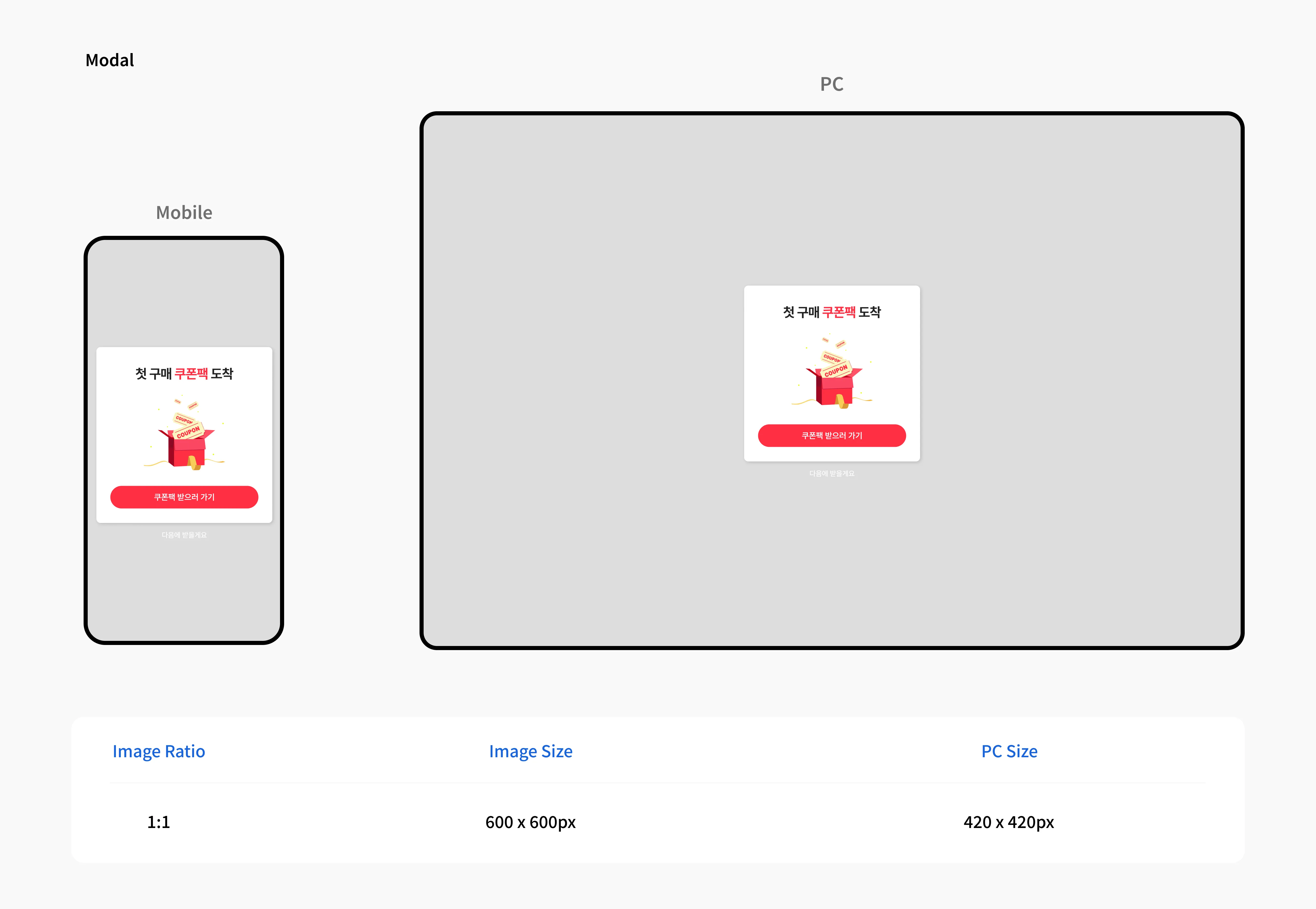
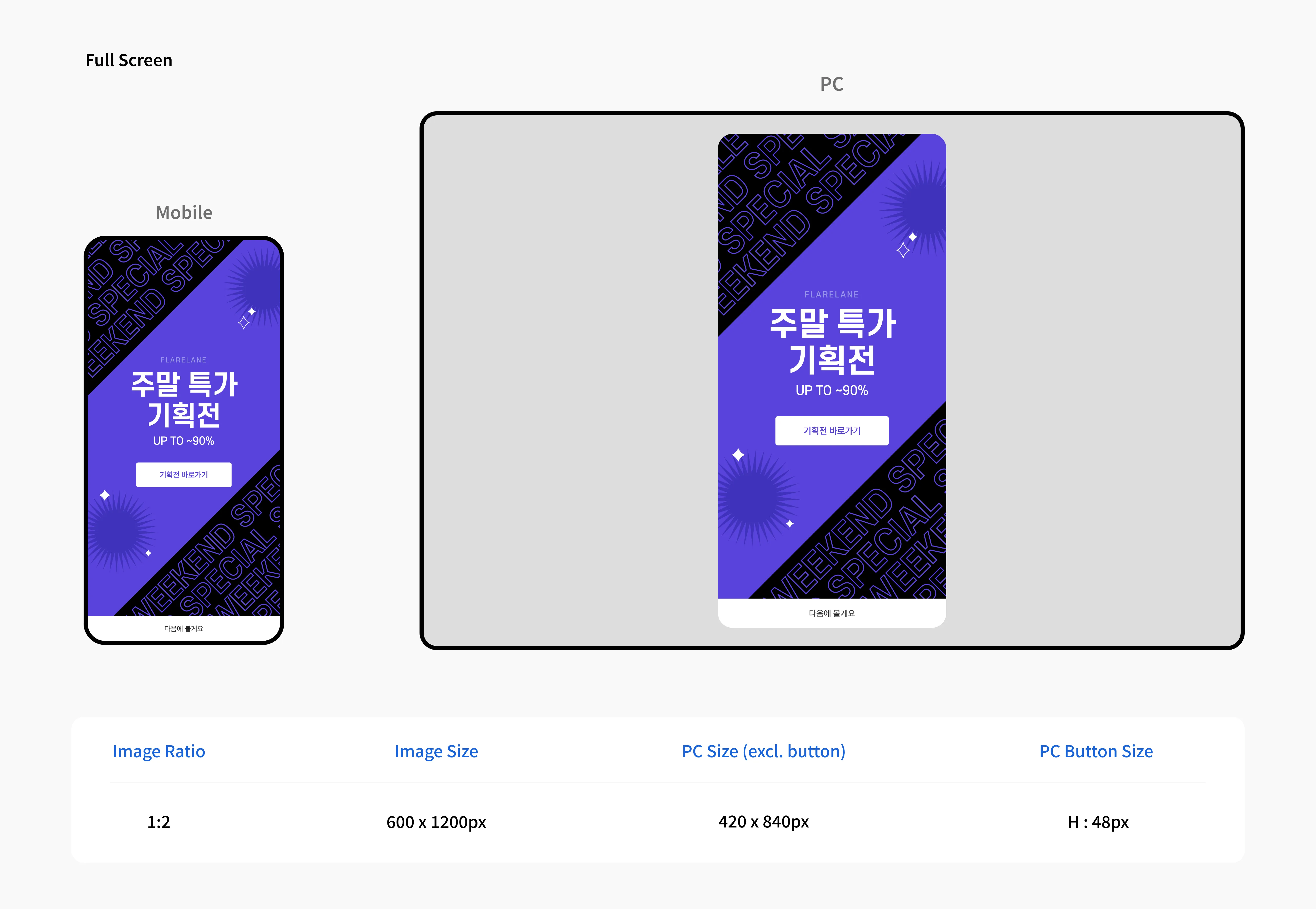
Full Screen
Section titled “Full Screen”