Email is a FlareLane message channel for sending one-time email campaigns or automating email through customer journeys, with built-in delivery, open, and conversion tracking.
Sending Email
Section titled “Sending Email”With FlareLane, you can send one-time emails or automate email delivery through customer journey automation.
One-Time Email
Section titled “One-Time Email”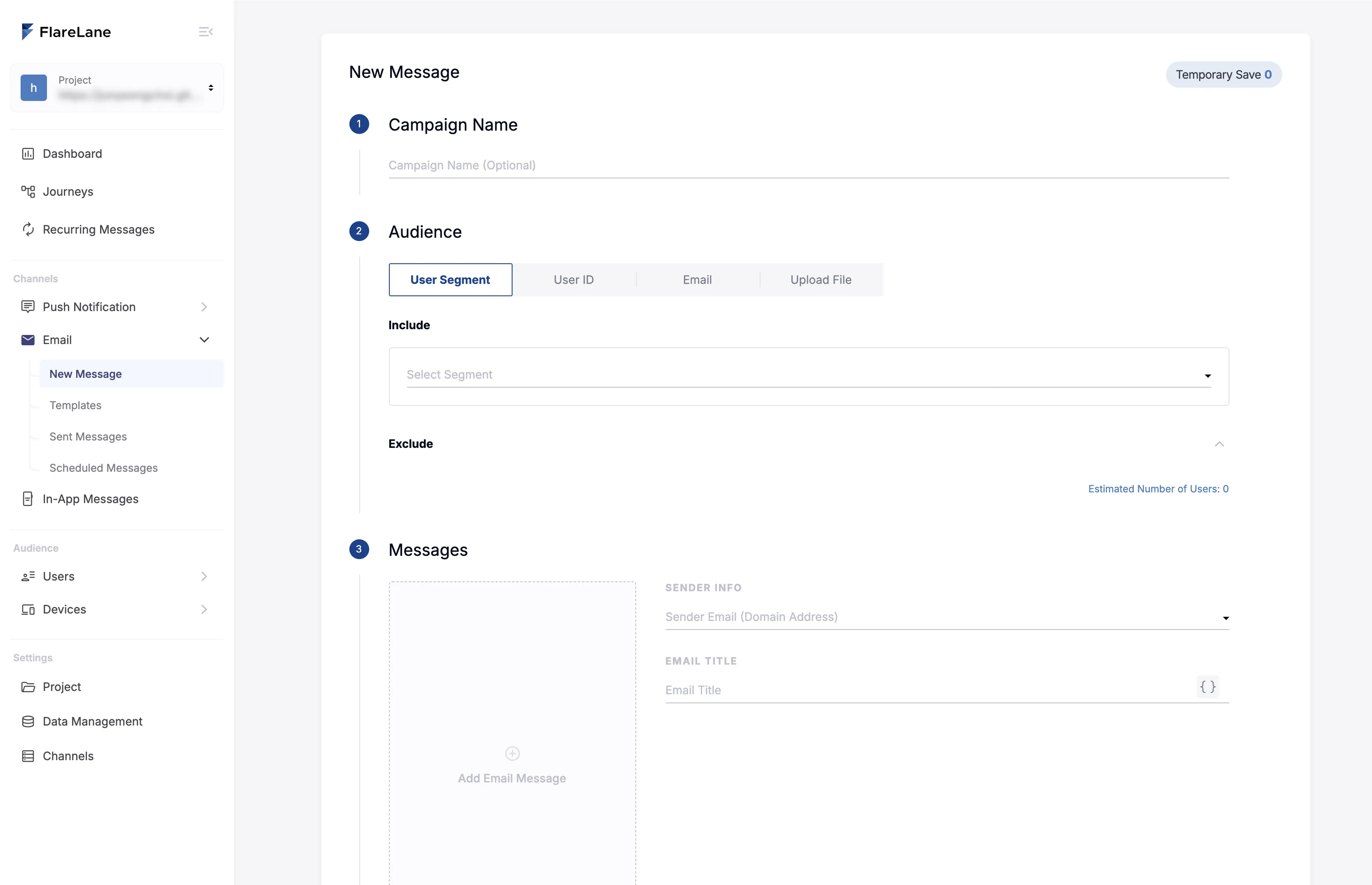
- Set the audience Define the recipients for your email. You can target a user segment or upload a file (xlsx, csv) as your recipient list.
- Compose the message Build the email content. First select an email template, then refine the specific content using the editor.
- Set the conversion event Set a goal event for the message you're sending, and enable conversion event setup and analysis based on users who completed that action.
- Set the delivery timing Send immediately or schedule delivery for a specific time.
File Upload Rules
Section titled “File Upload Rules”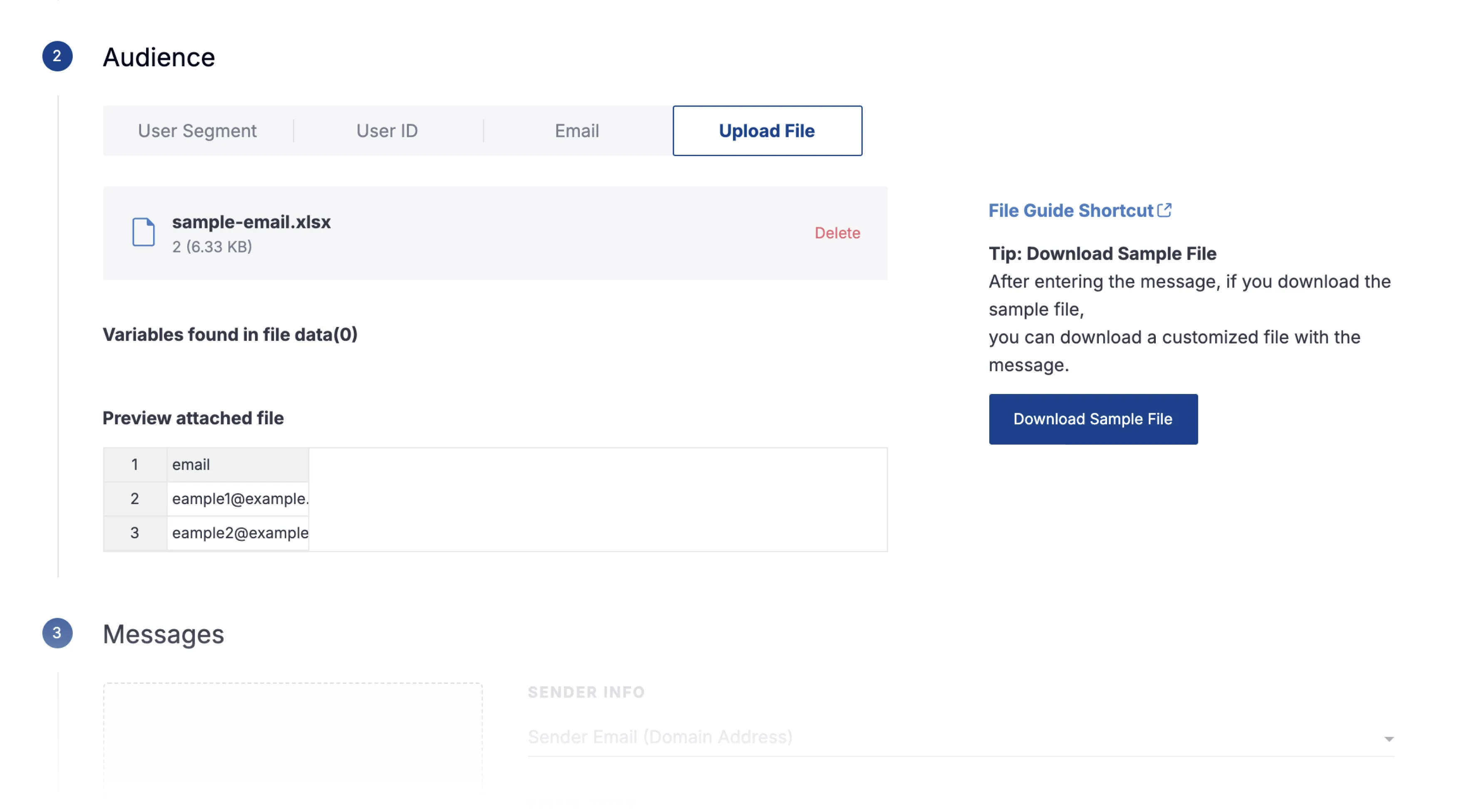
To send based on a file, it's important to structure your xlsx or csv file according to the rules.
FlareLane provides basic rule validation for smooth file-based delivery, and if your content contains personalized message (Liquid) variables, you can easily download a sample file based on them.
The key rules for structuring your file are as follows. You can also review error details in the console.
- The first row is the header, and an email column is required. The remaining columns are used as personalization variable names.
- For conversion measurement, events are measured based on the user ID of the user matching the email.
- The header must not contain empty cells or duplicates.
- There must be no duplicate emails.
- CSV files must be UTF-8 encoded.
Customer Journey Automation
Section titled “Customer Journey Automation”If you want to automate message delivery, use the customer journey automation feature. Data-driven automation is possible based on events or customer profiles. The customer journey automation feature will be available soon.
Composing Email Content
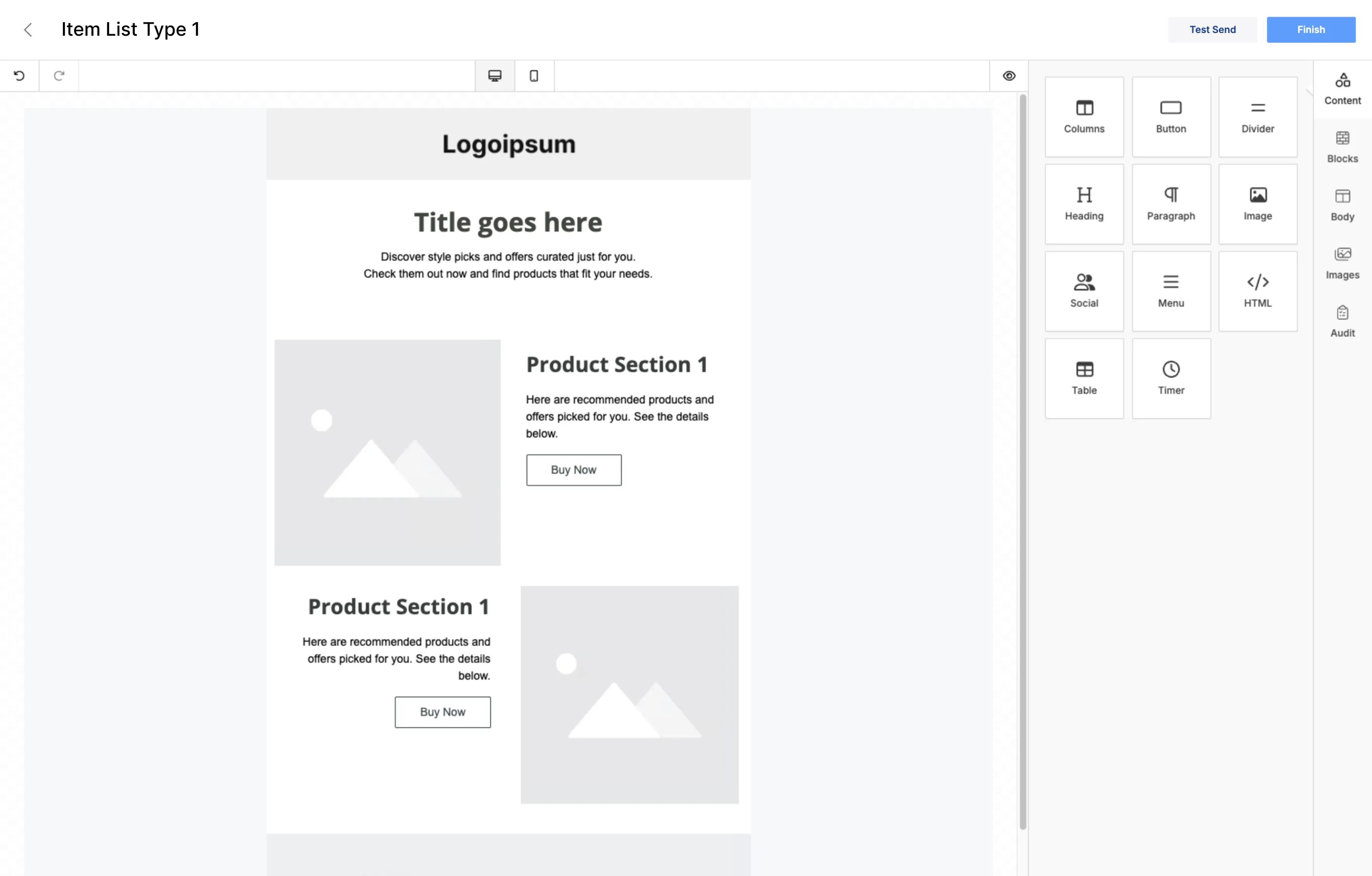
Section titled “Composing Email Content”For email content, first select a pre-built template, then edit the detailed email content using the built-in email editor.
Reviewing Email Performance
Section titled “Reviewing Email Performance”FlareLane provides statistical metrics that let you analyze the performance of sent messages and gain insights.
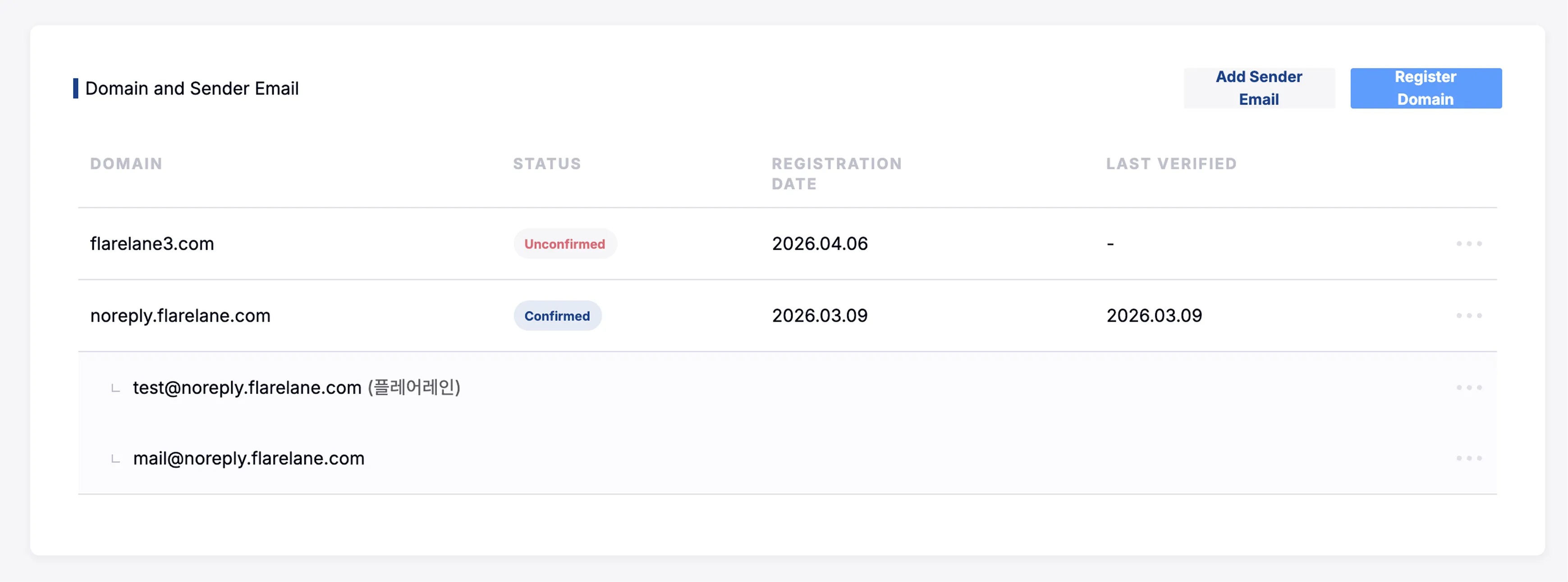
Adding a Sender Email
Section titled “Adding a Sender Email”To send email, you must add a sender email, which first requires registering a domain. You can create multiple sender emails within a registered domain.
Domain Registration
Section titled “Domain Registration”To register a domain, you must first have DNS configuration permissions for that domain.
After adding the domain, follow the DNS information instructions to set up the required CNAME, TXT, and MX records, then click the [Verify] button to check whether the DNS information was inserted correctly.
Email Unsubscribe Feature
Section titled “Email Unsubscribe Feature”Unsubscribe Process
Section titled “Unsubscribe Process”Promotional emails must provide a way to unsubscribe. FlareLane provides a link that makes it easy to set up unsubscribes. Users who want to unsubscribe can easily add their email to the unsubscribe list by clicking the unsubscribe link at the bottom of the email.
Unsubscribe Add/Remove Webhook
Section titled “Unsubscribe Add/Remove Webhook”When a new email is added to or removed from the unsubscribe list managed by FlareLane, you can receive this via webhook and store it on your own internal server to manage it together.
After your team builds an API to receive the webhook, register it on the Email channel settings page in the FlareLane console. The webhook is sent in the following format.
// HTTP Method: POST{requestId: string; // UUIDtype:"ReportEmailUnsubscribed";data: { projectId: string; // test-project-id userContact: string; // test@example.com subscribed: boolean; // true, false }}Unsubscribe Add/Remove API
Section titled “Unsubscribe Add/Remove API”If you want to directly add or remove your own unsubscribe emails to or from the FlareLane unsubscribe list, use the unsubscribe add/remove API.
Email Management Metrics
Section titled “Email Management Metrics”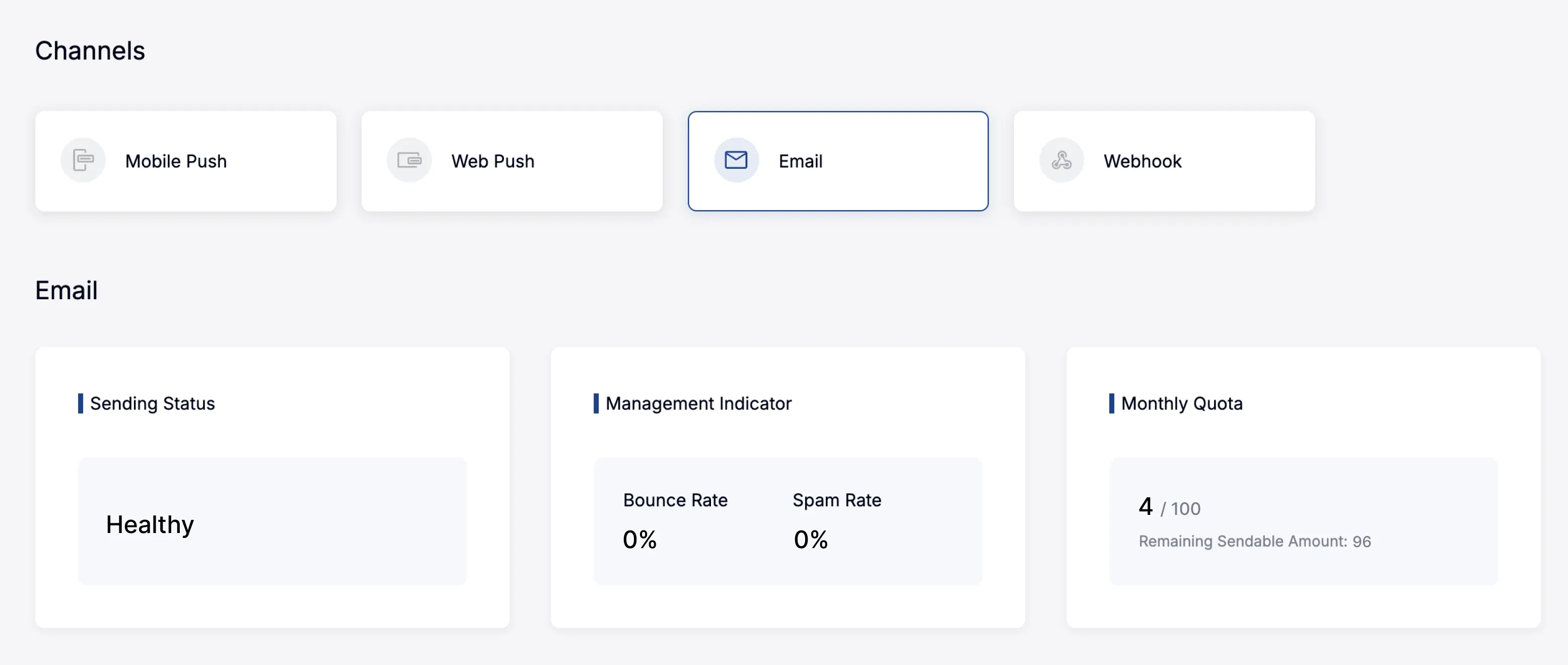
Spam management is critical for email. To support healthy email marketing, FlareLane has separate management metrics and blocking policies, and your team should review these metrics regularly to keep the email feature from being blocked.
- Sending status (Normal, Blocked)
- If the bounce rate, spam rate, or monthly sending limit exceeds even one threshold, sending is blocked.
- Bounce rate: Blocked if bounces account for 3% or more of emails sent within 7 days.
- Spam rate: Blocked if spam reports account for 0.1% or more of emails sent within 7 days.
- Once blocked, sending can be reinstated after you submit written documentation explaining the situation.
- If the bounce rate, spam rate, or monthly sending limit exceeds even one threshold, sending is blocked.
- Bounce and spam policy
- Bounce: If you repeatedly send to nonexistent email addresses, you'll receive bounce responses and those emails will be added to the unsubscribe list. Your team should manage the unsubscribe list carefully.
- Spam: If a user reports an email as spam, FlareLane may be notified, so your team should provide high-quality content to avoid being flagged as spam.
- If your monthly volume is 1,000 or fewer, the policy isn't applied automatically, but note that it can be enforced at any time if abuse is detected.