'/%3e%3c/svg%3e)

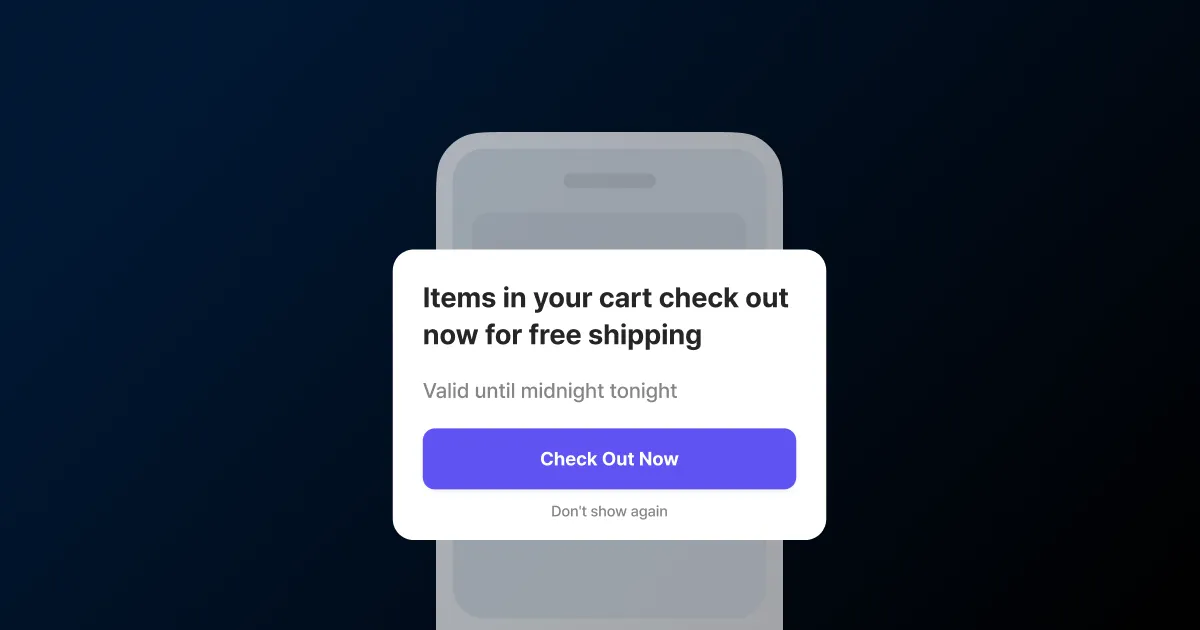
Push and SMS pull people back from outside your service. An in-app message does the opposite. It speaks to a user already in your app or site, right on the screen they’re looking at. They’re inside already, so they respond fast. But it lands on top of whatever they’re viewing. Fire it at the wrong moment, or show everyone the same thing, and it’s just an interruption.
Designing the display trigger
An in-app message starts with deciding which screen it shows on. FlareLane lets you set that timing yourself. This is the display trigger.
Name a trigger for each screen or action, like home entry, opening My Page, or a purchase-complete screen. Drop the displayInApp function there in one line, and the trigger finds an eligible message and shows it. Right after someone views a specific product, you can pass the product ID or category to narrow the condition further.
Then add a display period and an audience. Set a period and the message shows only within that window, in the device’s time zone. The audience narrows by a segment filter to users who meet your criteria.
Building it with no code
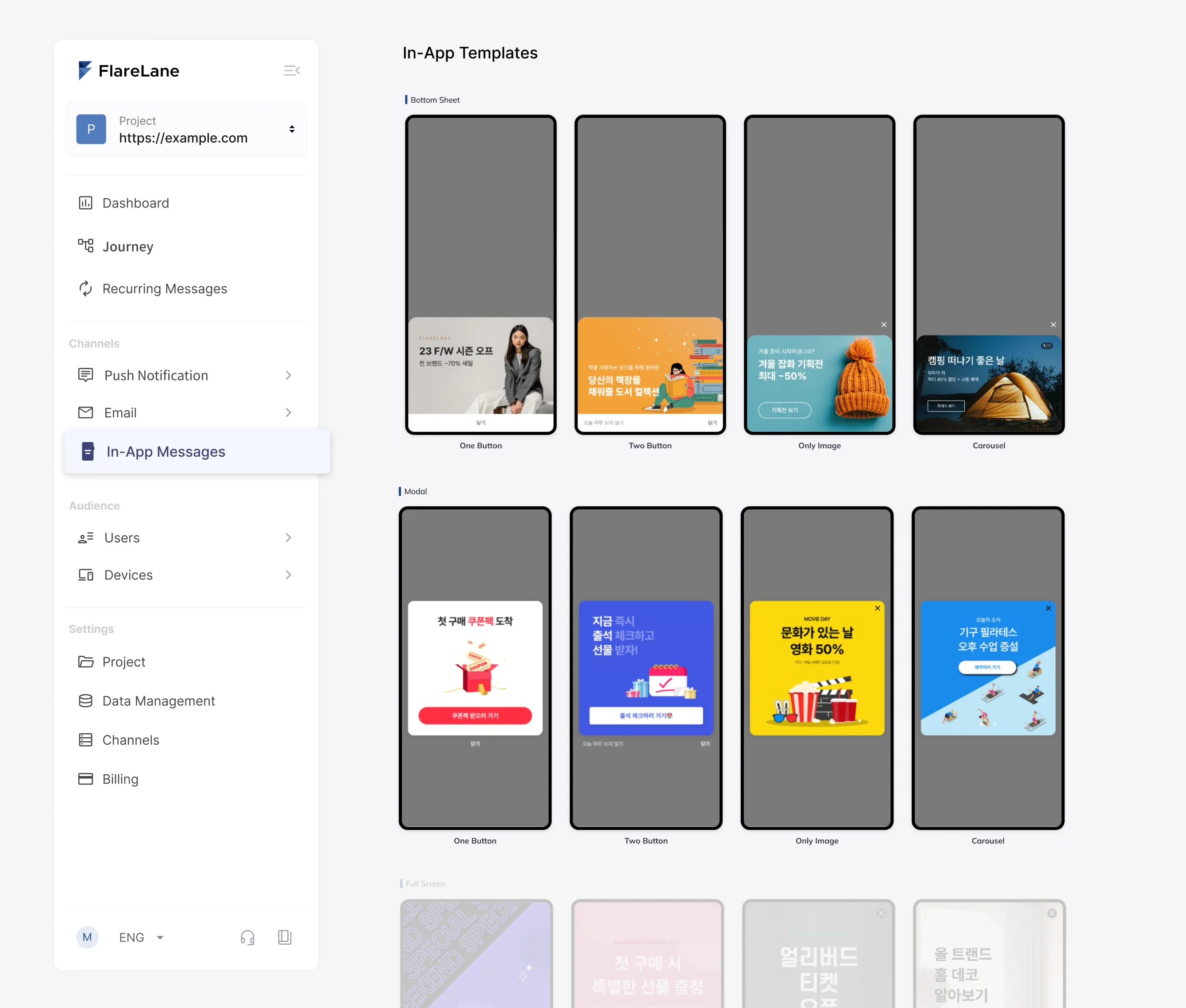
Once the trigger is set, you build the creative. Start from a prepared template. Bottom Sheet, Modal, and Full Screen take up different amounts of the screen, so pick one to match the weight of your message.
From there it’s all in the editor, no code. Open background, image, and button in turn; the button takes text, size, weight, color, and corner radius as values. Flip the preview between mobile and desktop to see exactly how it will land.
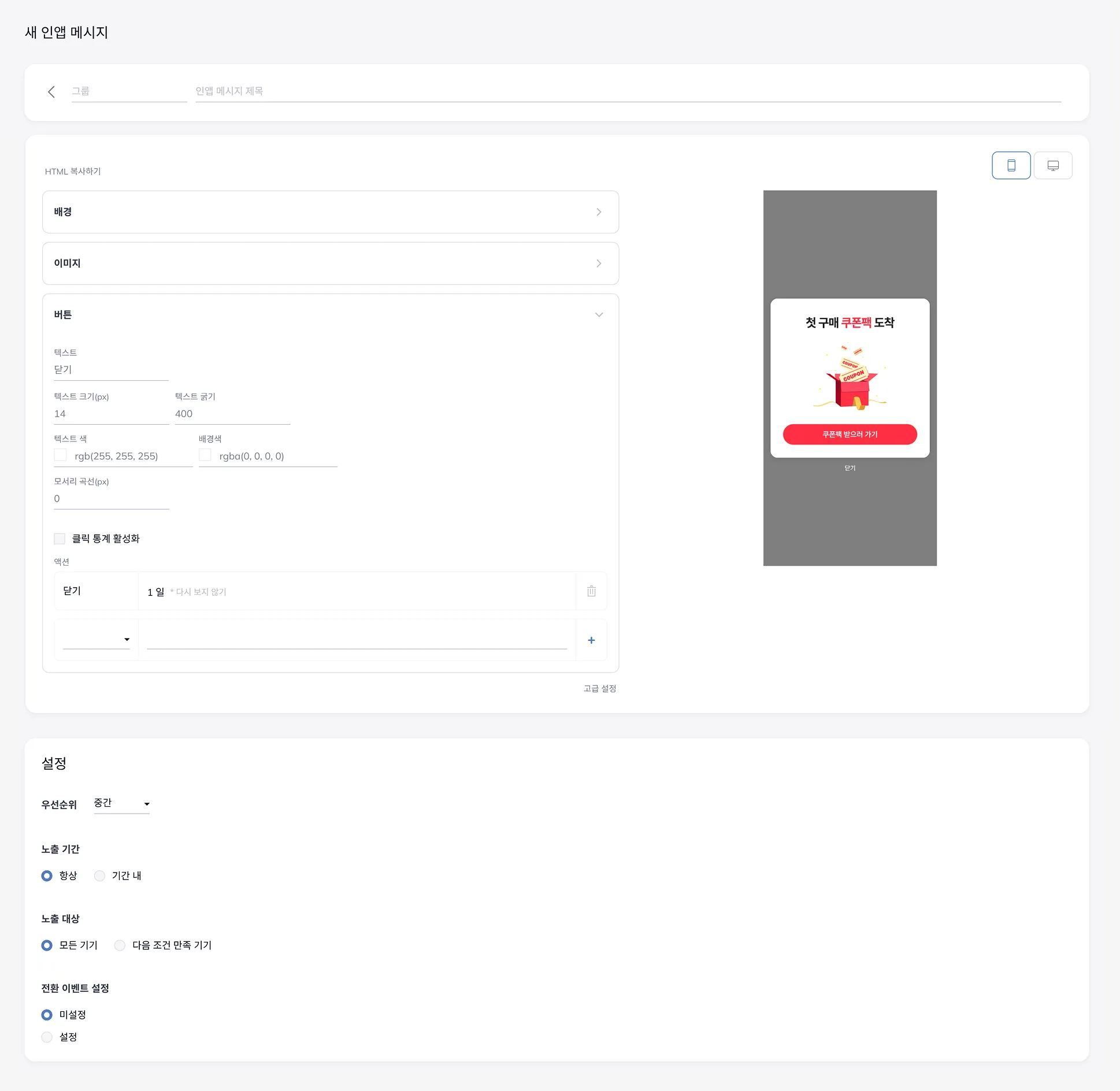
Buttons carry actions. A tap can open a page or app screen through a URL or deep link. A close button can set a do-not-show-again window in days. One action is worth a closer look: the push opt-in request. Push notification data shows opt-in rates run lower than you’d expect. Instead of firing the system dialog the second the app opens, asking through an in-app message in a context the user already gets makes consent far easier to earn.
Priority, display period, audience, and conversion event all live on the same screen. When the templates aren’t enough, write HTML directly and build the UI and behavior exactly as you want.
Measuring by device and by area
Once it’s live, you read the results. Impressions, clicks, and conversions are counted per device, and click rate is clicks over impressions.
The same message performs differently by platform, so you split it across Android app, iOS app, desktop web, and mobile web. If iOS app clicks well but mobile web lags, you rework the trigger or creative for that platform alone.
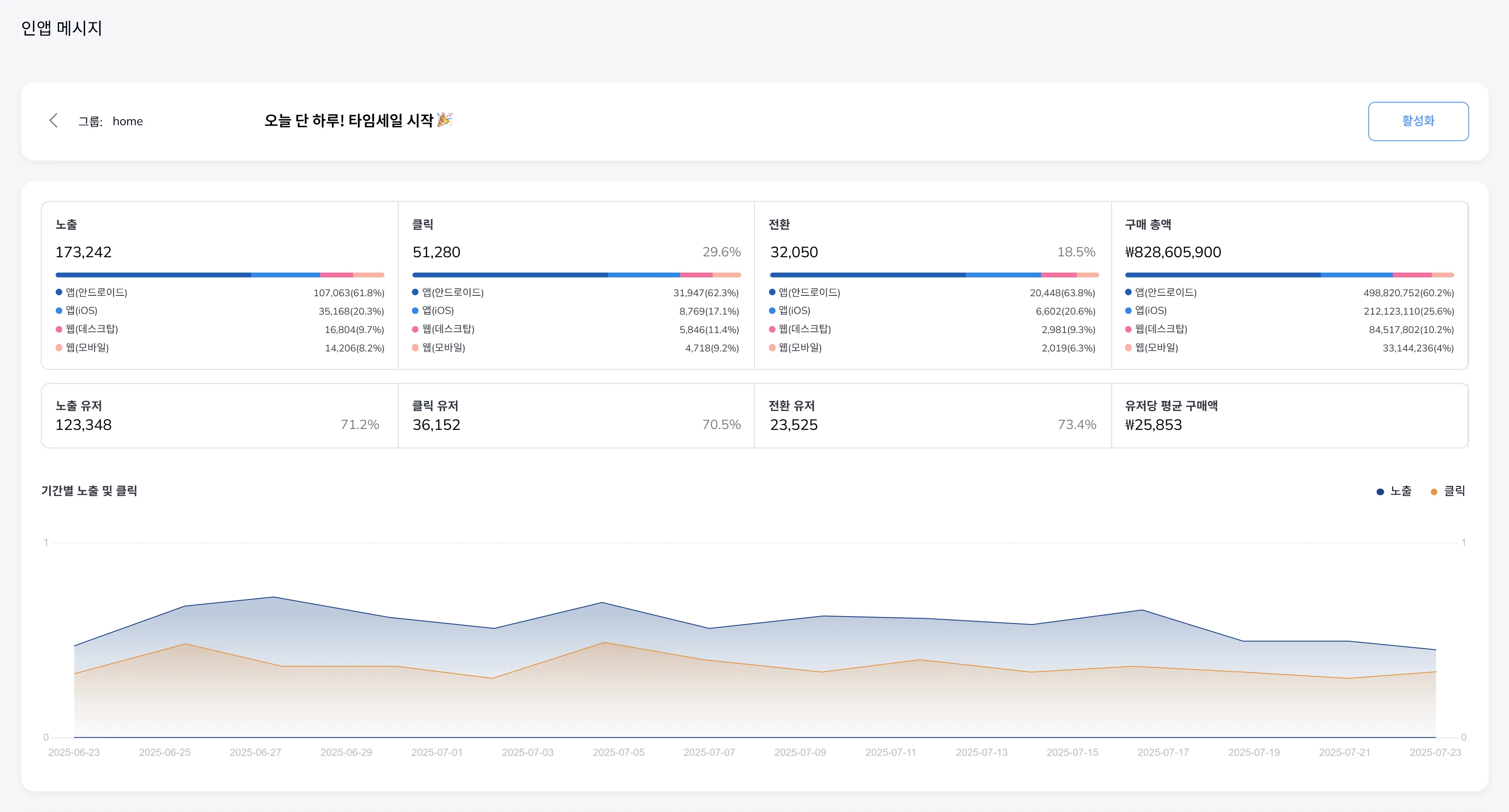
Add a conversion event and it goes past the click to the actual action. In-app messages measure conversion from the click; set a purchase event and attributed revenue and average spend per user are recorded too. Conversion counts once per user ID, so one user on several devices never double-counts.
Then go one level deeper. Turn on click stats and clicks are counted by area, image or button. Seeing whether the image or the button got tapped tells you what to grow and what to cut in the next creative. The user ID list for each metric downloads as CSV, ready for a segment or a follow-up campaign.
Targeting precisely with journey automation
To target more precisely, design the in-app message inside customer journey automation. Hold it in a scheduled state and show a personalized message at the user’s next entry after a specific action. When several messages share a trigger, priority decides which one shows.
It’s a channel that speaks to users already inside, so designed well it works close to conversion. If you want to map out which screen shows what, and what to measure, you can request it below.

'/%3e%3c/svg%3e)